Thursday, March 30, 2023

what cameras do streamers use?

When it comes to streaming, having a good quality camera is important as it helps streamers connect with their audience in a more personal way. Streamers often use webcams or dedicated cameras to capture their content. In this article, we will explore some of the cameras that streamers use.

Best Twitch Webcams:
Webcams are a popular choice for streamers as they are affordable, easy to set up, and can be attached to a computer or laptop. Here are some of the popular webcams used by streamers:

  1. Logitech C922 Pro Stream: The Logitech C922 is a popular choice for streamers as it offers 1080p HD video at 30fps or 720p at 60fps. It has a wide-angle lens and comes with a built-in tripod. The camera also has a background replacement feature, which allows streamers to replace their background with an image or video.

    logitech c922 pro stream

  2. Razer Kiyo: The Razer Kiyo is a unique webcam that features a built-in ring light that provides even lighting for the streamer. It offers 1080p video at 30fps or 720p at 60fps and has a wide-angle lens. The camera also has a privacy cover, which can be used to cover the lens when not in use.


  3. Logitech StreamCam: The Logitech StreamCam is a newer webcam that offers 1080p video at 60fps. It has a versatile mount that allows the camera to be positioned in either landscape or portrait mode. The camera also has a USB-C port, which allows for faster data transfer.

    Logitech for Creators StreamCam

Best Twitch Cameras:
Dedicated cameras are typically more expensive than webcams but offer better image quality and more flexibility. Here are some of the popular dedicated cameras used by streamers:

  1. Sony Alpha a6000: The Sony Alpha a6000 is a mirrorless camera that offers 1080p video at 60fps. It has a 24-megapixel sensor and a fast autofocus system, which makes it great for streaming. The camera also has built-in Wi-Fi, which allows streamers to transfer photos and videos wirelessly.

    Sony Alpha a6000

  2. Canon EOS M50: The Canon EOS M50 is a mirrorless camera that offers 4K video at 24fps or 1080p at 60fps. It has a 24-megapixel sensor and a fast autofocus system. The camera also has a vari-angle touchscreen, which makes it easy to adjust the camera angle while streaming.

    Canon EOS M50

  3. Panasonic Lumix GH5: The Panasonic Lumix GH5 is a high-end mirrorless camera that offers 4K video at 60fps. It has a 20-megapixel sensor and a fast autofocus system. The camera also has a weather-sealed body, which makes it great for outdoor streaming.

    Panasonic LUMIX GH5

Disclosure: We participate in the Amazon Services LLC Associates Program, which allows us to earn a commission through qualifying purchases made using our affiliate links on this post.

In conclusion, there are many cameras that streamers use, from affordable webcams to high-end dedicated cameras. The choice of camera ultimately depends on the streamer's budget and needs. Regardless of the camera chosen, having a good quality camera can help streamers create engaging content and connect with their audience in a more personal way.

Wednesday, March 29, 2023

How Streamers Keep Their Mic Arms Silent During Broadcasts

If you're a content creator who livestreams or uploads videos to platforms like Twitch or YouTube, you may have wondered how streamers move their microphone arms without creating any unwanted noise. As a sensitive piece of equipment, microphones can pick up the slightest touch, which can lead to distracting background noise in your recordings or streams. In this article, we'll explore some strategies that streamers use to move their mic arms without any unwanted sound and introduce some products that can help you achieve professional-sounding audio.

First, it's important to note that a compressor won't eliminate any noise from moving your microphone arm. It's designed to manage excessive volume and bring it back down a bit, but it won't get rid of any noise. Fortunately, there are a few things you can do to minimize unwanted sound when moving your mic arm.

One option is to use a noise gate, which cuts off the microphone when the noise level falls below a certain threshold. If the sound from moving the arm is relatively soft, a noise gate may be all you need to eliminate the noise. A noise gate is a cost-effective solution that can significantly improve your audio quality.

  • Noise Gate: A noise gate is an audio tool that cuts off the microphone when the noise level falls below a certain threshold. A noise gate is a cost-effective solution that can significantly improve your audio quality.


Another option is to use a USB foot pedal for a push-to-talk or push-to-mute function. This allows you to turn off the microphone entirely when you don't need it, which can help eliminate any background noise. A foot pedal is an affordable solution that streamers can use to create professional-sounding audio.

  • USB Foot Pedal: A USB foot pedal is an affordable solution that streamers can use for push-to-talk or push-to-mute functions to eliminate any background noise.
    USB Foot Pedal

Another product that can help reduce noise is a spider mount. This microphone mount holds the microphone in a "basket" that's mounted with elastic bands, decoupling the microphone from the arm. When you touch the arm, the movement won't transfer to the microphone, and you won't hear any unwanted noise. A spider mount is a great investment if you want to reduce background noise and create high-quality audio.

  • Spider Mount: A spider mount is a microphone mount that holds the microphone in a "basket" that's mounted with elastic bands, decoupling the microphone from the arm. A spider mount is a great investment if you want to reduce background noise and create high-quality audio.
    Spider Mount for mics


Finally, a high-quality arm can also help to reduce noise. Cheaper arms may generate more noise, especially if you touch the arm near the microphone. Investing in a quality arm, such as the Elgato LP arm, can help to eliminate noise and create a smoother experience. If you're serious about creating professional-quality content, investing in a quality arm is definitely worth considering.

  • Elgato LP Arm: The Elgato LP Arm is a high-quality microphone arm that can help to eliminate noise and create a smoother experience. Investing in a quality arm is definitely worth considering if you're serious about creating professional-quality content.
    Elgato LP Arm


Disclosure: This post contains affiliate links from Amazon, which means we may earn a small commission if you click through and make a purchase. This comes at no additional cost to you and helps support the operation of our blog. Thank you for your support!
Monday, March 20, 2023

Twitch Streamlines Business Operations, Cuts Over 400 Jobs

According to a statement made by Dan Clancy, the new CEO of Twitch, the company has made the difficult decision to downsize its workforce, resulting in over 400 employees being let go. As a company that values community-building, this decision was not taken lightly and was made after careful consideration.

twitch layoffs
Twitch's mission is to empower communities to create together, and the company takes its responsibility to provide its users with the necessary tools to build their communities and pursue their passions seriously. However, the current macroeconomic environment has impacted Twitch's business, with user and revenue growth falling short of expectations. In order to ensure the long-term sustainability of the business, the decision was made to reduce the size of the workforce.

Despite this, Twitch's leadership team remains committed to supporting and growing its community of streamers. While there are rumors circulating that affected employees have not yet been notified, the company has not released any official statement regarding this matter.

Friday, March 17, 2023

Troubleshooting Twitch TV Loading Issues: Common Causes and Fixes

Picture this: you’re all set to catch your favorite streamer’s latest playthrough, snacks ready, but Twitch just sits there spinning forever or showing a blank page. It’s one of those annoyingly common frustrations that hits gamers and viewers out of nowhere. The good news? In 2026, most Twitch loading issues have straightforward fixes that take just a few minutes. Whether you’re on desktop, mobile, or the app, we’ll walk you through the real reasons it happens and exactly how to get back to smooth streaming.

Why Isn’t Twitch Loading? The Top Causes and Fixes

Twitch remains the go-to platform for live gaming, esports, and creative content, but occasional hiccups still pop up. From flaky connections to sneaky browser settings, here are the most common culprits behind the endless loading screen — plus proven steps to resolve them fast.

1. Internet Connectivity Problems

This is still the number one reason streams refuse to load. Slow speeds, unstable Wi-Fi, or temporary network glitches can make even high-quality streams buffer endlessly or fail to start. Twitch recommends at least 3-6 Mbps for standard viewing and 10+ Mbps for smooth 1080p or higher.

Quick fixes to try right now:

  • Restart your modem and router — unplug them for 30 seconds, then plug back in.
  • Switch to a wired Ethernet connection if possible for more stability.
  • Move closer to your router or test your speed at speedtest.net.
  • Change your DNS settings to Google’s public DNS (8.8.8.8 and 8.8.4.4) — this often clears up stubborn connection issues.

If the problem only happens on Wi-Fi, try toggling airplane mode on your device or forgetting and rejoining the network.

2. Browser Issues and Cached Data

Outdated browsers, overloaded cache, or conflicting extensions are frequent troublemakers in 2026. Recent updates to Chrome, Edge, and others have introduced new compatibility quirks with Twitch’s video player.

Step-by-step solutions:

  • Clear your browser’s cache and cookies specifically for twitch.tv (or clear everything if needed).
  • Disable hardware acceleration in your browser settings — go to Settings > System in Chrome/Edge and toggle it off, then restart.
  • Try an incognito or private window to rule out extensions.
  • Update your browser to the latest version, or switch to Firefox if you’re having persistent issues.
  • Disable unnecessary extensions, especially ad blockers or privacy tools that interfere with site scripts.
Twitch not loading illustration

3. Twitch Server or Service Outages

Sometimes it’s not you — it’s Twitch. High traffic during big events or brief server hiccups can make the entire site or specific streams unresponsive.

How to check and wait it out:

  • Head to the official Twitch Status page for real-time system health.
  • Visit DownDetector to see if others are reporting the same problem.
  • Try loading a different stream or refreshing the page after a few minutes.

Common error codes like #2000 or #1000 often point back to temporary network or server-side glitches that resolve quickly.

4. Ad-Blocker and Extension Conflicts

Twitch has ramped up its anti-adblock measures in recent years, including server-side ad insertion that makes many blockers cause loading failures instead of just skipping ads. If you run uBlock Origin, AdGuard, or Brave’s built-in blocker, it can break the video player entirely.

Best approach in 2026:

  • Temporarily disable your ad blocker and whitelist twitch.tv.
  • For Firefox users, uBlock Origin with updated filter lists still works best — but test without it first.
  • Avoid aggressive script blockers that interfere with Twitch’s player scripts.

Once the stream loads, you can usually re-enable the blocker without issues.

5. Device, App, and Hardware Limitations

Older devices, low RAM, or outdated graphics drivers can struggle with modern high-bitrate streams. The Twitch desktop and mobile apps sometimes cache corrupted data too.

Targeted fixes:

  • Restart your computer or phone completely.
  • Update your graphics drivers (NVIDIA, AMD, or Intel) through their official apps.
  • For the Twitch mobile app: go to device settings > Apps > Twitch > Storage > Clear cache (and Clear data if needed — you’ll have to log in again).
  • Try the official Twitch desktop app instead of your browser for a more stable experience.
  • If nothing works, test on another device to isolate whether it’s hardware-related.

Bonus: Quick Wins That Often Solve Everything

  • Toggle your VPN or proxy off — they can help sometimes but often cause more problems.
  • Make sure your device’s date, time, and time zone are set correctly.
  • Boot into safe mode (on Windows) to rule out background software conflicts.

Still Not Working? Next Steps

If you’ve tried everything above and Twitch still won’t load, it’s time to reach out. Contact Twitch support through their help center, or check their official social channels for any widespread announcements. In most cases, though, one or two of these steps will have you watching live streams again in minutes.

Streaming should be fun, not frustrating. Bookmark this guide for the next time the loading spinner strikes — and happy viewing!

How do you get viewers fast on Twitch?

Fast Viewers

How to Get Viewers Fast on Twitch in 2026: 12 Proven Strategies That Actually Work for New Streamers

Picture this. You have got your game loaded, your mic is hot, and you are pumped to jump into a stream. But when you hit go live, the viewer count sits stubbornly at zero. If you are a new streamer in 2026, you are not imagining things. Twitch is busier than ever, with millions of channels fighting for attention every single day. The old just stream and they will come approach no longer works.

The good news? You do not need to go viral overnight or spend a fortune on ads. Real sustainable growth comes from smart consistent moves that meet viewers where they are right now on mobile, in short form clips, and through genuine community connections. These twelve strategies have been updated for todays Twitch landscape. They blend timeless fundamentals with fresh 2026 tactics that fast growing small streamers are using to turn empty chats into packed rooms.

1. Lock in a Consistent Streaming Schedule and Actually Stick to It

Viewers are creatures of habit. Pick two to four days a week, set the same start time, and treat it like a non negotiable appointment. Post your schedule in your channel panels, Discord, and socials so people know exactly when to show up. In 2026, Twitchs algorithm and mobile discovery feed reward reliability. Even if you start with just a handful of regulars, that consistency turns them into your core audience who bring friends along.

2. Build Your Discovery Bridge with Short Form Content

Here is the biggest shift since the old days. Most new viewers in 2026 find you off Twitch first. Every stream should produce three to five killer clips. Edit the best ones into vertical videos for TikTok, YouTube Shorts, and Instagram Reels. Add captions, punchy hooks in the first three seconds, and a clear call to action like Full stream live tonight at 8 PM link in bio. This clips first mindset turns your live content into a constant stream of new traffic. It is the fastest way small streamers are growing right now.

3. Choose the Right Category Not the Most Popular One

Streaming the latest blockbuster game might feel exciting, but you will get buried in a sea of bigger channels. Instead, scout categories with solid viewers but fewer live streamers. Think indie titles, retro games, niche challenge runs, or creative formats inside bigger games. Tools like TwitchTracker or SullyGnome make this easy. When you can realistically rank in the top twenty of a category, new eyes find you naturally.

4. Write Click Worthy Titles and Use Smart Tags

Your stream title is your billboard. Ditch generic phrases and use curiosity plus stakes plus context. Something like Trying to Beat This Boss Blind Chat Picks My Weapons beats Just Chatting every time. Pair it with a strong mix of tags: language, playstyle, mood, and specifics like First Playthrough or Cozy Vibes. Twitchs search has become far more intelligent, so keywords in titles, tags, and your About section help you show up when people are actually looking.

5. Network, Collaborate, and Raid Like a Pro

Growth rarely happens in isolation. Join communities of streamers your size, hop into each others chats, and build real relationships. When your stream ends, raid a similar sized creator in the same niche. Introduce them with a quick genuine shoutout so your viewers feel excited to follow along. Raids have replaced the old hosting system and remain one of the most powerful ways to share audiences and grow together.

6. Promote Across Social Media Without Spamming

Twitter now X, Instagram, TikTok, and your Discord are not just side hustles. They are your growth engine. Share clips, behind the scenes moments, and stream announcements with relevant hashtags. Engage with your followers instead of just posting and ghosting. Build a small but loyal following outside Twitch, and you will always have a place to invite people when you go live.

7. Engage Like Your Chat Is Already Packed

Even with zero viewers, narrate your thoughts out loud, react to the game, and ask questions as if people are listening. Once they arrive, greet everyone by name, thank lurkers, and use channel points, polls, and predictions to pull them in. In 2026, interactivity is everything. Make viewers feel seen and valued, and they will stick around far longer than on streams that feel like one way entertainment.

8. Offer Real Incentives and Build Community Rewards

Giveaways, subscriber perks, and custom channel point redemptions still work wonders. But go deeper. Create recurring community moments like Viewer Challenge Hour or milestone celebrations. Set up a Discord where the conversation never stops. The streamers who turn casual watchers into dedicated fans treat their audience like a real community, not just numbers.

9. Invest in Stream Quality That Matches Your Personality

Clear audio, decent lighting, and a stable connection are non negotiable in 2026. Viewers on mobile notice dropped frames and bad sound instantly. You do not need Hollywood production, but a good microphone, face cam that is well lit, and clean overlays make a massive difference. Focus on quality that supports your vibe instead of overwhelming it.

10. Dive Deep into Your Analytics Every Week

Twitchs built in dashboard shows you retention graphs, peak times, and which moments keep people watching. Pay attention to the first sixty seconds. That is your make or break window. Review what content gets the most return viewers and double down on it. Data driven tweaks separate streamers who plateau from those who steadily climb.

11. Create a Unique On Stream Persona That Feels Authentic

People do not just watch games. They watch you playing them. Lean into what makes you different. Maybe you are the calm strategist, the chaotic gremlin, or the cozy storyteller. Viewers can smell inauthenticity from a mile away. Stay true to yourself, have fun, and your personality will become the reason people keep coming back.

12. Treat Growth Like a Long Game But Stack Quick Wins

Building a real following still takes time and effort. The difference in 2026 is that smart systems, clips, raids, consistent format, and community loops create compounding results. Celebrate small milestones, learn from every stream, and keep showing up. The streamers who treat this like a marathon while executing like sprinters are the ones filling their chats week after week.

By putting these strategies into action, you will stop wondering how to get viewers fast on Twitch and start watching the numbers climb naturally. Remember, every big streamer you admire started exactly where you are right now. Stay consistent, stay real, and keep creating moments worth clipping. Your audience is out there waiting. Go give them a reason to hit that follow button.

See More: Ultimate Guide on how to get Twitch Viewers

20 Different Things a Twitch Streamer Can Ask Viewers to Create Engagement: A Comprehensive Guide

Imagine hopping into a Twitch stream where the chat is alive with energy, viewers are sharing stories, voting on what happens next, and genuinely feeling like they're part of the action. That's not luck. That's smart engagement at work. As a streamer, getting your audience to interact isn't just about filling the screen with messages. It builds real connections, boosts retention, and turns casual watchers into loyal fans who stick around for years.

viewer engagement definitions for twitch

In 2026, Twitch gives you more tools than ever to make this happen. Built-in polls, predictions, Channel Points, and interactive extensions mean you can create moments that feel personal and exciting. The best part? These strategies work whether you're just starting out or already growing fast. Here are 20 fresh, battle-tested things you can ask your viewers to spark real conversations, build community, and keep everyone coming back for more.

20 Proven Ways to Spark Engagement and Build Your Twitch Community

  1. Ask about their favorite games. This is one of the easiest ways to get the conversation flowing. Viewers love sharing what they're playing or hyped about right now. It gives you instant insights into trending titles and helps you plan future streams that actually match what your audience wants. Next time chat slows down, throw out a quick question and watch the responses roll in.
  2. Ask for feedback on your stream. Honest input from your viewers is pure gold for improvement. Ask what they love most about your setup, commentary style, or game choices. It shows you value their opinion and creates a sense of ownership in your channel's growth. Make it a regular mid-stream check-in and you'll see retention climb.
  3. Host a Q&A session. Give your community the mic. Open the floor for anything from gaming tips to life advice. In 2026, tie this into Channel Points so loyal viewers can redeem for priority questions. It humanizes you and helps everyone feel closer to the streamer they support.
  4. Run a poll. Twitch's built-in polls are engagement superstars. Let viewers vote on your next game, character build, or even stream theme. Predictions take it up a notch by letting chat wager Channel Points on outcomes. Quick polls every 15-20 minutes keep energy high and make passive viewers active participants.
  5. Play games with viewers. Nothing beats jumping into a multiplayer session together. Whether it's co-op adventures or competitive showdowns, invite a few lucky chatters to join. Use Twitch's raid feature or Discord to make it seamless. The shared laughs and memories turn one-time viewers into regulars.
  6. Host a tournament or competition. Create friendly rivalries with bracket-style events or speed challenges. Viewers can compete for bragging rights or small prizes. In today's Twitch, these events go viral fast when you encourage clip sharing. It's exciting, repeatable, and perfect for building hype around your channel.
  7. Ask for viewer challenges. Let your audience dream up fun tasks for you to tackle on stream. From silly dance breaks to in-game dares, their creativity keeps things unpredictable. Reward submissions with Channel Point redemptions to encourage more ideas. This flips the script and makes viewers feel like co-creators.
  8. Offer prizes or giveaways. Everyone loves free stuff. Run simple contests for gift subs, bits, or even merch. Tie entry to engagement actions like following or sharing a clip. The excitement alone spikes chat activity, and winners become your biggest advocates.
  9. Ask for viewer suggestions. Want fresh content ideas? Ask directly. Whether it's game recommendations or discussion topics, incorporating their input shows you're listening. Track popular suggestions in a pinned message or extension so everyone can see their ideas matter.
  10. Share personal stories or experiences. Open up about a funny fail, a big win, or a lesson from your streaming journey. Vulnerability builds trust and invites viewers to share their own tales. These moments create emotional bonds that go far beyond gameplay.
  11. Ask for opinions on current events. Keep it light and gaming-related, like reactions to new console drops or esports drama. Thoughtful debates get chat buzzing. Just set clear ground rules to keep things positive and fun for everyone.
  12. Share your thoughts on a new game or product. First impressions are electric. Play a fresh release and ask viewers what they think or what features they want to see. This creates anticipation and positions you as someone who stays ahead of trends.
  13. Ask for viewer challenges to complete in-game. Take fan ideas and turn them into live gameplay moments. Maybe it's beating a boss with a weird loadout or speedrunning a section. It adds replay value and makes your stream feel collaborative and unpredictable.
  14. Host a trivia game. Test everyone's knowledge on games, lore, or even your own stream history. Twitch extensions make running trivia effortless with leaderboards and point rewards. Winners get shoutouts or small prizes, and everyone learns something new.
  15. Play a "guess the game" challenge. Play a short clip or sound from a classic or obscure title and let chat guess. It's quick, repeatable, and perfect for short attention bursts. Use auto-generated clips or sound alerts to keep the pace lively.
  16. Host a drawing challenge. Invite viewers to submit artwork based on a theme. Display the best ones on stream and let chat vote using polls or Channel Points. Creative outlets like this foster community spirit and give talented fans a spotlight.
  17. Play "would you rather". These fun dilemmas spark hilarious debates and reveal a lot about your audience. From gaming hypotheticals to silly real-life scenarios, it's low-effort and high-engagement. Perfect filler for slower moments.
  18. Ask viewers to share their favorite Twitch clips. Build community by celebrating other creators. Have viewers drop links to their best moments or yours. Highlight the top ones and give credit. It spreads good vibes and encourages everyone to create more content.
  19. Play a game of "never have I ever". A lighthearted way to learn more about each other. Keep it PG and gaming-focused for the best results. Viewers love sharing (or not sharing) their stories, and you'll get some unforgettable laughs.
  20. Ask for recommendations on what to watch or play. Expand your own horizons while giving viewers a chance to shine. Whether it's hidden gem games or must-watch streams, their suggestions often lead to new discoveries and deeper conversations.

Turning Engagement Into Lasting Loyalty

The real magic happens when you make these ideas part of your regular routine. Start small, track what gets the biggest response using Twitch's stream summary tools, and double down on what works. In 2026, the streamers who win aren't just playing games. They're building experiences where viewers feel seen, heard, and valued. Mix in these tactics consistently, stay authentic, and watch your community grow into something truly special. Your next loyal fan is already in chat waiting to be invited into the conversation.

Can You Get Twitch Drops While Muted? Understanding Twitch Drops and How They Work

It is late at night. You are deep into a project or catching up on your own shows. Then you spot a juicy Twitch Drops campaign for your favorite game. The stream is running but the last thing you want is random gameplay audio blasting through your speakers. So you mute it. And you immediately wonder if you are still earning those rewards.

The short answer is yes. Muting the stream will not stop your Twitch Drops progress. But there are a few important details in 2026 that can quietly kill your progress if you are not careful. Let us walk through exactly how it all works so you can farm rewards the smart way without wasting time.

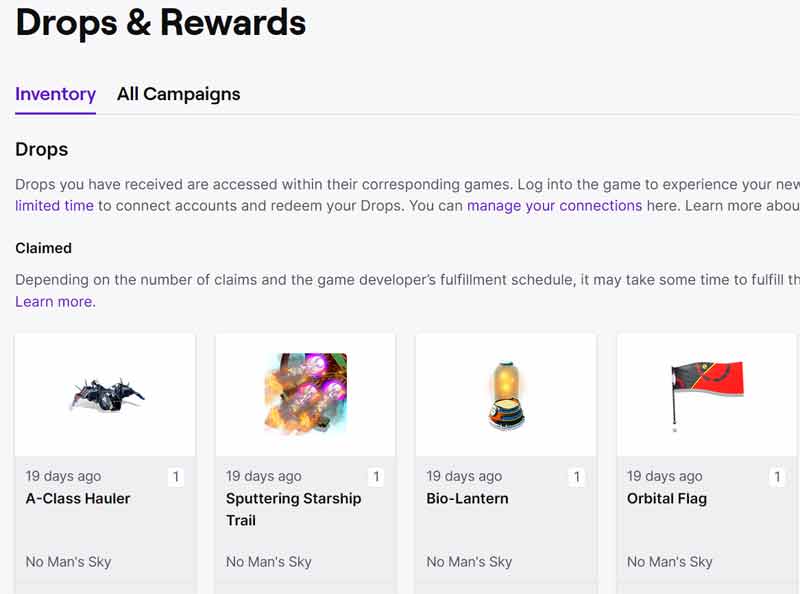
twitch drops and rewards

What Are Twitch Drops?

Twitch Drops are free in game rewards handed out by developers to reward loyal viewers. Skins, currency, battle pass boosts, exclusive cosmetics. You name it. They are a clever way for game studios to boost engagement. For players it is basically free loot just for watching streams.

As of 2026 Drops campaigns are running stronger than ever across hundreds of titles. The system is simpler than it used to be. But the rules around how progress is tracked have gotten stricter in some key areas.

How Twitch Drops Work in 2026

The process is straightforward once your accounts are linked.

  • Connect your Twitch account to your game account through the Drops and Rewards page.
  • Find streams in the game category that support drops.
  • Watch live. The system tracks your time or specific missions automatically.
  • Check progress in your Twitch profile under Drops and Rewards and claim when ready.
  • The reward lands in your linked game account usually within minutes.

Important rule. You can only earn progress toward one channel at a time. Watching multiple streams simultaneously does not speed things up. It often slows them down or stops progress entirely.

Can You Get Twitch Drops While Muted?

Yes you can absolutely earn drops with the stream muted. Muting has no effect on the account connection or watch time tracking. As long as the live video is actively playing your progress keeps ticking whether muted or not.

However here is where things get tricky in practice. Many viewers run streams in background tabs while they work or game. That is usually fine except when it is not. Modern browsers especially Chrome have become very aggressive about pausing or slowing video in inactive or muted tabs to save resources. When that happens your drops progress stops cold.

The fix is simple. Keep the tab active and visible if possible. Or open the stream in its own dedicated browser window. Some users prefer Firefox or Brave for more reliable background playback. Or they use lightweight extensions that prevent auto pausing.

Pro Tips to Farm Drops Without Frustration

Want to maximize your rewards without headaches? Follow these updated best practices.

  • Stick to one stream only. Open just a single drops supported channel. Running multiple tabs or browsers for different games or even the same game will not give you extra progress. And it can actually pause or break tracking on all of them.
  • Keep the stream truly active. Background tabs are convenient. But if the video pauses which happens more often with muted streams your drops stop accumulating. Make the tab your active window or split it into a separate browser window so it stays alive.
  • Mute smartly. Muting the stream itself is fine. But if your browser starts pausing the video when you switch tabs try muting the entire tab instead. This often keeps playback running smoothly.
  • Use the right setup for multitasking. Second monitor? Perfect. Keep the stream visible there. On a single screen? Shrink the window and keep it selected. Mobile app works great too for passive watching.
  • Check progress often. Refresh the drops page regularly. If progress is not moving switch to a new channel or restart your browser. Small hiccups happen more than you would think.

Real talk. Plenty of players still successfully farm full battle passes or rare cosmetics by leaving a single muted stream running while they work. Just avoid the multiple tab trap that many guides still recommend. It is outdated and can cost you rewards.

Final Thoughts: Mute Confidently and Claim Your Rewards

Twitch Drops are one of the best free perks on the platform. And you do not have to blast stream audio to take advantage of them. Mute away. Stay focused on what matters to you. And let the rewards roll in. Just make sure you are only watching one active stream and that the video is actually playing.

Next time a campaign pops up link your accounts. Pick one solid channel. Hit play. Mute if you want. And get back to your day. Your in game inventory will thank you.

Happy farming. And here is to legendary drops landing in your account with zero extra noise.