Friday, March 31, 2023

how to block words on twitch

Twitch is a popular platform for live streaming video games, creative content, and more. As a streamer, you have control over your channel's content and can moderate your chat to keep it civil and welcoming for your viewers. One way to do this is by blocking specific words or phrases that you don't want to see in your chat.

Here are the steps you can follow to block words on Twitch:

Step 1: Open your Twitch account and go to your dashboard.

Step 2: Click on "Settings" on the left-hand side of the screen.

Step 3: Select "Moderation" from the list of options.


Step 4: Scroll and then select the "Blocked terms and phrases" section.

Step 5: Click on the "Add a term" button.

Step 6: Type in the word or phrase that you want to block in the text box.

  • Using wildcards with asterisks (*) is a useful way to block variations of words or phrases. Here are some examples of how to use wildcard characters when blocking words on Twitch:
    • Example 1: Block any messages containing the word "spam" or any variation of the word:

      spam*

      • This will block messages containing words like "spamming", "spammy", and "spamalot".

    • Example 2: Block any messages containing a derogatory term followed by any number:

      *[0-9]*

      • This will block messages containing words like "idiot123" or "moron666".
    • Example 3: Block any messages containing a specific phrase with a wildcard before and after:

      *keep it clean*

      • This will block messages containing the exact phrase "keep it clean" regardless of any additional text before or after.

    These are just a few examples of how to use wildcard characters when blocking words on Twitch. It's important to use them carefully to ensure that you're blocking the intended words or phrases without accidentally blocking unrelated content.

Step 7: Click on the "Block term" button to add it to your blocked list.

Step 8: You can add as many words or phrases as you like by repeating steps 5-7.

Tip: The channel owner can mark a term as Private to prevent it from being viewable by Moderators

Congratulations! You have successfully blocked words on Twitch. Any messages containing the blocked words will be hidden from your chat. You can always go back and remove words from your blocked list if you change your mind later on.

It's important to note that while blocking words can help keep your chat clean and friendly, it's not a foolproof method for preventing toxic behavior. It's still important to have active moderation in your chat and to set clear rules and expectations for your viewers.

I hope this guide has been helpful in teaching you how to block words on Twitch. Good luck with your streaming!

Creating a Discord Bot to Notify When Your Twitch Channel Goes Live

Discord is a popular platform for gamers to communicate and connect with each other. If you are a Twitch streamer, you can use Discord to notify your followers whenever you go live. In this article, we will show you how to create a Discord bot that sends a message to your Discord server when your Twitch channel goes live. 

  1. Create a Discord bot: First, you'll need to create a Discord bot and get its token. Follow the official Discord guide to create a bot: https://discord.com/developers/docs/intro.
    Make sure to copy the token, as you'll need it later. 
  2. Install necessary libraries: You'll need to install the discord.py and twitchapi libraries. You can install them using the following commands:

    pip install discord.py
    pip install twitchapi

    Make sure you have some basic knowledge using python.

  3. Get your Twitch API credentials: To access your Twitch channel's information, you'll need to create a Twitch API application and get its credentials. Follow the official Twitch guide to create an application: https://dev.twitch.tv/docs/authentication/getting-tokens-oauth. Make sure to get your Client ID and Client Secret, as you'll need them later.
  4. Write the code: Here's an example code snippet that you can modify to suit your needs:


import os
from twitchapi import Twitch
from discord.ext import commands
from discord import Webhook, RequestsWebhookAdapter

# Set up the Twitch API client
twitch = Twitch(client_id='YOUR_TWITCH_CLIENT_ID', client_secret='YOUR_TWITCH_CLIENT_SECRET')
twitch.authenticate_app([])

# Set up the Discord client and webhook
discord_token = 'YOUR_DISCORD_BOT_TOKEN'
discord_channel_id = 'YOUR_DISCORD_CHANNEL_ID'
discord_webhook_url = 'YOUR_DISCORD_WEBHOOK_URL'
client = commands.Bot(command_prefix='!')

# Define a function to send a message to the Discord channel
async def send_discord_message(message):
    webhook = Webhook.from_url(discord_webhook_url, adapter=RequestsWebhookAdapter())
    await webhook.send(message)

# Define a function to check if your Twitch channel is live
async def check_twitch_live():
    user_login = 'YOUR_TWITCH_CHANNEL_NAME'
    user_data = twitch.get_users(logins=[user_login])
    user_id = user_data['data'][0]['id']
    stream_data = twitch.get_streams(user_id=user_id)
    if stream_data['data']:
        # Your Twitch channel is live, send a message to Discord
        message = f'Hey everyone, {user_login} is now live on Twitch! Check it out: https://twitch.tv/{user_login}'
        await send_discord_message(message)

# Define a command to manually check if your Twitch channel is live
@client.command()
async def checklive(ctx):
    await check_twitch_live()

# Set up the Discord client event to check if your Twitch channel is live on startup
@client.event
async def on_ready():
    print('Bot is ready')
    await check_twitch_live()

# Start the Discord bot
client.run(discord_token)


Make sure to replace the placeholders with your own Twitch client ID and secret, Discord bot token, Discord channel ID, Discord webhook URL, and Twitch channel name.

Run the bot: Save the code to a file with a .py extension, and run it using the command python filename.py. The bot will automatically check if your Twitch channel is live on startup, and will send a message to your Discord channel if it is. You can also manually check if your Twitch channel is live by typing !checklive in your Discord channel.


how to encourage viewers to tip on twitch

As a streamer on Twitch, you rely on the support of your viewers to keep creating content. One way to receive support is through tips, which can come in the form of subscriptions or bits. Here are some tips on how to encourage viewers to tip on Twitch:

tips banner

Create a Connection with Your Viewers

Viewers are more likely to support a streamer they feel connected to. Take the time to interact with your viewers, answer their questions, and show appreciation for their support. This can be done through chat or through other platforms such as Twitter or Discord. Here are some additional suggestions:

  • Host Q&A sessions: Host Q&A sessions during your streams where you answer viewers' questions about your personal life, interests, or even your streaming setup.
  • Play games with your viewers: Play multiplayer games with your viewers and have some fun with them. This is a great way to interact with them and build a community.
  • Use a chatbot: Use a chatbot to interact with viewers and answer frequently asked questions. This saves time and shows your viewers that you care about their questions.
  • Use social media: Use social media platforms such as Twitter and Instagram to connect with your viewers outside of your streams. Share behind-the-scenes moments or ask for their feedback on your content.
  • Offer personalized content: Offer personalized content such as shoutouts, special requests, or even personalized messages to viewers who support you through tips or subscriptions. This shows that you value their support and appreciate their contributions to your channel.

Offer Incentives

Consider offering incentives for viewers who tip. Here are a couple of suggestions:

  • Shoutouts on stream: You could give a special shoutout to viewers who tip during your stream. This could be as simple as saying their username and thanking them for their support, or you could take it a step further and give them a personalized message or call out something they did that impressed you.
  • Exclusive content: You could offer exclusive content to viewers who tip, such as behind-the-scenes footage, early access to new content, or exclusive merchandise. This creates a sense of exclusivity and makes viewers feel like they are part of a special community.
  • Personal thank you messages: You could send a personal thank you message to viewers who tip after your stream. This could be a simple message thanking them for their support or a more personalized message based on their interests or actions during the stream.
  • Twitch emotes or badges: You could create custom Twitch emotes or badges that are only available to viewers who tip. This gives them a sense of exclusivity and allows them to show off their support for your channel.
  • Multiplier rewards: You could offer multiplier rewards for viewers who tip a certain amount. For example, if a viewer tips $10, you could offer to play an extra hour of their favorite game, or if they tip $50, you could offer to play a game of their choice on stream.


Remember, the key to offering incentives is to make your viewers feel appreciated and valued for their support. Be creative and think about what your viewers would enjoy and find valuable.

Make it Easy to Tip

Make sure viewers know how to tip by having a clear call-to-action on your stream. This could include adding a tipping panel with links to your subscription and bit pages, or including a command in your chat that brings up information on how to tip.

Show Gratitude

Lastly, make sure to show gratitude for any tips you receive. Thank viewers on stream and consider sending personalized thank you messages or emails. This will encourage viewers to continue supporting you in the future.

By following these tips, you can encourage your viewers to support you through tips on Twitch.

how to tip on twitch

Twitch is a popular platform for watching and streaming live video game broadcasts and other creative content. Many viewers like to support their favorite streamers by tipping them, and Twitch provides several ways for viewers to do so.

While Twitch doesn't have a specific "donate" button, there are two main ways to show your support and appreciation for a streamer: subscribing and cheering with Bits.

Subscribing:

Twitch offers two types of subscriptions: Tier 1 and Tier 2. A Tier 1 subscription costs $4.99 per month, while a Tier 2 subscription costs $9.99 per month. Subscribing to a channel gives you several benefits, including access to custom emotes, ad-free viewing, and more.

To subscribe to a channel, simply navigate to the channel page and click the "Subscribe" button. You will be prompted to select your subscription tier and enter your payment information. You can also choose to pay with Twitch's virtual currency, called Bits, by clicking the "Get Bits" button on the subscription screen.

subscribe option for daopa

Cheering with Bits:

Bits are Twitch's virtual currency, which viewers can use to cheer for their favorite streamers. Bits can be purchased with real money and come in various denominations, ranging from 100 Bits for $1.40 to 25,000 Bits for $308.

To cheer with Bits, simply type "cheer" followed by the number of Bits you want to spend in the chat box. For example, if you want to cheer with 100 Bits, type "cheer100" in the chat. Your cheer message will appear in the chat with a special animation, and the streamer will receive the corresponding amount of revenue.

Twitch also offers special "cheermotes," which are custom emotes that can only be unlocked by cheering with a certain number of Bits. Some streamers also set up special alerts or notifications for high-value cheers, such as 1,000 or 5,000 Bits.

Cheer bits window

In conclusion, Twitch provides several ways for viewers to show their support and appreciation for their favorite streamers. Subscribing and cheering with Bits are two popular ways to tip on Twitch, and both provide various benefits for viewers. Whether you choose to subscribe or cheer with Bits, your support can help streamers continue to create entertaining and engaging content for their audiences.

where is the unfollow button on twitch?

Twitch is a popular live streaming platform with a vast community of creators and viewers. The platform allows users to follow their favorite streamers and receive notifications whenever they go live. However, there may be times when you want to unfollow a streamer for various reasons, such as changes in your interests or personal preferences. In this article, we will guide you on how to find the unfollow button on Twitch.

Step 1: Log in to Your Twitch Account
The first step to unfollow a streamer on Twitch is to log in to your Twitch account. You can do this by visiting the Twitch website and clicking on the "Log In" button at the top right corner of the screen. Enter your login credentials and click on "Log In" again.

Step 2: Go to the Channel of the Streamer You Want to Unfollow
Once you are logged in, navigate to the channel of the streamer you want to unfollow. You can do this by searching for the streamer in the search bar or by clicking on their name from your followed list.

Step 3: Locate the Unfollow Button
On the streamer's channel, locate the "Following" button located near the bottom right of the live stream player. If you are already following the streamer, this button should look like a heart icon. Here is what that button and location looks like on twitch.

Follow Button / Heart

Click on the "Heart" button.


When you click on that another pop up window will be asking to confirm that you want to unfollow the channel.

unfollow channel

Now just press Yes, unfollow.


Conclusion
Unfollowing a streamer on Twitch is a simple process that only requires a few clicks. By following the steps outlined in this article, you can quickly unfollow any streamer on Twitch and remove them from your followed list. Remember that unfollowing a streamer does not necessarily mean that you cannot watch their content anymore. You can still visit their channel and watch their streams without receiving notifications

where to find whispers on twitch?

Twitch is a popular streaming platform that allows users to stream their favorite games, watch other gamers play, and interact with other viewers in real-time. One of the features that Twitch offers is whispers, which are private messages that can be sent to other users on the platform. Whispers can be useful for sending private messages to other users, such as moderators, friends, or other streamers.

If you're new to Twitch, you might be wondering where to find whispers. Fortunately, Twitch makes it easy to access whispers, and they can be found in a few different places on the platform.

The first place to look for whispers on Twitch is in the chat window. When you're watching a stream or participating in a chat, you'll see a chat window on the right side of the screen. This will happen whenever someone send you a whisper.  It will be a small blinking window that you can then click on to expand.

whisper chat window


Another way to access whispers on Twitch is through the whisper icon on the top right of the webpage. Here is what that whisper icon looks like:

whisper chat icon on Twitch

Finally, you can also access whispers on Twitch through the mobile app. To access your whispers on the Twitch mobile app, tap on the chat icon at the bottom of the screen. This will open the chat window, where you can access your whispers by tapping on the whispers icon, which is located at the top of the screen. This will take you to your whisper inbox, where you can see any messages that have been sent to you.

In conclusion, whispers are a useful feature on Twitch that allows users to send private messages to other users on the platform. Whether you're a streamer, a moderator, or a viewer, knowing where to find whispers on Twitch is an important skill to have. By following the steps outlined above, you can easily access your whisper inbox and stay connected with other users on the platform.


where to see your moderators on twitch?

As a Twitch streamer, it's important to have a solid team of moderators to help manage your chat and ensure a positive experience for your viewers. But where can you find and manage your moderators on Twitch?

The first place to look is in your channel settings. From your Twitch dashboard, click on the "Community" tab, and then select "Roles Manager" from the left-hand menu. Here, you'll find a list of all the users who have been granted moderator status, editor, and even VIP in your channel.

Roles Manager on Twitch

If you need to add a new moderator, you can do so from this same page. Just click on the "Add New" button and enter the username of the user you want to add with the role of moderator. You can also remove moderators from this page by clicking the "-" next to their moderator role assignment.

Another way to manage your moderators is through the Twitch chat itself. Type "/mods" into your chat to see a list of all current moderators in your channel. You can also use this command to remove a moderator, by typing "/unmod username".

It's important to remember that moderation is a big responsibility, and you should only grant moderator status to users who you trust to act responsibly and fairly. Make sure your moderators are familiar with your channel's rules and guidelines, and that they understand the importance of maintaining a positive and welcoming chat environment.

In addition to managing your moderators, it's also a good idea to regularly review your channel's chat logs to identify any problematic behavior. Twitch provides tools to help you review and moderate your chat, including filtering and banning options.

Overall, having a strong team of moderators is essential for any Twitch streamer who wants to build a positive and welcoming community. By using the tools and resources available on Twitch, you can effectively manage your moderators and create a safe and enjoyable chat environment for all of your viewers.


best twitch copypasta

Twitch is a popular live streaming platform that attracts millions of viewers and broadcasters worldwide. Along with the unique content that Twitch streamers create, there is a fascinating culture of chat and emotes. One of the most popular forms of chat messages on Twitch is copypasta.

Copypasta refers to a block of text that is copied and pasted repeatedly in chat. These messages can be anything from memes to song lyrics, and they are often used to create inside jokes and references within the Twitch community. In this article, we will be exploring some of the best Twitch copypastas that have become legendary within the community.

Navy Seal Copypasta 

The Navy Seal copypasta is a classic Twitch copypasta that has been used for many years. It is a lengthy and absurdly exaggerated tale of a Navy Seal's capabilities, often used as a joke to exaggerate one's own abilities or to mock others. Here's the copypasta text:

  • What the fuck did you just fucking say about me, you little bitch? I’ll have you know I graduated top of my class in the Navy Seals, and I’ve been involved in numerous secret raids on Al-Quaeda, and I have over 300 confirmed kills. I am trained in gorilla warfare and I’m the top sniper in the entire US armed forces. You are nothing to me but just another target. I will wipe you the fuck out with precision the likes of which has never been seen before on this Earth, mark my fucking words. You think you can get away with saying that shit to me over the Internet? Think again, fucker. As we speak I am contacting my secret network of spies across the USA and your IP is being traced right now so you better prepare for the storm, maggot. The storm that wipes out the pathetic little thing you call your life. You’re fucking dead, kid. I can be anywhere, anytime, and I can kill you in over seven hundred ways, and that’s just with my bare hands. Not only am I extensively trained in unarmed combat, but I have access to the entire arsenal of the United States Marine Corps and I will use it to its full extent to wipe your miserable ass off the face of the continent, you little shit. If only you could have known what unholy retribution your little “clever” comment was about to bring down upon you, maybe you would have held your fucking tongue. But you couldn’t, you didn’t, and now you’re paying the price, you goddamn idiot. I will shit fury all over you and you will drown in it. You’re fucking dead, kiddo.


John Madden 

The John Madden copypasta is a hilarious and absurdly exaggerated tale of the famous NFL coach's abilities. The copypastais often pasted in Twitch chat during a streamer's gameplay or during an NFL-related conversation. It goes like this:

  • "John Madden is an American former football coach and sportscaster. He won a Super Bowl as head coach of the Oakland Raiders, and after retiring from coaching became a well-known color commentator for NFL telecasts. In his spare time, he made a name for himself as a video game pitchman, lending his name to a series of football games by EA Sports. He is also known for his thick, Midwestern accent, and his ability to diagram football plays using a telestrator."

While this copypasta may seem like a simple description of John Madden's life and career, it is often used in a comical and exaggerated manner, often leading to humorous and nonsensical responses in chat.

However, there are some copypastas that have gained widespread popularity and have become iconic in the Twitch community. Here are some of the best Twitch copypastas that you might come across:

"HeyGuys."


This copypasta is simply the word "HeyGuys" typed repeatedly in chat. It is often used to greet the streamer or as a general greeting between viewers in chat.

"Kappa."


Kappa is an emote on Twitch that is often used to denote sarcasm or irony. This copypasta is simply the word "Kappa" typed repeatedly in chat. It is often used in response to a message that is meant to be taken sarcastically or ironically.

"PogU."


PogU is a newer emote on Twitch that is often used to denote excitement or hype. This copypasta is simply the word "PogU" typed repeatedly in chat. It is often used in response to an exciting or hype moment during a stream.

"WeirdChamp."


WeirdChamp is an emote on Twitch that is often used to denote disapproval or awkwardness. This copypasta is simply the word "WeirdChamp" typed repeatedly in chat. It is often used in response to a message or action that is deemed strange or awkward.

"ResidentSleeper."


ResidentSleeper is an emote on Twitch that is often used to denote boredom or disinterest. This copypasta is simply the word "ResidentSleeper" typed repeatedly in chat. It is often used in response to a stream that is deemed boring or uninteresting.

These are just a few examples of the best Twitch copypastas out there. While some may seem silly or nonsensical, they have become a part of Twitch culture and are enjoyed by many viewers and streamers alike.


best twitch titles

Choosing the right title for your Twitch stream can be the difference between attracting a large audience and being lost in the sea of content. A good Twitch title should be catchy, informative, and concise. 

enter a title on twitch

 Here are some of the best Twitch titles that can help you stand out:

  • "Let's Play" - This is a classic Twitch title that works well for any game. It is simple, easy to remember, and lets viewers know that you are playing a game.
  • "Road to Pro" - If you are playing a competitive game, this title can be a great way to attract viewers who are interested in watching your journey to becoming a professional player.
  • "Viewer Games" - Inviting viewers to play games with you can be a fun way to engage with your audience. This title lets them know that they can join in on the fun.
  • "Chill Stream" - Sometimes, viewers just want to relax and watch someone play a game without any pressure. This title lets them know that your stream will be a laid-back experience.
  • "Speedrun" - If you are an experienced player who can beat a game quickly, this title can be a great way to attract viewers who are interested in watching speedruns.
  • "First Time Playing" - If you are playing a new game for the first time, this title can be a great way to attract viewers who are interested in watching your reactions and experiences with the game.

Remember to keep your titles honest and not misleading. While clickbait titles can attract viewers, they can also lead to disappointment and loss of trust. Use these title suggestions as a starting point and customize them to fit your personality and content.

How to Create Clickbait Twitch TV Titles

Are you struggling to come up with attention-grabbing titles for your Twitch TV streams? Clickbait titles are a great way to attract viewers and increase engagement. Here are some tips to create clickbait Twitch TV titles:

  • Use numbers and statistics - Adding numbers and statistics to your title can make it more appealing to viewers. For example, "5 reasons why you should watch my stream" tells viewers that they will be getting valuable information from your stream. This technique is often used in list-style content and can help you stand out from other streamers.
  • Use humor - Humor can be a great way to catch viewers' attention and make them want to watch your stream. A title like "You won't believe what I did in this game" creates a sense of intrigue and makes viewers curious to see what you did. However, be careful not to use humor in a way that could be offensive or alienate your audience.
  • Use bold statements - Using bold statements in your title can create a sense of excitement and make viewers feel like they are about to witness something amazing. For example, "The most epic stream of all time" sets high expectations for your stream and makes viewers feel like they are about to witness something truly extraordinary. Just make sure that your content lives up to the hype.
  • Ask questions - Asking a question in your title can create a sense of curiosity and encourage viewers to click on your stream. For example, "Can you survive this game?" makes viewers wonder if they could survive the game and might want to watch to see if you can. However, make sure that your question is relevant to your content and not misleading.

How to Use Special Characters in Your Twitch TV Channel That Show up as Icons

Adding special characters to your Twitch TV channel can help it stand out and give it a unique look. Here are some ways to use special characters:

  • Use emoji - Emoji are a great way to add personality to your Twitch TV channel. You can use them in your username, chat, and stream titles.
  • Use ASCII art - ASCII art is a creative way to use special characters to create images. You can use them in your stream title, profile picture, and overlays.
  • Use custom fonts - Some fonts include special characters that can be used to add flair to your Twitch TV channel. You can find free custom fonts online that include special characters.

best twitch commands

Ultimate Twitch Chat Commands List for Moderators & Streamers (2026 Updated Guide)

Twitch chat is the heart of every stream — it’s where your community laughs, asks questions, and connects in real time. But when chat gets chaotic, you need fast tools to keep things under control.

That’s where Twitch chat commands come in. These simple slash commands let moderators and streamers manage chat instantly without leaving the stream. In this fully updated 2026 guide, you’ll get the complete list of the most useful Twitch commands, with clear examples, who can use them, and pro tips that actually work today.

Twitch Chat Commands Input Box 2026

Type commands directly in the Twitch chat box (desktop recommended)

Why Twitch Chat Commands Still Matter in 2026

Even with the new Creator Dashboard and Mod View, typing a command is often 10x faster than clicking through menus. Commands work instantly, show up in chat history, and let you moderate without breaking your flow.

Pro tip: Most commands also work in the mobile Twitch app (though typing is easier on desktop or with a keyboard).

Quick Reference: Most Useful Twitch Commands

Here’s the full updated list organized by category. All commands start with a forward slash (/).

Moderation Commands (Essential for Every Mod)

/ban username [reason]

What it does: Permanently bans a user from your chat.

Example: /ban spammer123 posting malicious links

Who can use: Moderators + Broadcaster

Tip: Always add a reason — it appears in the ban log and helps other mods understand why.

/unban username

What it does: Removes a ban so the user can chat again.

Example: /unban oldfriend

Tip: Use this when someone was banned by mistake or has improved their behavior.

/timeout username [seconds] [reason]

What it does: Temporarily silences a user (default 600 seconds = 10 minutes).

Example: /timeout trolluser 300 spamming emotes

Who can use: Moderators + Broadcaster

Tip: Start with short timeouts (30–120 seconds) for first offenses. Use longer ones for repeat problems.

/untimeout username

What it does: Ends a timeout early so the user can chat again.

Example: /untimeout sorryuser

Tip: Great for when someone apologizes or the situation calms down.

/clear

What it does: Instantly clears the entire chat history for everyone.

Example: /clear

Tip: Use sparingly — only when chat is completely out of control (raids, spam waves, etc.).

Chat Mode Commands (Control the Vibe)

/emoteonly & /emoteonlyoff

What it does: Restricts chat to emotes only (great for hype moments or stopping text spam).

Example: /emoteonly then /emoteonlyoff when ready for normal chat.

/followers [minutes] & /followersoff

What it does: Only allows followers (and optionally only those who followed X minutes ago).

Example: /followers 30 (users must have followed for at least 30 minutes)

Tip: Excellent during raids or when you’re getting targeted by trolls.

/subscribers & /subscribersoff

What it does: Locks chat to subscribers only.

Tip: Perfect for subscriber-only streams, special events, or when you want to reward your paying supporters.

/slow [seconds] & /slowoff

What it does: Forces users to wait between messages (slow mode).

Example: /slow 30 (one message every 30 seconds)

Tip: Use 10–30 seconds during fast-moving chats. Turn off when things calm down.

/uniquechat & /uniquechatoff

What it does: Prevents users from posting the same message repeatedly (anti-spam mode, formerly /r9kbeta).

Tip: Extremely effective against copypasta spam and repetitive messages.

Engagement & Fun Commands

/me message

What it does: Posts your message in italic “action” format (like roleplay).

Example: /me high-fives the chat!

Who can use: Anyone (viewers too!)

Tip: Great for streamers to add personality without sounding like a normal message.

/color colorname

What it does: Changes your username color in chat.

Available colors (2026): Blue, Green, Orange, Purple, Red, HotPink, CadetBlue, Chocolate, Coral, DodgerBlue, Firebrick, GoldenRod, GreenYellow, Magenta, SpringGreen, YellowGreen

Example: /color HotPink

Tip: Viewers love customizing their color — encourage them to try it!

/raid channelname

What it does: Sends your entire live audience to another streamer’s channel.

Example: /raid smallstreamer

Tip: The best way to support other creators. Always ask permission first when possible.

/unraid

What it does: Cancels an active raid.

Tip: Use if you accidentally typed the wrong channel.

/shoutout channelname

What it does: Sends a big on-screen shoutout to another streamer (shows their latest VOD + link).

Example: /shoutout awesomegamer

Tip: Perfect for raid trains, collabs, or just supporting friends. Works even when you’re offline.

Broadcaster-Only Commands

/vip username & /unvip username

What it does: Gives or removes VIP status (special badge + bypass slow mode).

Tip: Great for rewarding loyal community members or regular chatters.

/mod username & /unmod username

What it does: Promotes or demotes someone to moderator status.

Tip: Only the broadcaster can use these. Be careful — mods have a lot of power.

/commercial [seconds]

What it does: Runs a Twitch ad (30, 60, 90, 120, or 180 seconds).

Example: /commercial 90

Tip: Schedule ads in advance using the dashboard for better revenue. Use this command only when needed.

/marker [optional description]

What it does: Creates a timestamp marker in your VOD for easy editing later.

Example: /marker epic clutch moment

Tip: Use this constantly while streaming — it saves hours of editing time later.

Viewer Commands (Anyone Can Use These)

  • /me – Action message (see above)
  • /color – Change your username color
  • /ignore username – Hide messages from a specific user
  • /unignore username – Stop ignoring someone
  • /block username – Block a user entirely (stronger than ignore)

Best Practices for Using Twitch Commands in 2026

  • Always explain why when timing out or banning — transparency builds trust with your community.
  • Use /marker every time something cool happens during your stream.
  • Combine commands — for example, turn on /followers + /slow during a raid wave.
  • Train your mods — share this list with them so everyone is on the same page.
  • Don’t overuse /clear — it frustrates regular viewers. Use /uniquechat or /slow first.

Frequently Asked Questions

Do these Twitch commands still work in 2026?

Yes — every command listed above is fully functional as of May 2026. Twitch occasionally adds new ones but rarely removes the classics.

Can I use these commands on mobile?

Yes, but typing is slower. The mobile app supports most commands. For heavy moderation, desktop or a second monitor is much better.

What happened to the old /host command?

Twitch removed hosting years ago. Use /raid and /shoutout instead — they’re more powerful and better for the community.

How do I become a moderator so I can use these commands?

Ask the streamer to type /mod yourusername in their chat. Only the broadcaster can promote moderators.

Are there more commands than these?

Yes, but these are the 20+ most useful ones for 95% of streamers and moderators. The rest are very niche.

Final Tips

Mastering these Twitch chat commands will make you a faster, more effective moderator or streamer. Start with the moderation commands (/ban, /timeout, /clear) and the chat mode commands — those will solve 90% of problems.

Bookmark this page and share it with your mod team. The more everyone knows these commands, the smoother your streams will run.

Got a favorite command I missed or a specific situation you’re struggling with? Drop it in the comments below — I read every single one and update this guide regularly.

Happy streaming and happy moderating! 🎮

best twitch names

Introduction

Your Twitch name is an important part of your brand as a streamer. It's the first thing that people will see when they visit your channel, and it can make a big impact on whether or not they decide to follow you. In this article, we'll explore some tips and strategies for choosing the best Twitch name, building a brand around it, and marketing your channel to social media.

twitch name signup
 Best Twitch Names

Choosing the best Twitch name can be a challenge, but there are several things to keep in mind when coming up with ideas:

  • Make it memorable and easy to spell: Your Twitch name should be easy to remember and spell, so that viewers can easily find you again and share your channel with others. Avoid using complex words or obscure references that are difficult for people to remember or spell.
  • Reflect your personality or interests: Your Twitch name should also reflect who you are and what you're interested in. For example, if you're a gamer who specializes in a particular game, you could incorporate the name of that game into your Twitch name. Or, if you have a particular hobby or interest outside of gaming, you could incorporate that into your name as well.
  • Avoid using numbers or special characters: While it may be tempting to add numbers or special characters to your Twitch name to make it more unique, this can actually make it harder for people to remember or find you. Stick to letters and avoid anything that might be confusing or hard to type.
  • Consider using alliteration or rhyming words: Alliteration and rhyming can help make your Twitch name more catchy and memorable. For example, "PixelatedPanda" or "GamerGirlGia" are both examples of alliterative Twitch names that are easy to remember and catchy.

Remember, your Twitch name is a reflection of your brand, so choose something that represents you and your content.

Building a Brand Around Your Twitch Name

Once you've chosen the best Twitch name, it's important to build a brand around it. This involves creating a consistent visual identity and messaging that reflects your personality and content. Here are some tips for building a strong brand on Twitch:

  • Create a logo or graphics that reflect your Twitch name and content: Visual branding is an important part of building a brand on Twitch. Consider creating a logo or other graphics that incorporate your Twitch name and reflect the type of content you create. Your graphics should be visually appealing and consistent with your overall brand messaging.
  • Use consistent colors and fonts across your social media profiles and channel: Consistency is key when it comes to branding. Use the same colors and fonts across your Twitch channel and social media profiles to create a cohesive visual identity for your brand. This will help your audience recognize your content and associate it with your brand.
  • Create a mission statement or tagline that summarizes your brand and content: A mission statement or tagline can help summarize your brand messaging and content in a concise and memorable way. This can help you differentiate yourself from other Twitch streamers and make your brand more memorable to viewers.
  • Engage with your audience and create a community around your brand: Building a brand on Twitch is about more than just creating content. It's also about building a community of engaged viewers who share your interests and values. Engage with your audience by responding to comments and messages, hosting Q&A sessions, and creating content that encourages discussion and interaction.

Building a strong brand can help you stand out on Twitch and attract a loyal following.

Marketing Your Brand to Social Media

Once you've built a strong brand on Twitch, it's important to market it to social media. This can help you reach a wider audience and attract new followers. Here are some tips for marketing your Twitch brand on social media:

  • Create social media profiles that reflect your Twitch brand and link to your channel
  • Use relevant hashtags to reach a wider audience
  • Engage with your followers and create content that is shareable and relevant to your brand
  • Collaborate with other Twitch streamers or social media influencers to cross-promote your brand

Marketing your brand on social media can take time and effort, but it can pay off by helping you grow your audience and reach new viewers.

Tips on Brand Marketing

Here are some additional tips on brand marketing for Twitch streamers:

  • Be authentic and true to yourself and your brand
  • Consistency is key - make sure your brand messaging and visuals are consistent across all platforms
  • Stay engaged with your audience and respond to comments and feedback
  • Experiment with different types of content and see what resonates with your audience
  • Stay up-to-date on the latest trends and changes on Twitch and social media

By following these tips, you can build a strong brand and attract a loyal following on Twitch.

best twitch ad blocker

Introduction

As Twitch continues to grow in popularity, so does the use of ad blockers to avoid advertisements on the platform. While using ad blockers may seem like an easy solution to skip ads and support the streaming experience, it raises ethical concerns about the financial impact on streamers and the Twitch platform.

The Most Ethical Twitch Ad Blocker

While many ad blockers exist, the most ethical option for Twitch is to not use one at all. By allowing ads to play, you support the streamers you watch and the platform that hosts them. Twitch ads provide a significant source of revenue for streamers, and by blocking them, you are essentially taking away their ability to earn a living.

However, if you must use an ad blocker, there are options that are more ethical than others. For example, some ad blockers allow you to whitelist specific channels, so ads will still play on those channels, while others block all ads on the platform.

Adblock frontpage

Best Twitch Ad Blockers

There are several ad blockers available for Twitch, but some of the most popular ones include:

  • AdBlock
  • AdGuard
  • uBlock Origin

These ad blockers are easy to install and use, and they can effectively block most of the ads that appear on Twitch. Some of them also offer additional features, such as the ability to whitelist certain channels or support for multiple devices.

Why You Should Use an Ad Blocker on Twitch

There are several reasons why you might want to use an ad blocker on Twitch:

  • To avoid annoying and repetitive ads
  • To save time and improve your viewing experience
  • To protect your privacy and security from malicious ads

By using an ad blocker, you can enjoy your favorite Twitch streams without having to deal with the interruption and frustration of ads.

How to Support Streamers with an Ad Blocker

While using an ad blocker can help you avoid ads, it can also have a negative impact on the streamers you watch. Ads provide a major source of revenue for streamers, and by blocking them, you are essentially taking away their ability to earn a living.

Fortunately, there are ways to support streamers even if you use an ad blocker. One way is to subscribe to their channel or donate directly to them. Another way is to whitelist their channel in your ad blocker, which allows ads to play on their channel while still blocking them on other channels.

By supporting streamers in these ways, you can enjoy your Twitch viewing experience without having to feel guilty about depriving streamers of their much-needed revenue.

Why You Shouldn't Use an Ad Blocker on Twitch

Using an ad blocker on Twitch not only takes away from the streamer's ability to earn revenue, but it also harms the platform as a whole. Twitch uses ad revenue to improve its infrastructure and provide better streaming experiences for its users. By blocking ads, you are hindering the growth of the platform and potentially limiting the resources available to improve the service.

Additionally, ad blockers can negatively impact the user experience by slowing down the site, causing errors, or blocking other content that isn't advertising. In some cases, using an ad blocker can even be against Twitch's terms of service, which could result in a suspension or ban from the platform.

Conclusion

While it may be tempting to use an ad blocker to avoid ads on Twitch, it is important to consider the impact it has on the platform and the streamers you watch. By allowing ads to play, you are supporting the community and ensuring the growth and sustainability of the platform. If you must use an ad blocker, make sure to choose the most ethical option and whitelist the channels you watch.

best twitch bots

Twitch bots are essential tools for streamers to manage their chat, automate certain tasks, and provide a better viewing experience for their audience. With so many Twitch bots available, it can be challenging to choose the right one. In this article, we'll take a look at some of the best Twitch bots and what they can do to help you improve your stream.

1. Nightbot

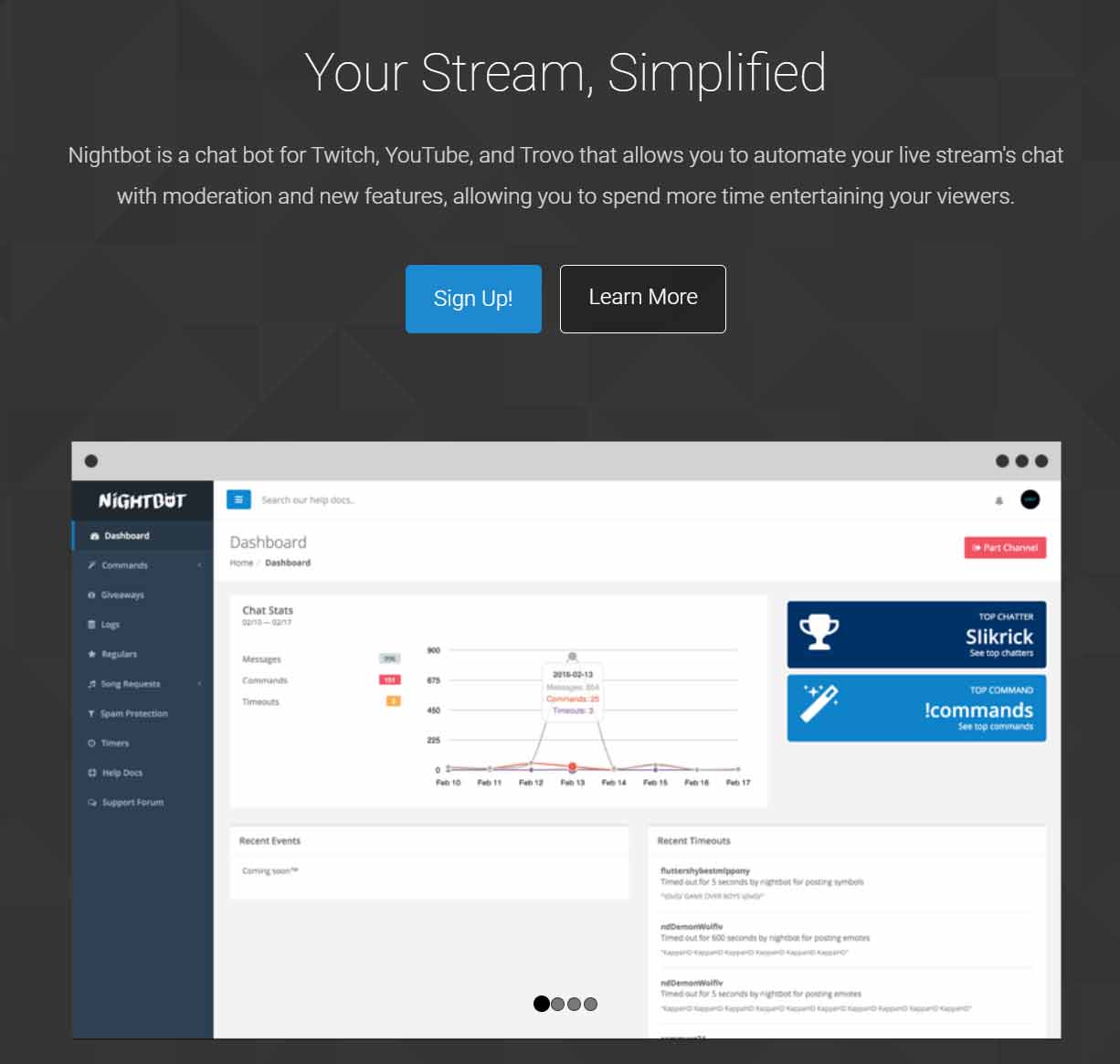
Nightbot is one of the most popular Twitch bots, and for a good reason. It offers a range of features, including custom commands, spam protection, song requests, giveaways, and more. Nightbot is easy to set up, and you can customize it to fit your stream's needs. It also has a web dashboard, which allows you to manage your bot settings from anywhere.


nightbot frontpage
 

2. Streamlabs Chatbot

Streamlabs Chatbot is another popular Twitch bot that offers a range of features. It integrates with Streamlabs OBS, making it easy to use if you're already using Streamlabs for your stream. Some of the features offered by Streamlabs Chatbot include custom commands, polls, song requests, and more. It also has a loyalty points system, which encourages viewers to stay engaged with your stream.

3. Moobot

Moobot is a simple Twitch bot that offers essential features such as spam protection, custom commands, and automated chat messages. Moobot is also easy to set up and use, making it a great option for streamers who are new to using bots. Moobot also offers integration with Streamlabs OBS and has a web dashboard that allows you to manage your bot settings from anywhere.

4. Wizebot

Wizebot is a more advanced Twitch bot that offers a wide range of features. It includes custom commands, song requests, giveaways, polls, and more. Wizebot also has a loyalty points system, which encourages viewers to stay engaged with your stream. Additionally, Wizebot offers integration with a range of other tools, such as Discord and Twitter.

5. Streamelements

Streamelements is another popular Twitch bot that offers a range of features. It includes custom commands, song requests, giveaways, polls, and more. Streamelements also has a loyalty points system, which encourages viewers to stay engaged with your stream. Additionally, it offers integration with a range of other tools, such as OBS and Discord. Streamelements also offers a web dashboard, which allows you to manage your bot settings from anywhere.

Conclusion

There are plenty of Twitch bots available, each with its unique set of features. The bots mentioned in this article are some of the best Twitch bots available, and each offers a range of features that can help you improve your stream. When choosing a bot, make sure to consider the features that are most important to you and your audience. With the right bot, you can create a more engaging and interactive stream for your viewers.

best time to stream on twitch

Unlocking Twitch Success: How to Find the Perfect Time to Stream

Picture this: You hit go live, pour your energy into an incredible stream, and watch the viewer count climb steadily as engaged fans chat and interact. Now imagine the alternative, streaming into the void with minimal eyes on your content. The difference often comes down to one crucial factor: timing.

Streaming on Twitch can be incredibly rewarding, but choosing the right time to go live can dramatically impact your growth, engagement, and even your long-term success on the platform. Whether you're a new creator building from scratch or an established streamer looking to level up, understanding when your audience is actually online makes all the difference. Let's break down proven strategies to help you nail your schedule.

Start With Your Audience and Their Time Zones

The foundation of any smart streaming schedule is knowing who you're streaming for. If your viewers are mostly in North America, for instance, evenings and weekends in their local time tend to work best when people are unwinding after work or school. A slot that feels like prime time on the West Coast might still catch East Coast folks before they call it a night.

Global audiences add another layer. What feels like late night in the US could be perfect early evening for European or Asian viewers. Always factor in time zones early so your content reaches the people most likely to show up, stick around, and become loyal fans.

Current Peak Viewing Hours on Twitch in 2026

Twitch still sees its highest overall viewership during late afternoon and evening hours, often between roughly 3 PM and 7 PM Pacific Time on weekdays, with weekends delivering even broader windows of activity. These periods attract massive audiences looking to relax and discover new content.

That said, high viewer numbers come with fierce competition. Thousands of other creators are live at the same time, making it tougher for smaller or growing channels to stand out. Recent data shows that many successful streamers actually grow faster during slightly off-peak slots or morning hours when the viewer-to-streamer ratio is more favorable. The goal isn't always chasing the absolute busiest time; it's finding the sweet spot where enough people are online but fewer creators are competing for their attention.

  • High-viewership windows typically hit late afternoon through evening
  • Weekends, especially Saturdays and Sundays, often deliver strong overall engagement
  • Your specific category or game can shift these patterns dramatically, so always check category-specific trends

Quick Time Zone Conversions for Common Peak Windows

To make planning easier, here’s how popular Pacific Time windows translate across major zones:

  • Eastern Time: Add 3 hours
  • Central Time: Add 2 hours
  • Mountain Time: Add 1 hour
  • UTC: Add 7 or 8 hours (depending on daylight saving time)

Use Twitch’s Built-In Analytics to Make Data-Driven Decisions

Twitch gives you powerful, personalized insights directly in your Creator Dashboard. Head to the Analytics section and check the Research panel, which includes the Time to Stream data. This tool breaks down the best days and times to go live based on average viewers, active channels, and your own historical performance.

You can analyze trends over the past 7 or 28 days and filter results by category, language, or region. It helps you spot when your target audience is most active, when competition tends to be lower, and how your channel performs at different times. Combined with your Stream Summary reports, these tools turn guesswork into a clear strategy.

best time to stream analytics

Experiment, Track Results, and Build Consistency

Even the best data benefits from real-world testing. Try streaming at different times and days over a few weeks, then review your analytics to see what actually worked for your channel. Look at concurrent viewers, chat activity, retention, and new follower growth.

Once you spot promising windows, commit to a consistent schedule. Viewers love knowing exactly when they can catch you live, and the algorithm rewards reliability. You can also time streams around big game releases, holidays, or community events, but remember that competition spikes during those moments too. Balance is everything.

Bonus Tip: Supplement With Third-Party Tools

For even deeper category-specific insights, many creators turn to trusted platforms like TwitchTracker and SullyGnome. These tools show live viewer counts, streamer activity, and viewer-to-channel ratios across games and content types, helping you discover hidden opportunities your own analytics might miss.

Finding Your Perfect Streaming Schedule

Determining the best time to stream on Twitch combines smart research, real data, and a bit of experimentation. Focus on your audience’s time zones, understand platform-wide trends, and lean on Twitch’s own Time to Stream analytics to guide your decisions. Add in consistent testing and third-party tools for the full picture.

The ideal schedule is unique to you, your content, and your community. Stay flexible, keep learning from the numbers, and above all, keep delivering the value that keeps viewers coming back. Get your timing right, and you’ll not only reach more people, you’ll build stronger, more loyal connections along the way.

Ready to grow? Open your Creator Dashboard, check those analytics, and start testing smarter times today. Your next big viewer spike could be just one well-timed stream away.

best twitch bitrate

Unlocking Crystal-Clear Twitch Streams: The Ultimate Guide to Bitrate in 2026

You're midway through an epic boss fight in your favorite game, chat is exploding with hype, and suddenly your stream turns into a blurry mess. Viewers start dropping off, and that sick play you just nailed? It looks like it happened underwater. The culprit? Your bitrate settings. Whether you're just starting out on Twitch or you've been streaming for years, getting your bitrate dialed in is the secret to delivering smooth, professional-looking content that keeps people watching.

obs bitrate setting

Bitrate is simply the amount of data your stream sends out every second, measured in kilobits per second (kbps). Think of it like the pipe carrying water to your viewers: a wider pipe (higher bitrate) means sharper details, richer colors, and fewer compression artifacts. Too narrow, and everything looks blocky or pixelated during fast action. But crank it too high, and you risk dropped frames, buffering for your audience, or even getting your stream cut off entirely.

What Makes the "Best" Bitrate for Your Twitch Stream?

The sweet spot depends on three big factors: your upload speed, your PC's horsepower, and the type of content you're creating. Fast-paced games like shooters or MOBAs need more bitrate to stay clear during chaotic moments. Slower games or talking-head streams can look fantastic with less.

Twitch's current official recommendations as of 2026 keep things straightforward and viewer-friendly:

  • 1080p at 60 FPS: 4500 to 6000 kbps. This is the gold standard for most streamers who want that crisp, modern look without overwhelming their connection.
  • 720p at 60 FPS: 3500 to 4500 kbps. Perfect if you want rock-solid stability and broader accessibility.
  • 720p at 30 FPS: 2500 to 3500 kbps. Great for lower-end setups or when your upload speed is more modest.

These numbers have evolved from earlier caps. Back in 2021 many pushed toward 8000 kbps, but today's guidelines focus on 6000 kbps as the reliable maximum for the best compatibility across all viewers. The platform's ingest servers have a hard limit around 8500 kbps (total, including audio), beyond which your stream can get rejected or heavily transcoded.

Twitch's Current Maximum Bitrate Rules

Here's the no-nonsense update: Twitch recommends a maximum of 6000 kbps for standard streamers to ensure smooth playback for everyone, including those on mobile or slower connections. Partners and higher-tier creators sometimes access slightly elevated limits (up to around 8500 kbps in practice), but even then it's not a free-for-all. Exceeding the hard ingest cap risks your broadcast getting dropped entirely.

Why the cap? It keeps the platform running efficiently and prevents viewers from needing massive bandwidth just to watch. The good news? 6000 kbps at 1080p60 still looks fantastic when paired with the right encoder and settings. If you're hitting buffering complaints, dropping 500-1000 kbps often solves it with almost no noticeable quality loss.

Beyond Bitrate: The Full Picture for Pro-Level Quality

Bitrate isn't the only player in the game. Your encoder choice, resolution, frame rate, and preset all work together like instruments in an orchestra.

For most creators in 2026, NVENC (on NVIDIA cards) or x264 (CPU-based) remain the go-to options. Newer AV1 encoders are gaining traction for supported hardware, delivering better quality at lower bitrates, but they're not universal yet. Stick with CBR (constant bitrate) mode, a 2-second keyframe interval, and the "high" or "max quality" preset for the best results.

Audio deserves love too: Twitch caps it at 160 kbps (AAC codec), with 128-160 kbps being ideal for clear voice and game sound without eating into your video budget.

Practical Tips to Nail Your Settings Every Time

Start simple. Run a speed test and aim to use no more than 75-80% of your upload speed. If your internet tops out at 10 Mbps upload, 6000-7500 kbps total (video plus audio) is plenty safe.

Then test, test, test. Fire up Twitch Inspector or OBS's built-in stats to monitor dropped frames and connection health. Stream privately first, watch the VOD yourself, and ask a few trusted friends for feedback. Fast-motion scenes are the real test; if your character blurs during quick turns, you probably need a slight bitrate bump or a resolution tweak.

Pro streamers also swear by downscaling strategically. Streaming at 936p or 900p instead of full 1080p can actually look sharper at the same bitrate because you're giving each pixel more data. And remember: stability beats perfection. A rock-solid 720p60 stream will retain more viewers than a glitchy 1080p one every single time.

Finally, keep an eye on emerging tech. Twitch has been expanding 1440p (2K) beta options with higher recommended bitrates (around 7500 kbps) for eligible creators using modern codecs. If you're in the program, it opens up even more headroom for ultra-sharp streams.

Ready to Level Up Your Stream?

Finding your perfect bitrate is part science, part art, and a whole lot of experimentation. Start with Twitch's 6000 kbps sweet spot for 1080p60, tweak based on your hardware and internet, and always prioritize a stable experience for your audience. When your stream looks sharp, stays smooth, and loads fast for everyone, you'll notice the difference in chat energy and follower growth almost immediately.

Now go fire up OBS, adjust that bitrate slider, and give your viewers the high-quality experience they deserve. Your next legendary stream is just a few settings away.

best twitch tags for new streamers

Cracking the Code on Twitch Tags: How New Streamers Can Get Discovered in 2026

Picture this. You just hit go live for the very first time. Your overlay looks sharp, the game is running smooth, and you are ready to chat with whoever shows up. But the minutes tick by and the viewer count stays stuck at zero. Sound familiar? For most new streamers, discoverability is the biggest early hurdle. The good news? There is a built-in tool sitting right in your stream settings that can quietly put your broadcast in front of the exact people who want to watch it. That tool is tags.

Twitch tags are short, searchable labels you add to your stream. Viewers use them to filter live channels, and the platform’s discovery system uses them to surface your content in searches and recommendations. You can now add up to ten tags per stream, and they work like keywords that tell both the algorithm and potential viewers exactly what kind of experience you are offering. The key is choosing the right ones and then checking what actually works.

Just Chatting: Build Real Connections With Your Audience

If your streams revolve around conversation, stories, or hanging out with chat, the Just Chatting space is perfect for you. It is still one of the most active and friendly categories on the platform. These tags help viewers looking for personality-driven content find you fast.

  • JustChatting
  • Chill
  • Cozy
  • AMA
  • TalkShow
  • QandA
  • Storytelling
  • CurrentEvents
  • Lifestyle
  • Advice

Pro tip: Pair a broad tag like JustChatting with something more specific such as Cozy or Chill. It narrows the audience to people who want relaxed vibes instead of high-energy chaos.

Gaming: Stand Out in a Crowded Category

Gaming remains Twitch’s biggest draw, but broad tags alone rarely cut it anymore. The platform’s 2026 search updates reward specificity. Tell viewers exactly what kind of gameplay they will see so you attract the right crowd instead of random drop-ins.

  • Gaming
  • FirstPlaythrough
  • Speedrunning
  • RetroGaming
  • Multiplayer
  • SinglePlayer
  • Strategy
  • FirstPersonShooter
  • ActionAdventure
  • Roleplaying

New streamers often see better results mixing one general gaming tag with a niche one like FirstPlaythrough or BeginnerFriendly. It signals authenticity and lowers the barrier for viewers who hate feeling lost.

New Streamer & Small Streamer Community: Grow With Your People

Being new is not a weakness; it is a community. Tags built around growth, beginners, and small creators help you connect with viewers who love supporting up-and-coming talent. These tags also put you in front of other new streamers who might raid, collab, or simply hang out.

  • BeginnerFriendly
  • SmallStreamer
  • NewStreamer
  • SmallStreamerCommunity
  • StreamSupport
  • GrowthMindset
  • PlayingWithViewers
  • RisingStreamer
  • StreamerNetwork
  • Chatty

Viewers searching these tags are often looking for approachable energy and genuine interaction. Use them honestly and you will build a loyal early audience that sticks around as you level up.

Creative & Artistic Streams: Find Your Niche Makers

Whether you draw, paint, build, craft, or make music, the creative side of Twitch is thriving. These tags connect you with people who appreciate the process as much as the final product.

  • Creative
  • ArtistsOnTwitch
  • ArtStream
  • DIY
  • MusicMakers
  • CreativeCommunity
  • CraftyStreams
  • Artisan
  • DigitalArt
  • LiveDrawing

Creative tags tend to have lower competition than pure gaming ones, so you can gain traction faster. Many viewers treat these streams like a relaxing virtual studio visit.

Music: Perform, Share, and Connect Through Sound

Musicians, producers, and singers have a dedicated audience waiting on Twitch. These tags help fans of live performances and behind-the-scenes creation find your channel.

  • Music
  • LiveMusic
  • MusicProduction
  • SingerSongwriter
  • MusicCommunity
  • Acoustic
  • ElectronicMusic
  • OriginalMusic
  • JamSession
  • MusicianLife

Remember to switch tags when you change activities. A music tag during a guitar set will pull in totally different eyes than a gaming tag during your next play session.

How to Check Which Tags Are Actually Working for You

Twitch gives you a powerful way to see real results. Head to your Creator Dashboard, click Analytics, then open the Discovery tab. Scroll down to the Tags section. You will see every tag you used along with two key numbers: impressions (how many times viewers saw your stream because of that tag) and views (how many actually clicked in).

Study this data every week. Drop tags that get impressions but zero clicks. Double down on the ones driving both. Small tweaks here can dramatically change how many people discover you.

Quick Tips to Get the Most From Your Tags

  • Always use relevant tags. Misleading ones hurt your reputation and the algorithm notices.
  • Keep them specific. A tag like “BeginnerFriendly” beats a generic “Gaming” every time for new creators.
  • Experiment. Try three new combinations each month and track the results in Discovery analytics.
  • Tags have no spaces. Use camelCase or combined words like PlayingWithViewers or FirstPlaythrough.
  • Update them before every stream. Your content changes, so your tags should too.

Tags will not turn a boring stream into a viral hit overnight, but they will put your authentic self in front of the right people who are actively searching for exactly what you offer. Start simple, stay consistent, and watch the impressions turn into loyal viewers.

Happy streaming. You have got this.

best twitch extensions

Best Twitch Extensions - Full List of Top Extensions

Twitch extensions are tools that help streamers to engage with their audience, monetize their content, and make their streams more interactive. These extensions are created by third-party developers and are integrated into the Twitch platform, allowing streamers to add new features and functionalities to their streams.

1. Streamlabs

Streamlabs is a popular Twitch extension that helps streamers to customize their streams with alerts, overlays, and other graphics. It allows streamers to engage with their audience by adding interactive elements like polls and chatbots. Streamlabs also provides tools for monetization, such as donations and sponsorships.

Live streaming software

2. Nightbot

Nightbot is a chatbot that helps streamers to moderate their chat and engage with their audience. It allows streamers to create custom commands, timers, and spam filters. Nightbot also provides tools for monetization, such as donations and sponsorships.

3. BetterTTV

BetterTTV is a Twitch extension that enhances the Twitch chat experience by adding new features like custom emotes, chat badges, and chat colors. It also provides tools for moderation, such as blacklist and whitelist filters.

4. FFZ

FFZ (FrankerFaceZ) is another Twitch extension that enhances the Twitch chat experience by adding new features like custom emotes, chat badges, and chat colors. It also provides tools for moderation, such as blacklist and whitelist filters.

5. Streamelements

Streamelements is a Twitch extension that helps streamers to customize their streams with overlays, alerts, and other graphics. It allows streamers to engage with their audience by adding interactive elements like polls and chatbots. Streamelements also provides tools for monetization, such as donations and sponsorships.

6. Streamlabs Leaderboard

Streamlabs Leaderboard is a Twitch extension that allows streamers to create leaderboards for their viewers. It allows streamers to track and reward their most loyal viewers with points and prizes.

7. Twitch Prime

Twitch Prime is a premium subscription service that provides Twitch users with access to exclusive content, free games, and other perks. It also includes a free subscription to one Twitch channel per month, which can help streamers to increase their revenue and support.

8. Sound Alerts

Sound Alerts is a Twitch extension that allows streamers to add custom sound effects to their streams. It allows streamers to engage with their audience by adding unique sound effects to events like donations, follows, and subs.

9. Tiltify

Tiltify is a Twitch extension that allows streamers to raise money for charity. It allows streamers to set up charity campaigns and encourage their viewers to donate to a good cause.

10. Lightstream

Lightstream is a Twitch extension that allows streamers to create professional-quality streams without the need for expensive equipment or technical knowledge. It provides tools for customizing streams with overlays, alerts, and other graphics.

11. Twitcher

Twitcher is a Twitch extension that allows streamers to create custom overlays for their streams. It provides tools for customizing overlays with images, text, and other graphics. Twitcher also allows streamers to create unique alerts and notifications for events like donations, follows, and subs.

12. Deckboard

Deckboard is a Twitch extension that allows streamers to control their streams using a customizable stream deck. It provides tools for assigning custom actions to buttons, including hotkeys, macros, and other commands. Deckboard also allows streamers to monitor their streams using an activity feed and chat overlay.

13. VBI: Stream Design Factory

VBI: Stream Design Factory is a Twitch extension that provides streamers with professional-quality graphics and overlays. It includes a wide range of templates and designs that can be customized to match the streamer's brand. VBI: Stream Design Factory also provides tools for creating custom alerts and notifications.

14. StreamGifts

StreamGifts is a Twitch extension that allows streamers to receive gifts from their viewers. It allows viewers to send virtual gifts like balloons, confetti, and fireworks during the stream. StreamGifts also provides tools for tracking and displaying gifts in real-time.

15. Stream Manager

Stream Manager is a Twitch extension that allows streamers to manage their streams more efficiently. It provides tools for monitoring chat, viewing analytics, and managing stream settings. Stream Manager also allows streamers to schedule their streams and view their upcoming events.

These are just a few of the best Twitch extensions that can help streamers to enhance their streams, engage with their audience, and monetize their content. By using these extensions, streamers can create more professional-quality streams and grow their channel.

best twitch streaming software

Twitch remains one of the biggest live streaming platforms in 2026 for gamers, artists, musicians, and content creators. Choosing the right Twitch streaming software can dramatically improve your stream quality, reduce lag, boost audience engagement, and even help you multistream to YouTube, Kick, or TikTok. Whether you’re a complete beginner or a seasoned pro, the best software depends on your setup (PC, console, or low-spec device), budget, and how much customization you need.

In this updated 2026 guide, we’ve researched the latest versions, features, pricing, and real-world performance. We’ll cover the top options—OBS Studio, Streamlabs Desktop, Meld Studio, XSplit Broadcaster, Lightstream Studio, and NVIDIA App (ShadowPlay)—with pros, cons, and who each is best for. We also include a quick comparison table and pro tips for optimal Twitch settings.

How to Choose the Best Twitch Streaming Software in 2026

  • Budget: Most top tools have strong free tiers; paid upgrades unlock multistreaming, advanced overlays, or cloud features.
  • Experience level: Beginners love drag-and-drop interfaces; pros want unlimited customization and plugins.
  • Hardware: High-end PC? Go desktop apps. Console-only or low-spec? Choose cloud/browser options.
  • Key features to prioritize: Low CPU usage, built-in alerts/widgets, multistreaming, scene transitions, audio filters, and easy Twitch integration.
  • 2026 trends: Multistreaming (one stream → multiple platforms), vertical + horizontal output, unified chat, and lower resource usage are huge.

Now let’s dive into the best Twitch streaming software options.

  1. OBS Studio

    OBS Studio (version 32.1.2 as of April 2026) is the most popular free and open-source streaming software. It powers millions of Twitch streams thanks to its unmatched customization and performance.

    Key 2026 Features:
    - Unlimited scenes, sources, and transitions
    - Advanced audio mixer with noise suppression, VST plugins, and filters
    - Studio Mode + Multiview for safe previewing
    - Full plugin ecosystem (thousands available)
    - Native Twitch integration + multistream via plugins
    - Cross-platform: Windows, Mac, Linux

    Pros:
    - Completely free forever
    - Extremely lightweight when optimized
    - Infinite customization
    - Huge community and tutorials

    Cons:
    - Steeper learning curve for absolute beginners
    - No built-in alerts/widgets (you add them via plugins or Streamlabs plugin)

    Best for: Power users, tech-savvy streamers, and anyone who wants maximum control without spending a dime.


  2. Streamlabs Desktop

    Streamlabs Desktop (built on OBS) remains a top choice for new Twitch streamers who want polished streams without heavy setup.

    Key 2026 Features:
    - Beautiful pre-made themes, overlays, and alerts
    - Built-in multistreaming (Twitch + YouTube + more)
    - Collab Cam for easy guest appearances
    - Cloudbot, tipping, merch integration
    - Dual output (horizontal + vertical)
    - Streamlabs Ultra subscription unlocks 1000+ premium assets

    Pricing: Free core app; Streamlabs Ultra is $27/month or $189/year for full features.

    Pros:
    - Super easy interface with everything built-in
    - Great for monetization right away
    - Seamless Twitch alerts and chat

    Cons:
    - Slightly higher CPU usage than plain OBS
    - Some advanced features locked behind Ultra paywall

    Best for: Beginners, gaming streamers who want quick setup and professional-looking streams.


  3. Meld Studio

    Meld Studio has exploded in popularity in 2026 as a fresh, free OBS alternative built from the ground up for modern creators.

    Key Features:
    - Native Windows + Mac (including Apple Silicon optimization)
    - Built-in effects (chroma key, color grading, drop shadows) — no plugins needed
    - Free multistreaming to Twitch, YouTube, Kick + unified chat
    - Multi-canvas (different layouts per platform)
    - Low resource usage and bi-weekly updates

    Pricing: Completely free (no paid tier required for core streaming).

    Pros:
    - Modern, clean interface that’s easier than OBS
    - Everything works out of the box
    - Excellent performance on Mac and lower-end PCs
    - Rapid development based on streamer feedback

    Cons:
    - Newer platform (smaller plugin library, though less necessary)
    - Still growing community compared to OBS

    Best for: Beginners-to-intermediate streamers who want OBS power without the hassle, especially Mac users or those who multistream.
  4. XSplit Broadcaster

    XSplit Broadcaster continues strong in 2026 with regular updates focused on workflow improvements.

    Key 2026 Updates:
    - In-app Twitch broadcast details editor (title, tags, category)
    - Revamped Preview Editor
    - Spout2 support for VTubers
    - Powerful templates, transitions, and plugins

    Pricing: Free tier available; Premium subscription around $15/month or lifetime options.

    Pros:
    - High production value and 4K support
    - Smooth transitions and advanced tools
    - Excellent for event-style or polished streams

    Cons:
    - Paid for full features
    - Higher learning curve than Streamlabs/Meld

    Best for: Serious creators who want pro-level production tools.


  5. NVIDIA App with ShadowPlay

    NVIDIA ShadowPlay (now integrated into the free NVIDIA App) delivers low-latency streaming and recording powered by your GPU.

    Key 2026 Features:
    - Instant Replay, highlights, and easy clipping
    - AV1 encoding support (RTX 40-series+)
    - Minimal performance impact
    - Simple Twitch streaming with one click

    Pricing: Completely free with compatible NVIDIA GPU.

    Pros:
    - Extremely lightweight and high-quality
    - Great for quick recordings + streams

    Cons:
    - Only works with NVIDIA graphics cards
    - Fewer scene customization options

    Best for: Gamers with NVIDIA GPUs who want simple, high-performance capture.


  6. Lightstream Studio

    Lightstream Studio (golightstream.com) is a browser-based, cloud-powered solution — no powerful PC or capture card required.

    Key Features:
    - Stream directly from Xbox Series X/S, PS5, or low-spec PCs
    - Add overlays, alerts, and effects in the cloud
    - Free tier + premium plans for higher resolution (up to 1080p60) and more features

    Pros:
    - Zero download — works in any browser
    - Perfect for console-only streamers
    - Simple and fast setup

    Cons:
    - Limited customization compared to desktop apps
    - Premium required for best quality

    Best for: Console gamers (Xbox/PS) or anyone without a gaming PC.


Quick Comparison Table (2026)

SoftwarePriceEase of UseBest ForMultistreamResource UseConsole Support
OBS StudioFreeMediumCustomization & prosVia pluginLowWith capture card
Streamlabs DesktopFree / UltraEasyBeginners & alertsYes (paid)MediumWith capture card
Meld StudioFreeEasyModern free all-in-oneYesVery LowWith capture card
XSplit BroadcasterFreemiumMediumPro productionPremiumMediumWith capture card
Lightstream StudioFree / PremiumVery EasyConsole & cloudYesCloud-basedNative Xbox/PS
NVIDIA ShadowPlayFree (GPU)Very EasySimple GPU streamingBasicVery LowPC only

Pro Tips for Better Twitch Streams in 2026

  • Use NVENC (new) or AV1 encoder for best quality/performance.
  • Recommended Twitch settings: 1080p60 at 6000 kbps CBR, 2-second keyframe interval.
  • Always test with Twitch Inspector before going live.
  • Add a good mic + noise suppression (OBS/Streamlabs filters work great).
  • Consider multistreaming to grow faster — most tools now support it natively or via plugins.

Final Verdict: Which Should You Choose?

  • Just starting out? → Meld Studio or Streamlabs Desktop.
  • Want total control and zero cost? → OBS Studio.
  • Console gamer? → Lightstream Studio.
  • NVIDIA GPU? → Start with ShadowPlay and upgrade to OBS/Meld later.
  • Pro production? → XSplit Broadcaster.

Try 2–3 options (most are free to download/test) and see what feels best for your workflow. The right Twitch streaming software will make streaming more fun and help you grow your channel faster in 2026.

Article fully updated May 2026 with latest software versions, features, and community feedback. Original images from the older version kept where they still accurately represent the software.