Thursday, December 30, 2021

Does a green color border around your profile picture make any difference?

Does a Bright Green Border on Your Twitch Profile Picture Actually Get More Clicks? Exploring Color Psychology in Streaming

Picture this. You are casually browsing Twitch, scanning through the sidebar or recommended channels, and certain profile pictures just seem to jump out at you. One streamer recently swapped their default border for a vibrant bright green one, and it immediately sparked curiosity about color psychology in streaming.

That streamer was me, experimenting with how small design tweaks can influence viewer behavior on the platform. Here is what the updated profile picture looks like with its fresh green border.

DaOpa Green Border profile picture

When Twitch processes the image, it crops everything into a clean circle for the sidebar and other views. Take a look at how it appears in the actual interface.

sidebar section twitch

Notice how the green-bordered avatar stands out compared to the standard black or darker borders on nearby profiles. A couple of other streamers nearby also use greenish tones, while the bottom ones blend in more with traditional black borders. This raises an interesting question for every content creator: Can a simple color choice around your profile picture drive more clicks and follows?

The Psychology of Green in Branding and Design

Green is far from a random choice. According to color psychology, green strongly connects with nature, growth, renewal, and vitality. It is the color of fresh spring leaves, financial prosperity, health, and balance. Bright greens in particular bring energy, positivity, and a sense of forward movement.

In marketing and branding, companies in wellness, finance, and sustainability lean heavily on green because it inspires feelings of trust, calm, and optimism. The human eye finds green particularly restful, yet vibrant shades grab attention without overwhelming. On platforms like Twitch, which feature a predominantly dark theme with purple accents, a bright green border creates strong visual contrast that naturally draws the eye.

Why Green Might Work Especially Well on Twitch

Twitch already gives streamers tools to customize their look. You can set an accent color that appears as a border around your profile icon when you go live. Choosing green aligns beautifully with themes of "going live," energy, and community growth.

In the fast-scrolling world of streaming discovery, your profile picture is often the first impression. A pop of green can help your avatar stand out in sidebars, recommended sections, and follower lists. While we lack specific A/B test data from Twitch on border colors, principles of visual hierarchy and attention economics suggest that high-contrast, purposeful design choices do influence click-through rates across social platforms.

Other streamers have experimented with colorful borders and vibrant elements precisely because small details like these help differentiate them in a crowded field of thousands of channels.

Practical Tips for Optimizing Your Twitch Profile Picture

  • Think contrast first. Your border or background should pop against Twitch's dark interface without clashing with your overall brand colors.
  • Align with your vibe. If your stream focuses on chill gameplay, relaxing content, or growth-oriented topics, green fits naturally. For high-energy competitive gaming, consider testing reds or oranges too.
  • Keep it consistent. Match your profile picture colors with your overlays, panels, and banners for stronger brand recognition.
  • Test and observe. Upload variations and monitor your own analytics over time. Notice any uptick in profile visits or follows?
  • Quality matters. Start with a high-resolution image (at least 800x800 pixels recommended) to ensure it looks sharp when cropped into a circle.

Does It Really Make a Difference?

From a pure design standpoint, yes, a thoughtfully chosen green border can make your profile picture more noticeable and memorable. Whether it translates directly into more clicks depends on many factors including your content quality, stream schedule, and overall appeal. But in the battle for attention, every little advantage counts.

What do you think? Have you noticed certain profile pictures catching your eye more on Twitch? Have you experimented with your own accent colors or borders? Share your experiences in the comments. Small changes like these are easy to test and might just give your channel that extra edge it needs.

Wednesday, December 1, 2021

What is twitch tv activate

Unlock the Full Twitch Experience on Your Big Screen: The Complete 2026 Guide to Twitch TV Activate

Imagine settling into your favorite chair, grabbing the remote, and instantly jumping into the hottest live streams, esports tournaments, and creator chats right on your living room TV. No more hunching over a laptop or phone. That seamless shift from mobile to massive screen is exactly what Twitch TV activation delivers. It is easier than ever in 2026.

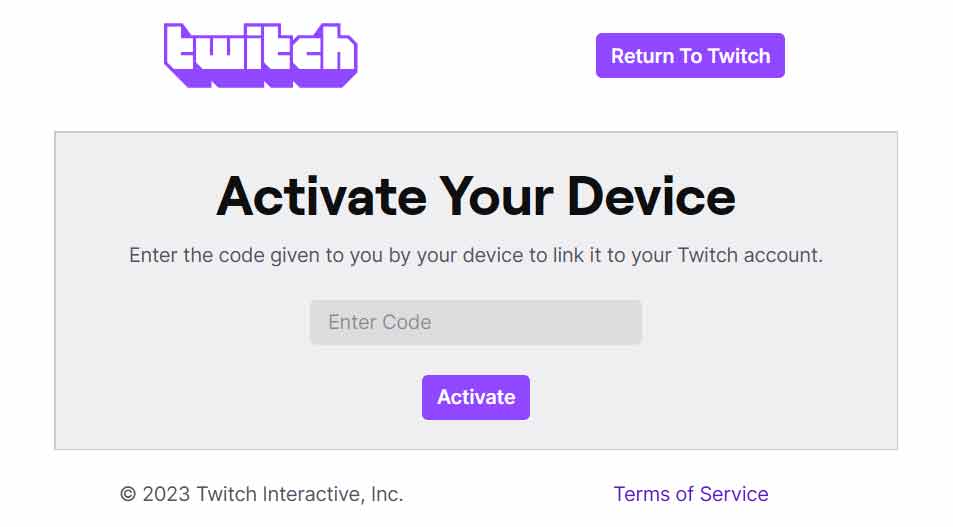
twitch activate your device

Whether you are using a smart TV, Amazon Fire Stick, Roku, Xbox, PlayStation, or another streaming device, activating your Twitch account takes just a couple of minutes. Once linked, you can watch live broadcasts, subscribe to your favorite streamers, and even chat in real time from the comfort of your couch. Here is your up to date step by step guide that actually works.

What Is Twitch TV Activation and Why Do You Need It?

Twitch TV Activate is the official process that securely connects your Twitch account to compatible devices. Instead of entering your full username and password directly on a TV or console, you get a simple six digit code displayed on the screen. You then enter that code on a trusted device like your phone or computer at the official Twitch activation page. It is fast, safe, and keeps your login details private.

This simple link lets you enjoy Twitch full library of live gaming, IRL streams, music, sports, and more without any hassle. The best part is the process has not changed much in years because it already works so well.

General Step By Step: How to Activate Twitch on Any Device

The core process is the same across almost every platform. Follow these steps and you will be streaming in no time:

  1. Open the Twitch app on your smart TV, streaming stick, or gaming console.
  2. Select Log In or Activate (sometimes labeled Sign In with Account).
  3. A six digit activation code will appear on your TV screen. Keep this screen visible. Codes expire after a few minutes.
  4. On your phone, tablet, or computer, open a web browser and go to https://www.twitch.tv/activate.
  5. Log in to your Twitch account if prompted.
  6. Type in the six digit code exactly as shown and click Activate.
  7. Confirm the connection, and your device will refresh. Your account is now linked!

That is it. You are ready to browse channels, follow streamers, and dive into the action.

Device Specific Instructions for the Most Popular Platforms

Amazon Fire TV Stick or Fire TV

Fire TV remains one of the easiest ways to watch Twitch. Download the official Twitch app from the Amazon Appstore, open it, and follow the general steps above. The code appears instantly, and activation usually takes under 30 seconds. Once linked, you can even use voice commands through Alexa for a truly hands free experience.

Roku Streaming Devices

Roku users have a couple of solid options. Search for Twitch in the Roku Channel Store and add the official or certified partner channel. Launch the app, choose to log in, and use the standard activation flow at twitch.tv/activate. Some users also opt for the popular third party Twoku channel for extra features. Either way, the six digit code method works flawlessly.

Xbox and PlayStation Consoles

Gaming consoles make Twitch activation feel natural. On Xbox, grab the Twitch app from the Microsoft Store. On PlayStation, find it in the PlayStation Store. Launch the app, select the login option, and enter the code at twitch.tv/activate. Once connected, you can even stream your own gameplay directly from the console to Twitch with a single tap.

Smart TVs (Samsung, LG, Android TV, and others)

Most modern smart TVs have the Twitch app built into their app stores. Download it, open the app, and follow the same code based activation. If your TV does not have a native app, you can always cast from your phone using the Twitch mobile app or use a streaming stick as a workaround.

Other Streaming Devices (Apple TV, NVIDIA Shield, and more)

Apple TV users can download Twitch from the App Store and activate using the same method. Android based devices like the NVIDIA Shield follow the identical flow. The beauty of this system is its consistency. No matter the hardware the activation page at twitch.tv/activate handles everything.

Troubleshooting Common Twitch Activation Problems

Most people sail through the process, but here are quick fixes for the occasional hiccup:

  • Code not working or expired? Generate a fresh code on your TV and try again quickly.
  • Invalid code message? Double check that you are using the official twitch.tv/activate page (never enter credentials on suspicious sites).
  • App not loading? Make sure your device firmware and the Twitch app are fully updated. Restarting the device often solves glitches.
  • Still stuck? Clear the Twitch app cache on Fire TV or Android devices or reinstall the app. Twitch support pages also have device specific help articles.

If nothing works, Twitch customer support team is responsive and can usually resolve account linking issues fast.

Pro Tips to Get the Most Out of Your Activated Twitch Setup

Once your account is linked, take full advantage:

  • Enable notifications so you never miss your favorite streamers going live.
  • Use the Following tab on the big screen to keep your personalized feed front and center.
  • Subscribe or gift subs directly from the TV interface for that premium viewing experience.
  • Pair a Bluetooth keyboard or use your phone as a remote for easier chatting during streams.

Activating your Twitch account on a TV or console is not just convenient. It completely transforms how you enjoy live content. Whether you are a casual viewer or a dedicated esports fan, this simple process opens up a whole new world of entertainment.

Ready to level up your streaming game? Grab your remote, open the Twitch app on your device of choice, and head over to twitch.tv/activate right now. Your next favorite stream is waiting on the big screen.

Friday, November 12, 2021

How to use the google/youtube ABC Method for discovery and keyword research!

Ever Wondered How Top Creators Always Know Exactly What Their Audience Wants?

Picture this. You type a single keyword into Google or YouTube, and within seconds you uncover dozens of real questions people are actively searching for right now. No paid tools. No complicated software. Just a free built in trick that reveals exactly what your viewers crave. That is the Google and YouTube ABC Method, and it is one of the smartest, most underused ways to spark fresh content ideas that actually get discovered.

Whether you are a streamer, YouTuber, blogger, or just getting started in your niche, this simple technique can hand you ready made topics with real search demand. It has been quietly powering content strategies for years, and it still works brilliantly in 2026.

What Exactly Is the Google ABC Method?

Google search bar has a powerful autocomplete feature that suggests popular searches based on what millions of people have already typed. The ABC Method takes advantage of that by using the alphabet as your guide.

Here is how it works. Start with your main keyword or topic, then add a space and the letter A. Google instantly shows you the most common searches that begin with that letter after your keyword. Swap A for B, then C, and keep going all the way through the alphabet. Each letter uncovers new phrases, questions, and long tail keywords that real people are using every day.

The beauty is that these are not random ideas. They are based on actual search behavior. That means the suggestions reflect genuine interest and intent, giving you a direct line to what your audience is looking for.

Example 1: Typing twitch a reveals popular searches people are making about the streaming platform.

Example 2: Continuing through the alphabet uncovers even more targeted ideas for content.

The ABC Method on YouTube: Same Idea, Video Focused Gold

YouTube search bar works exactly the same way, but the suggestions are tailored to what people are actually watching. Type your keyword, add a letter, and watch the platform reveal trending video topics, questions, and phrases that drive real views.

This is especially powerful for creators because YouTube prioritizes content that matches searcher intent. Ideas you pull from here often have built in demand and lower competition than generic topics.

YouTube autocomplete in action. Perfect for spotting video titles and series ideas your audience is already looking for.

Turning Alphabet Suggestions Into Actual Content

The real power comes when you take those suggestions and transform them into high value pieces. For example, twitch a might show twitch affiliate program or twitch app download. Turn those into:

  • How to Join the Twitch Affiliate Program in 2026: A Step by Step Guide
  • Best Twitch Streaming Apps for Beginners (Updated for 2026)
  • Or even a full video series answering every question the alphabet reveals.

You can go deeper by combining letters with question starters like how to, best, why, or what is. This naturally surfaces long tail keywords that are easier to rank for and more likely to convert into views, subscribers, and engagement.

Pro Tips to Get Even Better Results in 2026

Want to level up? Try these practical tweaks:

  • Use incognito mode. This removes your personal search history so you see cleaner, more universal suggestions.
  • Layer your keywords. Combine your main topic with niche modifiers (example: gaming pc a, stream setup b, etc).
  • Go beyond single letters. Once you have a strong phrase, add how to, vs, or 2026 to unlock even more specific questions.
  • Cross reference Google and YouTube. Ideas that appear on both platforms have massive discovery potential across search and video.
  • Track and organize. Keep a simple spreadsheet of the best suggestions. You will quickly build a content calendar that lasts months.

Many creators also combine the ABC Method with free tools like Google Trends or YouTube Analytics to double check search volume and seasonality.

Why This Method Gives You a Real Discovery Advantage

In a world where everyone is fighting for attention, the ABC Method helps you create content before the crowd catches on. By spotting trending questions early, you can publish videos, streams, or blog posts that rank higher and reach audiences when interest is peaking.

It works for any niche: gaming, tech, fitness, finance, you name it. The key is consistency. Spend 10 to 15 minutes running the alphabet on your core keywords every week, and you will never run out of fresh, relevant ideas again.

So go ahead and open a new tab. Pick your main keyword, type that first letter A, and watch the possibilities unfold. Your next viral video or top ranking blog post might be hiding right there in the autocomplete box.

Thursday, November 4, 2021

How legal viewbots thrive is a false narrative

The Truth About Twitch Embeds: Real Views or "Legal Viewbots"?

There's a persistent myth floating around the streaming world that has creators, analysts, and even some big-name YouTubers fired up. They point at certain channels and declare their viewer counts inflated by what they call "legit viewbots" or "legal viewbots." The culprit? Simple embeds of Twitch streams on third-party websites. But is that really the same as botting? Spoiler: it's not. And the double standard here is glaring.

Watch any of those viral breakdown videos and you'll see the same setup: They pull up the World of Warcraft Twitch directory, zoom in on Asmongold's massive numbers, and contrast them with smaller or mid-tier channels like Method. The claim? One is pure organic hype, the other is propped up by sneaky embeds. It's a neat narrative, but it's also flat-out wrong. Blanket judgments like this ignore how Twitch actually works and who benefits most from the platform's built-in visibility tools.

If we're being honest and following the logic these critics lay out, then a whole bunch of completely normal Twitch features suddenly become "viewbots" too. Think about it:

  • The front page carousel that pushes top streams to millions of eyes
  • Auto-hosting and hosting features that funnel viewers automatically
  • Raids that send entire audiences from one channel to another
  • Drops campaigns that reward viewers for tuning in

These mechanisms have helped build some of the biggest careers on the platform. The biggest channels didn't get there in a vacuum, and pretending otherwise misses the bigger picture.

Take Asmongold as a perfect case study. Back in one of his record-breaking streams a few years ago, he shared his dashboard stats publicly. The numbers were eye-opening.

Look closely at the stats breakdown and you'll see a massive chunk of views coming from "external" sources. According to the very logic some critics use, that should count as "legit viewbots." Yet no one bats an eye when it happens for the platform's biggest names. The truth is, external views have always been part of Twitch's ecosystem, and they still are in 2026.

Viewbots vs. Embeds: Two Completely Different Things

Here's where the conversation always goes off the rails. Critics love to mash these two concepts together, but they're apples and oranges.

A viewbot is automated software that opens fake connections to a stream. It tricks Twitch's player into thinking a real person is watching, pumping up the numbers without any actual human behind it.

An embed, on the other hand, is a real Twitch video player placed on a legitimate webpage. A real visitor lands on that site, sees the stream playing, and consumes the content just like they would on Twitch itself. No automation. Just genuine eyeballs.

Yet somehow these get lumped together in the same breath. It's misleading at best and harmful at worst, because it discourages the exact kind of cross-promotion that could help smaller creators grow.

Chat Activity, Followers, and the Real Story Behind the Numbers

Another favorite talking point: "Their chat is dead, so the viewers must be fake." This one falls apart fast when you understand how embeds actually work.

When a site embeds a Twitch player for promotional or content purposes, they almost never include the chat window. Why? Because the goal is usually clean video playback, not full social interaction. Visitors are still watching the stream in real time. They're just doing it without typing in chat.

That doesn't make the view any less valid. It just means the metrics look different. Content is still being consumed, and that's what matters for building an audience over time.

What Twitch Actually Says About Embeds in 2026

Twitch has clear, official rules around embedding their player, and they've held steady even as the platform evolves. Here's the current reality straight from their developer documentation:

Key requirements that still apply today:

  • The embedded player must be at least 400x300 pixels — no tiny 1x1 hidden frames allowed.
  • Embeds must use approved player elements and can't be obscured by other page content.
  • Domains need proper SSL certificates and the required "parent" parameter for verification.
  • You can't simply buy or sell embed placements on unrelated high-traffic sites unless you own and operate them. Twitch can (and does) revoke access for non-compliant use.

These rules exist to keep things fair and prevent abuse. But they also leave plenty of room for legitimate growth. A gaming blog, news site, or community forum can embed a stream and drive real, engaged viewers back to Twitch. It's the same model YouTube has used for years with massive success.

Why Twitch Needs More Smart Embeds, Not Fewer

Here's the part the critics miss: Twitch's growth depends on creators and partners building content around streams, not just inside them. Billions of web pages embed YouTube videos and send traffic right back to the platform. Twitch could use more of that same energy.

Quality embeds on relevant sites act like digital billboards. They expose streams to new audiences who might never browse the Twitch directory. They create discovery loops that benefit everyone from huge channels like Asmongold down to up-and-coming creators who finally get their shot.

Of course, there's a line. Hidden autoplay embeds on spammy pages or coordinated campaigns designed purely to game the algorithm cross into questionable territory. But painting all third-party embeds with the same brush ignores the real value they bring.

If you're a streamer wondering how to grow ethically in 2026, focus on creating content worth embedding. Partner with sites that align with your niche. Encourage fans to share your stream responsibly. And remember that sustainable growth still comes from authentic connection, not shortcuts.

The next time you hear someone dismiss a channel's numbers because of embeds, ask yourself: Are they really complaining about fake views, or are they just uncomfortable with how the platform actually levels the playing field? Real views from real people watching real content will always beat bots. And smart embeds help make more of those moments possible.

Want to dive deeper into spotting genuine growth versus shady tactics? Check out proven metrics guides and keep building content that deserves to be shared everywhere.

Thursday, September 23, 2021

Embedding gone wrong, watch out for this!

How a 3rd party website is using the Twitch embed player in a very wrong way. Going to showcase what you should look for if you ever notice any external source popping up in your analytics section on twitch.

You can see if any 3rd party websites are embedding your twitch stream on either the channel analytics page or the stream summary section. Basically, go to your Dashboard > Insights > Click on either Channel Analytics or Stream Summary.  Both have a section called "Where did my views come from?" which then has a link to "View details", make sure to click on that to see the data.

If all goes well you will get a page that has the following type of section:

views from outside twitch
"Views from Outside Twitch" lists domain urls that have a Twitch embed player showing your stream. If you see yourself receiving a massive amount of views from this section its probably worth some time to investigate the sites to see how they are using the Twitch embed code.

Here is something I recently noticed that was happening in the "New World" game directory from a 3rd party website.

2 Embeds, one hidden, one visible

This screenshot has been censored so the 3rd party website and the embedded Twitch streamer isn't viewable.  

If you go to this website right off the bat you will think nothing sketchy is occurring.   Its a guide for a mmorpg and under the main content is a Twitch embed player that is set to Autoplay=False which means its not auto playing the live stream as you enter the page.  

But this same webpage if you press F12 (which loads up DevTools on chrome) shows a different story. 

I have highlighted 2 twitch embeds on the screenshot.

The red highlight is a hidden iframe with a twitch embed everything code that is set to autoplay=true.

The blue highlight is the visible iframe with a normal just twitch video player embed that is set to autoplay=false.

Other notes, this website has some extra sketchy stuff with refreshing the ads and also the red highlight hidden iframe.  So every couple of second the Twitch embed everything iframe is being reloaded in the background hidden from the users who are consuming the content on this page.

A hidden iframe with a Twitch player embed is against the Twitch developer service agreement.

See the terms here: https://www.twitch.tv/p/en/legal/developer-agreement/

If you notice this happening to your stream channel via some 3rd party website, report it to Twitch.


So you have to ask yourself why is this 3rd party doing this?

This 3rd party appears to be using this tactic to advertise and possibly gain influence with streamers who are invested in New World.  

The 3rd party has a new world website that the streamers are using on their channel.

So they pick the channels that are showing off their New World site, embed it so that streamer is higher on the Twitch New World directory which then may lead to more people seeing their website which in terms generators more web traffic for them.

Twitch Developer Agreement - "You may not create embeddable experiences in exchange for any compensation (monetary or non-monetary, directly or indirectly) from a content provider on a site or service that the content provider does not own or operate."

If the streamer checks to see whats going on via their "Views from Outside source", and goes to the other non new world website that's promoting their channel, at first glance it will be the visible twitch player embed that is paused. These streamers most likely have no idea of the hidden iframe, some of them probably don't even know they are being embedded.

Additional note on this case.

  • The Twitch Embed Everything code, why do they use that in the hidden iframe? Well here is a super secret tip, because it effects Twitch algorithm for "recommended channels" vs just having a Twitch Video player.


Wednesday, September 8, 2021

Does IPAD have twitch?

Ready to Stream Like a Pro on Your iPad? Here's Exactly How to Get Twitch Installed

You're kicking back with your iPad, the big beautiful screen glowing as your favorite streamer drops an epic play in real time. Chat is flying, reactions are popping, and you're right there in the action. But wait, Twitch isn't sitting in your apps already? Don't worry, you're not alone. No iPad comes with the Twitch app pre-installed, and that's by design. Apple keeps things clean, so third-party apps like this one need a quick download from the App Store.

The good news? Getting Twitch onto your iPad takes less than two minutes, and once it's there, you'll unlock the full mobile experience: smooth streaming, interactive chat, following your must-watch channels, and even exclusive perks like subscriptions and emotes. Whether you're into gaming, IRL streams, music, or esports, the official Twitch app turns your iPad into a portable streaming powerhouse.

Here's the updated, foolproof guide to install it in 2026. The App Store has gotten a bit sleeker over the years, but the core process is still delightfully simple. I'll walk you through it step by step, with the visuals to match.

Step 1: Open the App Store

Grab your iPad and tap the familiar blue App Store icon on your home screen or in the App Library. It's the gateway to thousands of apps, including Twitch.

Click on the App Store icon to get started

Step 2: Head to the Search Tab

Once inside the App Store, look for the Search icon at the bottom right of the screen. Tap it to open the search bar. This is where the magic starts.

Tap the search feature in the App Store

Step 3: Search for Twitch

Type "Twitch" into the search bar at the top and tap the Search button on your keyboard. The official app should pop right up at the top of the results.

Enter Twitch in the search box

Step 4: Grab the Official Twitch App

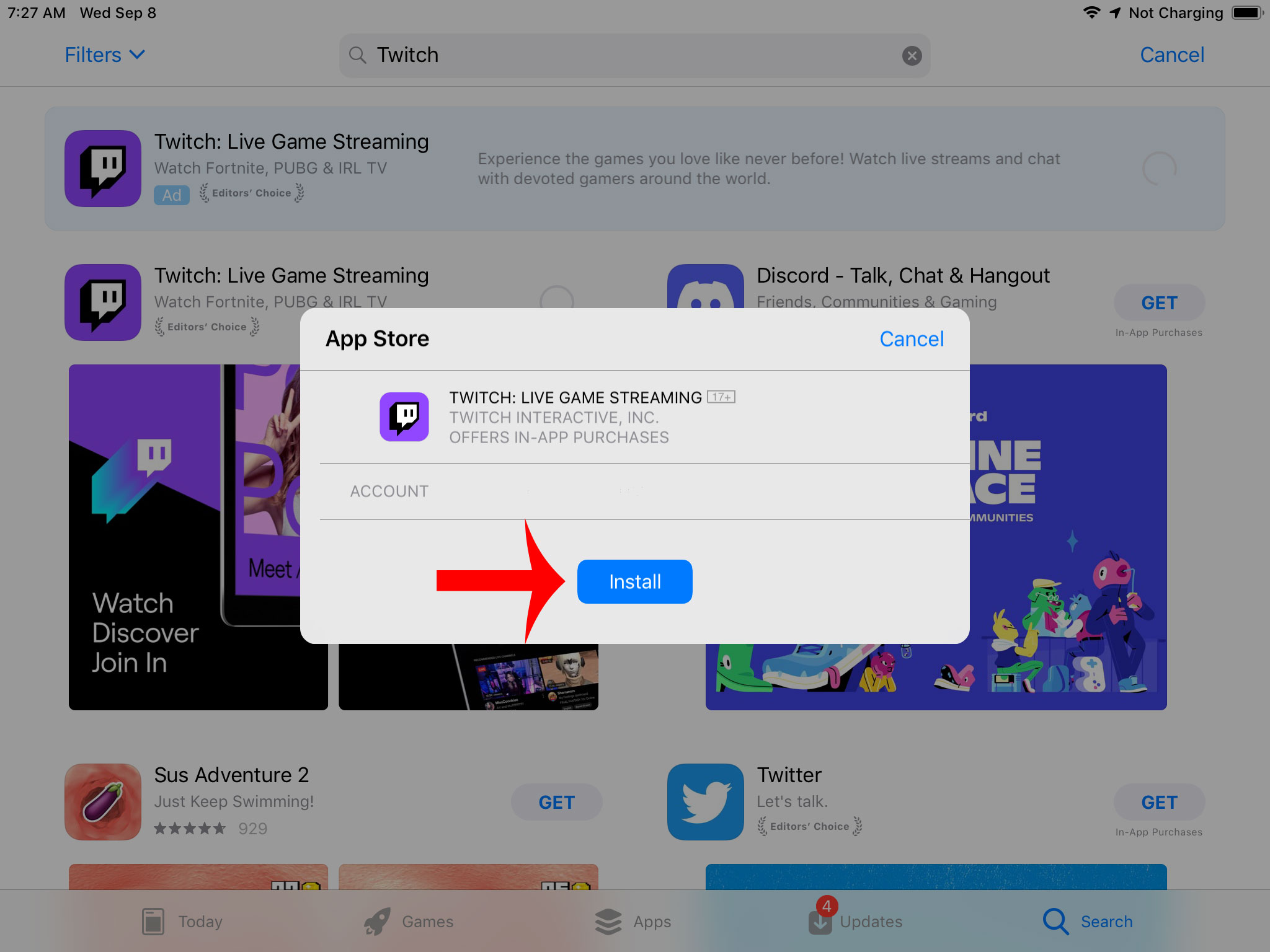
Look for the app labeled "Twitch: Live Streaming" by Twitch Interactive, Inc. It's often marked as Editors’ Choice, which tells you it's a top-tier pick. Tap the "Get" button to start the download. Note that these screenshots show an earlier version of the App Store, but the app icon and details remain consistent.

Tap Get on the official Twitch app

Step 5: Install the App

You'll be prompted to confirm with Face ID, Touch ID, or your Apple ID password. Once approved, the button changes to "Install." Watch it download and install automatically. The app is around 387 MB, so make sure you have a decent Wi-Fi connection and enough storage space.

Press the Install button

Step 6: Open and Start Streaming

When the installation finishes, the button turns to "Open." Tap it to launch Twitch right away. You'll land on the home feed full of live channels. Sign in with your Twitch account (or create one in seconds) to personalize your experience with follows, subscriptions, and chat.

Tap Open to launch the Twitch app

Pro Tips to Get the Most Out of Twitch on Your iPad

Now that you're in, here's how to level up:

  • Multitasking magic: Use Split View or Stage Manager to watch a stream while browsing the web or taking notes.
  • Notifications on point: Turn on alerts for your favorite streamers so you never miss a live drop.
  • Chat like a boss: The larger screen makes typing replies and using emotes way more fun.
  • Stay updated: Twitch releases frequent updates with new features, so keep the app current in the App Store.
  • Troubleshooting quick fixes: If the app doesn't appear in search, double-check your iPadOS version (needs 16.4 or later) or try switching regions in your Apple ID settings. Still stuck? Restart your iPad or search again after a quick App Store refresh.

That's it. You're now fully set up for endless hours of entertainment. Fire up a stream, drop a few bits, and enjoy the community that makes Twitch special. If you run into any hiccups along the way, the Twitch help center or App Store reviews are packed with real-user solutions. Happy streaming!

Saturday, August 21, 2021

How to prevent hate raids, trolls using available tools from Twitch!

Shield Your Twitch Chat: The Ultimate 2026 Guide to Crushing Hate Raids, Trolls, and Spam

Imagine this. You are deep in the zone, laughing with your loyal viewers, cracking jokes, and building that perfect community vibe. Then bam. Your chat explodes with hateful spam, slurs, and coordinated attacks from bot accounts. It is the nightmare every streamer dreads. A hate raid or troll invasion can derail your entire stream in seconds.

The good news is Twitch has given creators more powerful built in tools than ever before to fight back. I have taken the best of the classic moderation strategies, verified them against the latest 2026 dashboard features, and added fresh insights including Shield Mode, phone verification, and smarter proactive defenses. Whether you are a new streamer or a seasoned pro, these steps will help you lock down your chat, protect your community, and keep the good vibes flowing.

1. Build a Bulletproof Blocked Terms List with Wildcards

Start by creating your own custom ban list of problematic words, phrases, and patterns. This is one of the fastest ways to stop trolls before they even get a foothold.

Head to your Creator Dashboard, click Settings on the left, then Moderation. Scroll down to AutoMod Controls and look for Blocked Terms and Phrases. Here you can add anything you never want to see in chat.

blocked terms and phrases

Pro tip: Use the wildcard asterisk * to catch variations. For example, *aaa*bbb*ccc* will block anything that contains that sequence no matter what comes before or after. You can also block spaces with patterns like * aaa * to catch sneaky attempts with extra spaces.

wildcard banned words

Do not forget to add your real name, address, phone number, and other personal info with wildcards. Set them to private. This stops doxxing attempts cold. Review and expand this list regularly based on what you see in your streams.

2. Activate Followers Only Mode to Stop Instant Spam

One of the simplest and most effective defenses is switching your chat to followers only mode. This means only people who have followed you for a set amount of time can type in chat. It instantly blocks brand new accounts and most raid bots.

You can enable it right from the chat settings cogwheel or use the command followers followed by a time such as followers 30m. In the dashboard under Moderation you will also find the full controls. Set the timeframe anywhere from minutes to months depending on how strict you want to be.

Watch your activity feed for sudden follow spikes with suspicious names. If you spot trouble, flip to subscribers only or emote only mode instantly. This gives you breathing room while you handle the situation.

3. Crank AutoMod to Maximum for Hands Off Filtering

AutoMod is your always on safety net. It holds suspicious messages for review instead of letting them hit the public chat. Set it to the strictest levels across all categories including the newer sexual harassment filter added in recent years.

automod max filter settings

Review held messages quickly in the Moderation Queue. You can approve good ones or let the bad ones stay blocked. Combine this with your blocked terms list for maximum coverage.

4. Require Verified Email and Phone Before Anyone Can Chat

Go to Dashboard then Settings then Moderation and find the Channel Privileges section. Turn on email verification or go even further with phone verification which was added specifically to fight bots and raids.

email verification

You can make verification required for all chatters, first time chatters, or accounts under a certain age in hours, days, or weeks. This single setting stops the vast majority of throwaway bot accounts in their tracks.

5. Add a Non Mod Chat Delay So Mods Can Stay Ahead

Give your moderators and bots a few seconds head start by enabling non mod chat delay. Set it to six seconds the maximum so problematic messages appear delayed for regular viewers but not for you or your team.

non-mod chat delay setting

Find this in Dashboard then Settings then Moderation under Chat Options. It is a lifesaver during fast moving raids.

The New Must Have: Shield Mode for Instant Lockdown

Twitch introduced Shield Mode a few years back and it has become the ultimate panic button for hate raids. One click or the shield command instantly applies a preset bundle of protections: followers only chat, email and phone verification, emote only mode, blocked hyperlinks, and more.

You and your mods can activate it from the channel page, Stream Manager, or Mod View. Customize your Shield settings once then flip it on the moment trouble hits. When the storm passes, deactivate it just as easily and return to normal.

Extra Smart Moves That Make a Huge Difference

  • Use the command uniquechat to stop duplicate spam messages. Turn it off later with uniquechatoff.
  • Set up hotkeys in your streaming software to instantly disable follower alerts, clear the chat with the clear command, or trigger a stream marker when a raid starts.
  • During any incident, drop a stream marker so you can review the VOD later, note usernames and phrases, and add them to your blocked list.
  • Keep your VODs unpublished by default. Go to Dashboard then Settings then Stream then VOD Settings and turn off Always Publish VODs. This gives you time to review and delete anything problematic before it goes public.
  • Check for and delete any malicious clips created during the chaos. You can also disable clip creation entirely in Stream settings if needed.
clear chat on twitch
stream marker button
how to unpublish vods

Final Thoughts: Stay Calm, Stay Consistent, Stay Safe

Hate raids and trolls thrive on chaos and reaction. By layering these tools blocked terms, verification requirements, AutoMod, followers only mode, chat delays, and Shield Mode you create multiple barriers that make your channel far less attractive to attackers.

Take a few minutes today to set everything up and test it. Build a quick panic button with hotkeys or a Stream Deck if you can. Most importantly, communicate with your community. Let them know you take safety seriously and that your chat is a welcoming space because of these protections.

You have worked hard to grow your channel. Do not let a few bad actors ruin the experience for the amazing people who show up to support you. With these updated strategies you can stream confidently knowing you are ready for whatever comes your way.

Stay safe out there and keep creating the content you love.

Thursday, July 15, 2021

Stream Summary from one of the biggest channels on Twitch - Asmongold

So recently one of the biggest channels on Twitch shared their stream summary page.  Asmongold was showing how much viewer traffic he received during his first final fantasy stream session.  It shows something very interesting that most people will never be aware of because normally the big streamers would never show these stats to the public.

Any how here is the screenshot of the stats for that day!

Asmongold Stream embedded on 3rd party websites

If you see the note I added to the screenshot in red, over 1.15 million views possibly came from external which is 3rd party embedding. That is almost 50% of total views from 3rd party embedding which is enormous.  You can see from the screenshot that they didn't include the external section that is under the "Channel" views on the stat page.
  • How to get twitch viewers - guides on everything you need to get your channel going and also has info on embedding, which as you can see is something that benefits even the biggest channels on Twitch.
Tuesday, June 15, 2021

How to block random channel gift subs

Tired of Random Gifted Subs Showing Up for Channels You Never Watch?

If you're a regular Twitch viewer, you've probably experienced this at least once: a notification pops up out of nowhere saying someone gifted you a sub to a channel you've never followed, never visited, and have zero interest in. It feels random, a little intrusive, and it clutters your inbox with stuff that doesn't matter to you.

The good news? Twitch built in a simple, official setting years ago that lets you stop this completely. It's still working perfectly in 2026, and it takes less than a minute to enable. Once it's on, you'll only receive gifted subs and memberships from channels you actually follow. No more surprise notifications from strangers.

block random channel gift sub

Why Gifted Subs Happen in the First Place

Streamers and big gifting events often hand out subs to random viewers in the chat to boost engagement or celebrate milestones. It's generous, but it can backfire when those random gifts land in your notifications for channels you don't care about. The setting we're about to turn on quietly blocks those while still letting you enjoy gifts from the streamers you actually support.

How to Block Gifted Subs on Channels You Don't Follow (Desktop)

Follow these four quick steps on your computer or laptop:

Step 1: Log into your Twitch account and click your profile picture in the top right corner. A small menu will appear.

Step 2: Select "Settings" from that menu.

how to get to account settings on twitch

Step 3: In the Settings page, click the tab labeled "Security and Privacy."

Step 4: Scroll down until you see the section called "Block Receiving Gifts on Channels You Don't Follow." Flip the toggle to On.

block receiving sub gifts

That's it. Twitch will instantly apply the change, and future gifts from unfollowed channels will be blocked automatically.

Does This Work on the Twitch Mobile Apps?

Absolutely. The process is almost identical on both Android and iOS:

  • Tap your profile icon (bottom right on mobile).
  • Go to Account Settings.
  • Tap Security and Privacy.
  • Scroll to the same "Block Receiving Gifts on Channels You Don't Follow" option and enable it.

The setting syncs across all your devices, so one change covers everything.

What You Should Know After Turning It On

This setting only affects channels you don't follow. If a friend or a streamer you already follow gifts you a sub, you'll still receive it normally. You can always turn the toggle off later if your preferences change.

Pro tip: While you're in the Security and Privacy tab, take a quick look at the other privacy options. Many viewers also enable two-factor authentication and adjust whisper settings for extra peace of mind.

Why This Small Change Makes a Big Difference

Turning on this feature keeps your notifications clean, reduces inbox clutter, and makes your Twitch experience feel more personal and intentional. No more random distractions from channels that don't interest you. You'll focus on the creators you actually enjoy and support.

If you've been dealing with unwanted gifted subs for a while, give this a try right now. It really does make a noticeable difference.

Have questions about the setting, or did it work differently on your account? Drop a comment below and I'll help sort it out.

Wednesday, June 9, 2021

Can mods make other mods

Can Twitch Mods Make Other Users Mods?

mod user

If you are a Twitch streamer trying to build a solid moderation team for your growing channel, this question probably comes up early. Can your existing mods promote other viewers to moderator status too? It is a totally reasonable ask. You want to delegate without losing control, especially when chats start moving fast.

The short answer used to be a firm no. But Twitch made a smart update in December 2025 that changes the game for bigger communities. Here is the full picture, straight from the latest official rules.

Regular Moderators Still Cannot Add New Mods

Everyday moderators, the ones with the standard green sword badge, do not have permission to make anyone else a moderator. They are fantastic at handling chat, timing out troublemakers, and keeping the vibe positive, but assigning new mod powers is not on their list.

This design choice makes total sense. It keeps the ultimate responsibility with you, the streamer, so you can trust exactly who gets those elevated privileges.

The New Lead Moderator Role Changes Everything

Here is the exciting update. Twitch introduced the Lead Moderator role in late 2025. Lead mods get everything a regular mod has plus some serious extra authority, including the ability to add or remove regular moderators from your team.

They can manage the entire mod roster directly through the Roles Manager in your Creator Dashboard. It is a huge help for larger channels where one person cannot possibly handle every mod request.

Important note: Only you, the channel owner (broadcaster), can appoint someone as a Lead Moderator. Regular mods still cannot touch that level of power.

How to Actually Make Someone a Moderator on Twitch

You have two easy ways to grant mod status:

  • In chat (fastest method): Type /mod username right in your stream chat. Replace “username” with the actual Twitch handle. Want to remove them later? Just type /unmod username.
  • Through the Creator Dashboard (best for managing a bigger team): Head to your dashboard, click Community in the left menu, then open the Roles Manager. From there you can search users, assign regular mods, promote trusted ones to Lead Moderator, and adjust permissions all in one clean interface.

Lead Moderators use the same dashboard tools to handle regular mod additions and removals once you have given them that elevated role.

Why This Matters for Your Channel

Building a reliable mod team is one of the smartest moves you can make as a streamer. Good mods keep your community welcoming, protect your energy during long streams, and let you focus on creating great content instead of babysitting chat.

The Lead Moderator feature is especially useful once you hit consistent viewer numbers or run multiple streams a week. It lets you scale safely without handing over full control. Just remember: with great power comes the need for great trust. Choose your Lead Mods carefully. Look for people who already show good judgment, communicate well with you, and understand your community vibe.

Pro Tips for Managing Your Mod Team

  • Start small. Test regular mods first before promoting anyone to Lead Moderator.
  • Have clear expectations. Share your channel rules and moderation style with everyone on the team.
  • Use Twitch built-in tools. The Roles Manager shows exactly what each role can do, so there are no surprises.
  • Stay in the loop. Even with Lead Mods helping, check in regularly so you always know who has what permissions.

Bottom line? Regular mods cannot promote others, but Lead Moderators can. That one change makes managing a healthy Twitch community a whole lot easier. If you are ready to level up your team, head into your Creator Dashboard and start building that support system today. Your chat and your sanity will thank you.

Monday, June 7, 2021

how much money do streamers make per sub

How Much Do Twitch, Kick, and Other Platform Streamers Actually Make Per Sub in 2026?

Imagine a loyal fan smashing that subscribe button, pumped to support your stream with exclusive emotes, ad-free viewing, and that warm feeling of being part of the squad. But here’s the real question every creator and viewer wonders: exactly how much of that money actually hits your wallet?

The streaming world has changed a lot since the early days of simple 50/50 splits. Twitch raised prices and introduced better tiers for top performers, while Kick shook things up with one of the most creator-friendly models out there. And plenty of streamers are now mixing in YouTube, Rumble, Locals, or Patreon to maximize every dollar. Whether you’re grinding on one platform or building across several, knowing the real numbers helps you build smarter and earn more.

first sub, first month 20% off

Twitch Subscription Earnings in 2026: The Full Breakdown

Twitch now uses local pricing, so the exact cost depends on where your viewers live. In the US on desktop, the current standard tiers look like this:

  • Tier 1: $5.99 per month – still the go-to for most fans
  • Tier 2: $9.99 per month – bigger perks for dedicated supporters
  • Tier 3: $24.99 per month – the premium tier for your biggest whales

Your take-home depends on your Partner status and the Partner Plus program. Here’s the real math for a standard US Tier 1 sub:

  • Standard split (50/50 – most Affiliates and entry-level Partners): You keep roughly $3.00
  • Partner Plus Level 1 (60/40): About $3.59 lands in your pocket
  • Partner Plus Level 2 (70/30): Around $4.19 per sub

Higher tiers scale up the same way. A Tier 3 sub at the standard split puts about $12.50 in your hands. These figures come before taxes, processing fees, and any regional currency adjustments.

How to Unlock Higher Splits on Twitch

Twitch’s Partner Plus program rewards consistent sub growth with a simple points system based only on paid recurring subs:

  • Level 1 (60/40): 100 points for three straight months
  • Level 2 (70/30): 300 points for three straight months

Points add up fast: one per Tier 1, two per Tier 2, and six per Tier 3. Plenty of mid-tier streamers are hitting these milestones and watching their monthly payouts jump noticeably.

Prime Gaming Subs and Other Variables on Twitch

Amazon Prime members still get one free sub token monthly, but Twitch shifted to fixed country-specific payouts in 2024 to keep the program healthy. In the US, a Prime sub now pays you about $2.25 (down from the old $2.50). Rates vary wildly by country, which is why some creators nudge fans toward paid subs. The good news? Prime subs still help you rack up Partner Plus points.

Other factors that swing your actual earnings include first-month discounts (often 20% off for new subs), gifted sub bundles, currency differences, and of course taxes. Most streamers report a blended average of $2.80 to $3.80 per sub after everything settles.

What About Kick? The 95/5 Revenue Split That Changes Everything

While Twitch rewards top performers with better splits, Kick went all-in on keeping things simple and creator-friendly from the start. In 2026, Kick still offers its famous flat 95/5 subscription split across the board—no complicated tiers to unlock, no waiting for Partner status.

Here’s how the math works on Kick:

  • Standard subscription: $4.99 per month (local pricing applies)
  • Streamer keeps 95%: Roughly $4.75 per sub

That’s nearly double what most Twitch creators earn on a standard Tier 1 sub. Kick keeps things straightforward with one main subscription level, though higher-value options exist in some cases. No separate Tier 2 or 3 structure like Twitch, which means every sub delivers maximum value to you right away.

Many streamers who moved (or simulcast) to Kick cite this 95/5 split as the biggest reason. With 500 subs, you’re looking at around $2,375 monthly before taxes on Kick versus roughly $1,500 on standard Twitch. For creators focused purely on sub revenue, the difference is massive.

Real-World Earnings Comparison: Twitch vs. Kick

Let’s make it concrete. Here’s what 1,000 subs actually pay out:

  • Twitch (standard 50/50): About $3,000
  • Twitch (top Partner Plus 70/30): About $4,190
  • Kick (95/5): About $4,750

Of course, audience size, retention, and platform discovery play huge roles too. Twitch still has far more viewers overall, but Kick’s model makes every sub worth significantly more.

Want to Run the Exact Numbers Yourself? Try This Free Calculator

Figuring out real earnings gets tricky when you factor in local pricing across dozens of countries. That’s exactly why I built the Twitch & Kick Subscription Calculators – two powerful, interactive tools updated for 2026 pricing.

The page includes:

  • Viewer Mode (Budget to Subs): Enter how much you want to spend and see exactly how many subs you can gift on each platform, plus what the streamer actually earns.
  • Streamer Mode (Subs to Earnings): Input your sub counts by tier and region, and get a weighted earnings breakdown for both Twitch (50/70%) and Kick (95%).

It handles local pricing automatically, shows beautiful comparison charts, and even lets advanced users tweak the data themselves. Whether you’re planning your next subathon or just curious how a big gift sub actually pays out, these calculators cut through the confusion and give you crystal-clear numbers.

How Other Platforms Stack Up: YouTube, Rumble, Locals, and Patreon

Smart creators rarely put all their eggs in one basket. Many run memberships or subscriptions on YouTube, Rumble, Locals, or Patreon alongside (or instead of) live-streaming platforms. Here’s the latest 2026 breakdown on what you actually keep per dollar your fans spend:

  • YouTube Channel Memberships: You keep 70% – YouTube takes a flat 30%. Tiers usually range from $2.99 to $9.99 a month, with perks like badges, emojis, and members-only content. It’s a great option if your audience already lives on YouTube.
  • Rumble: One of the most creator-friendly platforms overall. While ad revenue is often around 60% to the creator, subscriptions and tipping features are highly competitive and frequently offer much stronger splits – sometimes up to 100% during promotions. Rumble puts the emphasis on letting creators retain the lion’s share.
  • Locals: Built purely for independent creators, Locals takes just a 10% platform fee on subscriptions. That means you keep 90% before standard payment processing. It’s a favorite for communities who want full control and minimal platform cuts.
  • Patreon: The classic membership platform now uses a standard 10% fee for new creators (older accounts may still have 5–8%). Add payment processing of roughly 3%, and most creators keep about 87% of what fans pay. It shines for tiered, recurring support with tons of built-in tools for exclusive content.

These options let you diversify and often earn more per supporter than standard Twitch splits. The key is matching the platform to where your biggest fans already hang out.

Final Thoughts: Which Platform Wins for Sub Revenue?

Twitch still dominates in audience size and features, but Kick’s straightforward 95/5 split makes it incredibly attractive for creators who want more money per supporter. Many smart streamers now split their time or simulcast to capture the best of both worlds. Throw in YouTube memberships, Rumble’s strong payouts, Locals’ low fees, or Patreon’s loyal fanbase, and you’ve got real flexibility to build the income stream that works for you.

At the end of the day, subs are more than just income—they’re your community saying “I believe in what you’re doing.” Understanding exactly how much you keep on Twitch, Kick, or any other platform helps you make better decisions, set realistic goals, and build a streaming career that actually pays the bills.

Drop your current sub count in the comments (or plug it into the calculator) and let’s talk real numbers. The more we share, the smarter we all get.

Can mods ban other mods

Can Twitch Mods Ban Other Mods? The Definitive Answer for Streamers in 2026

Picture this. Your Twitch chat is full of energy, but suddenly one moderator starts stepping out of line. Whether you are a fellow mod or the streamer, you might wonder if one moderator can ban another to keep order. This question comes up often in growing channels. Knowing the exact rules can prevent a lot of unnecessary drama.

The short answer is no. Regular moderators cannot ban, timeout, or remove other moderators. Only the broadcaster or Lead Moderators have that authority. This setup keeps the power structure clear and prevents conflicts between moderators.

Twitch Moderator Hierarchy: Who Holds What Power?

Twitch has refined its role system to give streamers more flexible tools. Here is how it stands in 2026:

  • Broadcaster (you): Complete control. You can add and remove any roles, ban anyone, and adjust every setting.
  • Lead Moderator: A powerful role added in late 2025. Lead moderators can manage the full mod team, assign VIPs, access advanced settings, and perform all regular moderation duties.
  • Regular Moderator: Perfect for daily chat control. They can ban viewers, issue timeouts, delete messages, and handle unban requests, but they cannot take action against other staff.

How to Ban Regular Users as a Mod or Broadcaster

Mods may not police each other, but they have strong tools for everyday issues. Here are the simplest methods:

  1. Click the users name in chat to open their profile popup, then select the ban button.
  2. Use the chat command: /ban [username] [optional reason]

The reason is optional, but adding one makes it easier to review your moderation logs later.

What to Do When a Moderator Needs to Be Removed or Banned

If one of your moderators is causing problems, first remove their moderator status using the /unmod command or through the Creator Dashboard under Roles Manager. After they are no longer a mod, you or a Lead Moderator can ban them normally.

This careful approach keeps things professional and protects team spirit.

Best Practices for Building a Rock Solid Mod Team

Excellent moderation depends more on people and clear expectations than on permissions. Here are practical tips that successful streamers follow:

  • Select moderators who truly understand and fit your channels atmosphere. Trust matters more than typing speed.
  • Provide new moderators with clear guidelines and set up a private group chat or Discord for the team.
  • Check moderation logs often to give helpful feedback and spot patterns early.
  • Promote your most dependable moderators to Lead Moderator as your channel grows to share the responsibility.
  • Start with timeouts for minor issues. A short pause often solves the problem without a permanent ban.

In the end, a smoothly managed mod team makes streaming more enjoyable for everyone. When you understand these rules and treat your moderators as trusted partners, you build a friendly community that viewers want to return to again and again.

Have you experienced moderator challenges or want advice about using Lead Moderators? Leave your thoughts in the comments below. I am happy to help.

Sunday, June 6, 2021

Can mods give vip to people

Ever wondered if your Twitch mods can hand out those coveted VIP badges to your most loyal viewers? It is a question that comes up constantly in streaming communities. Especially when you are trying to reward regulars without juggling every little detail yourself.

The short answer is no. Only the broadcaster, that is you as the streamer, can assign the VIP role on your channel. Moderators have tons of useful tools for keeping chat healthy, but granting VIP status is not one of them. It keeps things simple and puts the final say squarely in the hands of the channel owner.

If you are ready to give someone VIP on your own stream, it could not be easier. Just type this command right in your chat:

/vip username

Swap out username for the actual Twitch handle of the person you want to honor. Hit enter, and they will instantly get the special VIP badge next to their name.

How to Add VIPs Through the Creator Dashboard

Prefer a more visual way to manage roles? Head over to the Roles Manager in your dashboard. It is clean, straightforward, and perfect for reviewing your entire community at once. Here is exactly how to do it:

  1. Log into your Creator Dashboard.
  2. Click on the Community section to expand the menu.
  3. Select Roles Manager.
  4. Hit the Add New button, type in the username, choose the VIP role, and confirm.

You will also see exactly how many VIP slots you have available right there in the interface. It is a handy reminder of how much your community is growing.

Twitch VIP role manager showing available slots and add new option

How to Unlock More VIP Slots on Twitch

Streamers do not start with unlimited VIP badges. That would dilute their special feel. You begin by completing the Build a Community achievement: hit 50 followers and have at least five unique chatters active in one stream session. That unlocks your first 10 VIP slots right away.

From there, the number scales up naturally as your streams get more interactive. The more unique people chatting during your broadcasts, the more slots you earn, up to a generous maximum of 100 total. It is Twitch way of rewarding streamers who truly build an engaged, lively audience rather than just chasing numbers.

Pro tip: keep encouraging chat participation with questions, polls, and shoutouts. Every milestone you hit feels like a win for your whole community.

What Benefits Do VIPs Actually Get?

VIP status is not just a pretty badge. It gives your most dedicated supporters real perks that make them feel valued and keep them coming back. Here is what they receive:

  • A distinctive VIP badge next to their name that stands out in chat and shows everyone they are part of your inner circle.
  • The ability to post links even when you have links only mode turned on for the rest of the audience.
  • Complete immunity to rate limits, slow mode, subscribers only chat, and followers only chat. VIPs can always participate freely.

One important note: a user cannot be both a VIP and a moderator at the same time. Twitch keeps those roles separate so each one stays meaningful.

Quick Tips for Using VIPs Effectively

Choose your VIPs thoughtfully. Look for viewers who show up regularly, keep the chat positive, and help new people feel welcome. A well placed VIP badge can turn casual fans into lifelong supporters.

Need to remove the role later? Just type /unvip username in chat or head back to the Roles Manager and revoke it there.

Bottom line: VIPs are one of the easiest and most powerful ways to show appreciation without spending a dime. Use them well, and you will watch your community grow stronger with every stream.

Saturday, June 5, 2021

If you block someone on twitch can they see your stream

Can Blocked Users Still Watch Your Twitch Stream? (Full 2026 Guide)

If you have blocked someone on Twitch, the most common question streamers ask is: can they still see your broadcast?

Yes. Blocking a user on Twitch does not prevent them from watching your stream. They can still view your live broadcast, VODs, and clips just like any other viewer. Blocking only affects their ability to interact with your chat.

What Does Blocking Someone on Twitch Actually Do?

When you block a user on Twitch, the following things happen:

  • They are immediately removed from your chat room
  • They can no longer send messages in your chat
  • They no longer appear in your viewer list
  • They cannot whisper you or interact with your channel points
  • They cannot raid your channel

However, they can still:

  • Watch your live stream
  • Watch your VODs and clips
  • See your channel page and panels
  • Follow your channel (though you will not see the follow notification)

How to Block Someone on Twitch (Step by Step)

  1. Click on their username in chat
  2. Click the three dots menu that appears
  3. Select Block

You can also block users from your Creator Dashboard under Settings → Moderation → Blocked Users.

When to Block vs When to Report

Blocking is perfect for minor annoyances or chat spam. For serious violations of Twitch Community Guidelines (harassment, hate speech, threats, doxxing, etc.), you should always report the user in addition to blocking them. Reporting helps Twitch take platform-wide action.

Pro Tips for Streamer Safety and Channel Management

  • Use AutoMod and Blocked Terms to catch problems automatically
  • Appoint trusted moderators who can help manage chat
  • Consider using a chat bot like Nightbot or StreamElements for extra protection
  • If someone is truly problematic, do not hesitate to report them to Twitch Support

Frequently Asked Questions

Can a blocked user still see that I am live?

Yes. They will still see your stream in their followed channels list and in category pages if they search for it.

Does blocking someone notify them?

No. Twitch does not notify the blocked user. They simply lose the ability to chat in your channel.

Can I unblock someone later?

Yes. You can unblock users at any time from your Moderation settings.

Does blocking work the same on mobile?

Yes. The process is almost identical whether you are on desktop or using the Twitch mobile app.

Final Thoughts

Blocking on Twitch is a useful tool for keeping your chat clean and positive, but it is important to understand its limitations. It protects your chat experience without stopping someone from watching your content. For serious issues, always combine blocking with a proper report to Twitch.

Keeping your channel safe and welcoming helps you focus on what matters most: creating great content and building a positive community.

Have you ever had to block someone on Twitch? How did it go? Share your experience in the comments below. I read every single one and it helps other streamers learn from real situations.

Stay safe and happy streaming!

Can mods check who is banned

Can Twitch Mods Check Who’s Been Banned? Yes, Here’s Exactly How (Still Works in 2026)

Running a lively Twitch stream means your chat can get busy fast, and every now and then a familiar troublemaker tries to sneak back in. As a streamer, you want your moderators to have the right tools to handle it quickly and fairly without constantly asking you for details. The good news? Twitch gives your mods simple, powerful ways to check ban status on the spot.

Whether you’re training new team members or just want to stay on top of your community rules, these built in features make moderation smoother and help keep your channel welcoming for everyone who shows up with good vibes.

The Fastest Way: Check Any User with a Chat Command

Any moderator on your channel can instantly look up a viewer’s status by typing one quick command right in the chat box:

/user [username]

Hit enter and a clean pop up window appears with all the key details, whether the user is banned, who issued the ban, and exactly when it happened.

user banned notification

Take a look at this example from a recent ban on my own channel. The notification sits right at the bottom of the window, making it crystal clear who handled the action and when.

Go Deeper with Mod View

For a full overview of recent moderation activity, your team should head into Mod View. It’s a dedicated dashboard built specifically for moderators that puts everything in one easy place.

Just click the sword icon at the bottom of the chat window (right next to the gear settings icon). Or, for even faster access, bookmark this simple URL format:

https://twitch.tv/moderator/[yourchannelname]

Example: https://twitch.tv/moderator/daopa perfect for quick jumps during a live stream.

mod view button on twitch

Here’s exactly where to find that sword button so your mods can jump in without missing a beat.

Spot Recent Bans Instantly in the Mod Actions Section

Once inside Mod View you’ll see a section called “Mod Actions.” This handy widget shows a live feed of recent bans, timeouts, deleted messages, and other moderation steps taken by anyone on the team.

mod view ui on twitch

Click any username in the list and a detailed window pops up showing exactly what the user posted, past timeouts or bans, and room for moderator notes. You’ll also find handy buttons to unban, report the user to Twitch, or send a quick whisper all without leaving the view.

Pro Tips to Make These Tools Even More Powerful

  • Team coordination: Encourage your mods to use the /user command during heated moments and Mod View for post stream reviews it keeps everyone on the same page.
  • Full ban list access: While mods get real time action history, the complete historical list of banned users lives in the Creator Dashboard under Moderation settings (great for streamers doing big clean ups).
  • Layer in extra protection: Pair these tools with Twitch’s Suspicious User controls and AutoMod to catch repeat offenders before they even type.
  • Bookmark it: Mod View URLs are gold for quick access have your team pin them for every channel they moderate.

These small but mighty features give your moderators confidence and keep your chat feeling safe and fun. When everyone on the team knows how to check bans quickly, you spend less time putting out fires and more time creating great content together.

Got a favorite mod tool or a question about setting up your own moderation team? Drop it in the comments I’m always happy to help fellow streamers level up.

Can mods say banned words

Can Twitch Mods Say Banned Words in Your Channel Chat?

Running a smooth, welcoming Twitch stream means staying on top of chat moderation. Nothing kills the vibe faster than toxic language slipping through or bots spamming slurs. That's where blocked terms and phrases come in handy. But streamers often wonder: can your moderators use words you've banned in your own channel?

The straightforward answer is no. Only you, the broadcaster, can typically say words or phrases that appear on your channel's blocked list. Moderators, VIPs, and regular viewers all have their messages automatically prevented from posting if they contain those terms. Twitch's system enforces this through AutoMod to keep things consistent and protect your community.

This setup gives you full control as the streamer while still letting your trusted mods help manage the chat without accidentally (or intentionally) bypassing your rules. It's a smart balance that keeps everyone accountable.

How Blocked Terms and Phrases Actually Work on Twitch

Blocked terms are custom words or phrases you add to your channel settings. Once set, any chat message containing them gets blocked before it reaches the public chat. This works hand in hand with AutoMod, Twitch's built-in filter that scans messages in real time.

You can make terms public (visible and editable by your moderators) or private (visible only to you, the streamer). Private mode is perfect for sensitive words like personal info, specific slurs you don't want your team knowing about, or anything you want to keep under wraps.

There's also a handy flip side: permitted terms. These let you whitelist certain phrases that might otherwise get caught by AutoMod, giving trusted phrases a free pass while keeping everything else clean.

Above: The Blocked Terms and Phrases section in your Twitch Creator Dashboard shows exactly what you've set up.

Step-by-Step: How to Check Your Blocked Terms and Phrases

Want to see exactly what's on your list (or add new ones)? The process is quick and hasn't changed much over the years. Here's the current way to get there in 2026:

  1. Log in to your Twitch account and head straight to the Creator Dashboard (click your profile picture in the top right, then select Creator Dashboard).
  2. In the left-hand menu, click Settings to expand the options if needed.
  3. Find and select Moderation.
  4. Scroll to the section labeled Blocked Terms and Phrases and click into it.

Once inside, you'll see your full list of blocked terms. You can add new ones, edit them, delete them, or switch them between public and private. Pro tip: use wildcards like * at the beginning or end of words to catch variations and common misspellings (for example, "hate*" catches hateful, haters, etc.).

Why This Matters for Your Stream (and How to Use It Smartly)

Setting up blocked terms isn't just about stopping bad words. It's about building a community where everyone feels safe and respected. Whether you're running a chill Just Chatting stream or high-energy gaming sessions, clear chat rules reduce moderator workload and prevent drama before it starts.

Here are a few practical tips streamers swear by:

  • Start simple and expand. Begin with the most common offenders (slurs, harassment, spam triggers) and review your AutoMod queue regularly to spot patterns.
  • Combine with AutoMod levels. Set AutoMod to a stricter level (1-4) alongside your custom blocked list for layered protection without over-filtering genuine conversation.
  • Train your mods. Make sure they understand the list is non-negotiable. Mods can't bypass it, which keeps enforcement fair and consistent.
  • Use permitted terms wisely. If your community loves a specific meme phrase that keeps getting flagged, add it here so it flows freely.
  • Review regularly. Chat culture changes fast. Check your list every few weeks and update based on recent trends or viewer feedback.

Remember, blocked terms only apply inside your channel. They don't affect other streamers or global Twitch rules. And if someone tries to evade them with creative spellings, Twitch's system (and a good mod team) usually catches it quickly.

Final Thoughts: Better Chat, Better Stream

Mastering blocked terms and phrases gives you powerful control over your chat environment without micromanaging every message. Your moderators stay effective partners, your viewers enjoy a cleaner experience, and you focus more on what matters most: creating great content and connecting with your audience.

Take five minutes right now to review your settings. A few smart additions can make a massive difference in the quality of your streams. Your community will thank you for it.

Got questions about AutoMod, mod tools, or building a killer moderation setup? Drop them in the comments. Happy streaming!