Friday, May 1, 2020

Drops

Twitch Drops is a feature that allows Twitch viewers to earn in-game rewards by watching streams of certain games on the Twitch platform. Twitch Drops are typically offered as part of promotional events or game releases, and they are a way for game developers and publishers to incentivize viewership on Twitch.

To participate in Twitch Drops, viewers need to link their Twitch account to the game publisher's account. This is usually done by going to the game publisher's website and following the instructions to link your Twitch account. Once your account is linked, you can watch eligible streams on Twitch to earn Drops.

The Drops that you can earn vary depending on the game and the promotion, but they can include things like in-game items, currency, or even access to beta tests or early releases. To receive the Drops, viewers need to make sure that they are logged in to Twitch and that their account is linked to the game publisher's account.

It's important to note that not all games or events on Twitch offer Drops, and eligibility requirements may vary. To find out more about Twitch Drops, you can visit the Twitch website or check the website of the game publisher offering the Drops.

Twitch drops is a way for game developers to reward viewers who are watching streamers showcasing their game on the platform. The developers have many powerful options and ways to utilize the drops system from Twitch. They can whitelist a certain list of streamers that will be drops enabled or have all channels that are broadcasting their game have drops enabled.  If they choose all channels, their game on the twitch directory will have a special symbol the upper corner.

Here is a example of what the game directory will show for games that are drops enabled for all channels.

legends of runeterra drops

For viewers to be able to get drops, they will have to link their twitch account with the game account. After viewing a channel for a certain time frame or if a streamer does something unique in-game, they will receive a in-game item.  Please note, drops system has many ways to reward, make sure to check with the game developer and ask the streamers on how the drop works for the particular game.


My opinion:
From a streamer point of view, drops for a game your streaming is a huge positive due to the potential to have audience stick. Drops is such a powerful loyalty gimmick, that top view count streamers can go into rebroadcasting past stream sessions and still hold their audience as if they were live.

rebroadcast legends of runeterra


This maybe one instance where "content isn't king, the gimmick is everything". Each time I check the game directory for "Legends of Runeterra," I have seen a streamer named DisguisedToast have around 25k to 30k viewers while listing in title as "rebroadcast." Hardly any other streamer on the Twitch platform gets 25k viewers as "Live" yet this channel has been doing it daily as "rebroadcasts".

Update 4/14/2020 - New drop feature for a game called Valorant has gone live on the platform for over one week now. Riot games has enabled drops for a tiny segment of twitch channels, in which viewers have a chance to get a key for the closed beta. Small pool of Twitch enabled drop channels and a small chance to get a key for the game has turned out extremely successful for getting high concurrent viewers for this event. One channel was able to peak around 311k viewers and many others are also showing extreme viewership numbers due to the drop event.

Many channels are also engaging in the "Live" but not live rebroadcasting in order to maximize their viewer numbers, subs, follower gains during this drop event.

I do find it really odd that Twitch has a built in system for ReRuns / Rebroadcasting content, yet anyone using that feature will not have drops enabled. So these Twitch streams are in a way exploiting the system by broadcasting live with old replay content in my opinion.

Important Update on Drops from Twitch Support!


Twitch has taken a stance against any channel that is doing Rebroadcasts as Live in order to abuse the rewards system.

Update 4/17/2022 - It appears that many channels are exploiting the Drops system again via running 24/7 live but with replay vod content, sleeping or other cloaky gimmicks.  Not sure what type of enforcement is happening on the backend but from my point of view, it seems like nothing is happening to combat against it. 

If you run 24/7 with vods during certain time segments and want to stay in the rules set for drops, you can disable the Drops system on your channel like I do for my channel.

To disable drops for your channel follow these steps:

  • Go to dashboard
  • Click on Viewer Rewards, then Drops
  • At the top of the drops page, it shows a slider which can enable / disable drops

Additional information / guides on Twitch Drops: 


Friday, January 17, 2020

How to embed your channel on blogger!

Guide on How to Embed Your Twitch.tv Channel on Blogger

Picture this: your latest blog post is live, readers are scrolling through, and right there on the page your Twitch stream is playing in full glory. No need to send them off to another tab or lose momentum. Embedding your Twitch channel directly into Blogger keeps your community right where you want them—on your site, engaged with both your writing and your live content. It’s a simple upgrade that makes your blog feel more dynamic and professional.

Whether you’re a gamer building a loyal following or a creator blending streams with written guides, this guide walks you through the exact process using the latest Twitch embed tools (still rock-solid in 2026). We’ll cover every step with clear instructions, plus fresh tips to make your embed look great on desktop and mobile.

Step 1: Grab the Latest Embed Code from Twitch

Head over to your Twitch channel page while you’re live or just browsing. Look for the Share button (usually at the bottom right of the player). Click it, then select the Embed option. Twitch will generate a ready-to-use iframe code for you.

Copy the full code snippet. It will look something like this (with your channel name already filled in):

<iframe src="https://player.twitch.tv/?channel=YOURUSERNAME&parent=www.example.com" frameborder="0" allowfullscreen="true" scrolling="no" height="378" width="620"></iframe>

Don’t paste it anywhere yet—we’ll customize it in a moment. Here’s exactly what that Share button looks like on Twitch:

Twitch share button and embed code

Step 2: Log Into Blogger and Open Your Layout Editor

Sign in to your Blogger dashboard, choose the blog you want to update, and click “Layout” in the left menu. This is where you’ll decide exactly where your Twitch player should appear—sidebar, header, footer, or even a custom section.

Blogger layout editor

Step 3: Add an HTML/JavaScript Gadget

Find the section where you want the stream to live and click the “+ Add a Gadget” link. In the popup window that appears, scroll until you see “HTML/JavaScript” and click the plus sign next to it. This gadget is perfect because it lets you drop in any custom code, including Twitch embeds.

Add a gadget popup in Blogger HTML/JavaScript gadget selection in Blogger

Step 4: Configure the Gadget with Your Twitch Code

In the gadget editor, give it a clear title like “Live on Twitch” or “Watch Me Stream Live.” Then paste the iframe code you copied from Twitch into the Content box. Before you hit Save, there’s one crucial update you must make.

Configuring HTML/JavaScript gadget in Blogger

Step 5: Update the Required Parent Parameter (2026 Edition)

Twitch still requires the parent parameter to prevent unauthorized embeds. In the iframe code, find parent=www.example.com and replace it with your exact Blogger domain. For most people this will be something like yourblogname.blogspot.com (no “https://” and no trailing slash).

If you’re using a custom domain (like yourname.com), use that instead. You can even add multiple parents separated by commas if needed. Example of a fully updated code:

<iframe src="https://player.twitch.tv/?channel=YOURUSERNAME&parent=yourblogname.blogspot.com" frameborder="0" allowfullscreen="true" scrolling="no" height="378" width="620"></iframe>

Pro tip: For a responsive player that looks sharp on phones and tablets, change width to 100% and set a reasonable height like 400 or 500 pixels. You can always tweak these numbers later.

Bonus Tips to Make Your Embed Shine

  • Responsive design: Wrap the iframe in a div with CSS if you want it to scale perfectly (add a quick custom CSS snippet in your theme if needed).
  • Add Twitch Chat too: If you want both video and chat side-by-side, use the “Embedding Everything” option on Twitch’s developer page and adjust the layout parameter.
  • Troubleshooting common issues: If the stream shows a black screen or error, double-check the parent domain spelling and make sure your blog is set to HTTPS (Blogger does this automatically now). Refresh your page after saving the gadget.
  • Performance: The player only loads when the page is viewed, so it won’t slow down your blog load times.

Once you save the gadget and preview your blog, your live Twitch stream should appear instantly. Visitors can watch you play, chat with you, and stay immersed in your content—all without ever leaving your site. It’s one of those small changes that instantly makes your blog feel more alive and connected to your audience.

Give it a try today and let your readers experience the best of both worlds. Happy streaming and happy blogging!

Thursday, November 14, 2019

Buying reddit ads to promote streamers

Twitch buys reddit ads promoting streamers

So while visiting reddit this morning, I have seen a promoted thread by 'twitch' which says the following:


"I'm Nick Eh 30, a Canadian-born professional Fortnite streamer & creator. I'll be doing an AMA over in r/FortNiteBR at 1:30pm EST on 11/14. Get your questions ready, please and thank you!"

If you click on the link, it sends you to this URL:

https://www.twitch.tv/?rdt_cid=2754764246642879261

Which is odd because it doesn't send you to the subreddit nor to the Nick Eh 30 twitch page. I don't think I have seen any reddit ads similar to this before done by 'twitch'.  This maybe a new campaign push for Twitch using reddit ads to bring in more visitors over to the twitch platform. I will post up any other new twitch ads if I come across them on reddit.  If you happen to see anything unique in this front, please fill free to comment below. I think this is really interesting that twitch is pushing this way for advertising.

Another Ad from 'twitch" but its 22 days old can also be viewed in different subreddits.


Both Ads focus on the fortnite game and fortnite streamers. This ad was a video, didn't appear to have any upvotes and no comments.

The URL sends you to the Twitch but also has tons of extra parameters.

https://www.twitch.tv/?%243p=a_reddit&_branch_match_id=723473051234974098&ttid%3Deab80f788b=&utm_campaign=Mediahub_REDDIT_Invite_RotationalMedia_Tracker&utm_medium=paid%20advertising&utm_source=Reddit&~campaign_id=762653270706564461&~creative_id=765558173245671464

What is interesting here is the "Mediahub" parameter. Mediahub is a AD buying and planning agency. It appears twitch is using this company to advertise the platform across different websites and social media. The streaming platform war is starting to heat up and 2020 is going to be a very deciding year for all the platforms in this space.


11/22/2019 - Update on this post, another Twitch Reddit ad that is embedding the live stream of a certain streamer.


This is a really interesting ad because its doing a embed and not a image or video.  The streamer's live view count showed over 74,000+ at certain times. If they continue this embed ad and consistently use the "Lirik" channel as the embed, expect this channel views to compound higher.

Checking 3rd party stats, the "Lirik" channel generally has 100k to 180k video views. During this reddit ad embed, the video views has increased to 1.3 million views and followers for that day also tripled.

More Twitch Streamers have autoplaying embed ads on reddit, check out the following screenshots:

CohhCarnage


I didn't manage to get the screenshot during its live session, but this is also interesting to note here.  The ads are hardcoded with the streamer link, its not dynamic switching to other live streamers.

Nickmercs


DrLupo


Annemunition


Nickeh30


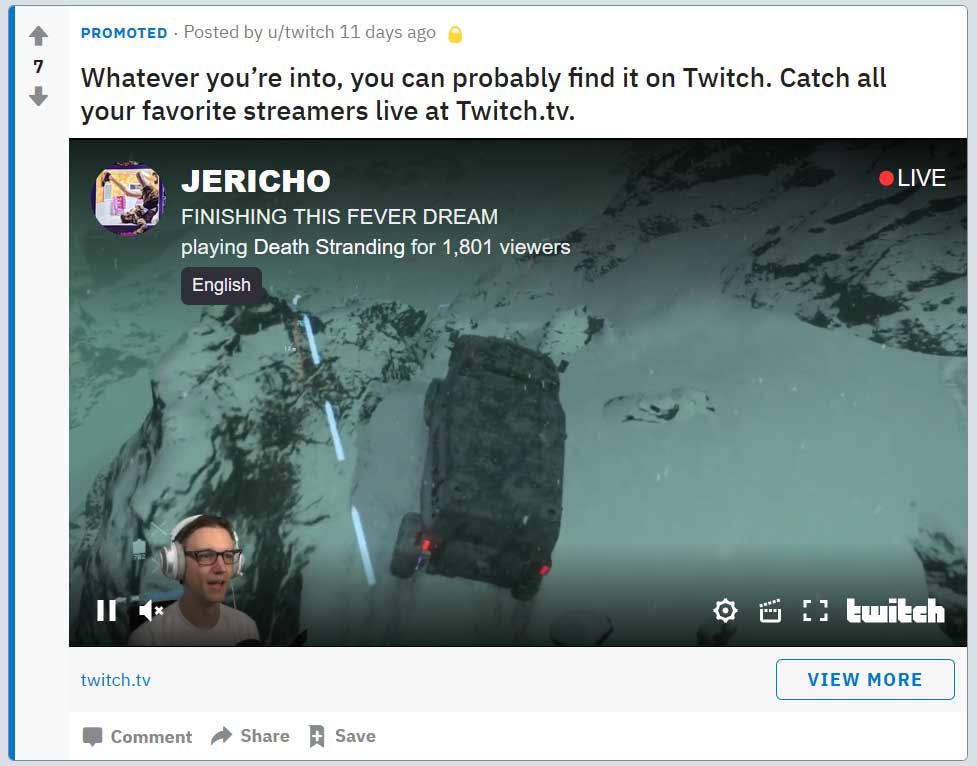
Jericho


There was also a ad for "Timthetatman" but I didn't manage capture that screenshot. This is pretty interesting list of streamers to pick from out of the platform. Tim's stream is marked as mature, so when that Ad with the autoplaying embed shows up, its a black screen pop up that people need to click in order for the stream to start up.

Twitch is spending alot of money on these reddit ads, and its a mix of general twitch ads and these focused autoplaying embeds for a handful of streamers.

------------

Update to this posting 11/26/2020

Just noticed another streaming ad on reddit but this time it was FB Gaming advertising.  Here is a screenshot of the ad post on reddit.

FB Gaming Ad reddit


Monday, August 26, 2019

WOW Classic launch breaks over 1 million viewers!

Amazing turn out for Blizzard's World of Warcraft classic launch on Twitch.  As of 6 PM EST, over 1 million viewers are watching streamers trying to play the game. 

Here is a screenshot of the top most streamers on Twitch who are currently streaming wow classic.

wow classic 1 million viewers


Top 5 Classic WOW Streamers include the following:
  1. Asmongold - 220k
  2. sodapoppin - 97.8k
  3. Method - 45.4k
  4. shroud - 45.1k
  5. ZeratoR - 34.1k
Sadly so far from what I have seen the World of Warcraft classic servers are not able to handle the load of players. Huge queue wait times, then when people are in the game its really laggy and rubber banding all over the place.

Its going to be very interesting to see how the viewership on Twitch is going to hold out for wow classic.  Usually new games get a pop up in views for the first day and then it starts to dip down in the following days.  I have a feeling things maybe alittle different in the case for wow classic. Their appears to be a synergy of personality streamers and wow players who view these streamers as they play the game themselves.  The race to level 60 is also going to take some time to achieve which is another viewer draw to streams.

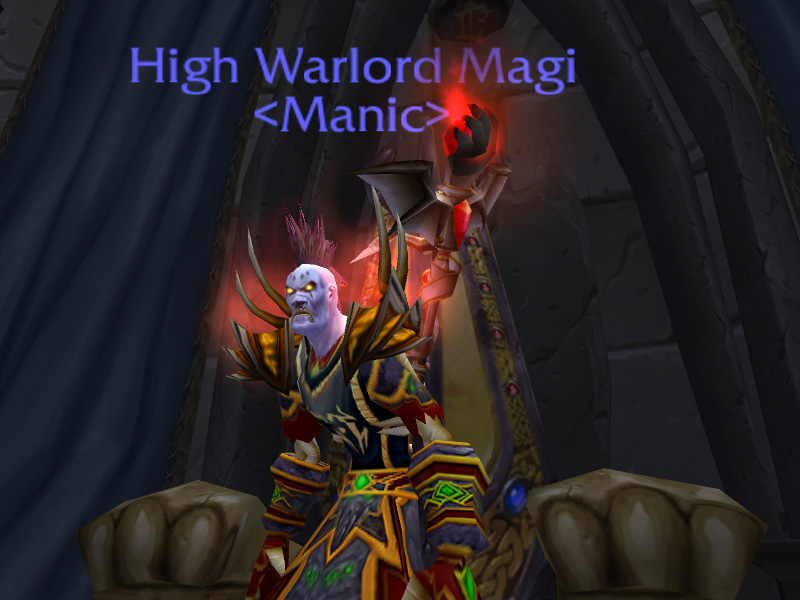
This whole event for me personally is something I cant understand. I use to play WOW back in 2006 and was very active in PVP.  I managed to become one of the first Warlocks on the server to get max pvp rank of High Warlord.

Here is my character with the high warlord tag.

high warlord magi

I don't have any itch to play world of warcraft again. Its pretty amazing to see so many have the opposite viewpoint.  But as time goes on I guess we will see if people stick with it or if this was one big gimmick that people quit in a week or two.
Thursday, June 27, 2019

Subscriber Only Streams feature in beta

Twitch just launched a new feature for streamers that allows them to set their channel to subscriber only mode for viewing.

It is currently in a beta phase, open to partners and affiliates who are eligible. The requirements to have this feature enabled on your account are as follows:
    audience everyone
  • Must broadcasted at least 90 unique days as affiliate or partner.
  • No Twitch TOS, Community Guideline violations in the same 90 day unique time frame.
Once you have the new feature available, you will see a new option show up on your creator dashboard under 'Stream Information" called audience. This is where you will have the ability to enable subscriber only mode for viewing.

 You have to set this option before you start streaming, it will not allow for changing during a active session.

Following are my personal opinions:

PROs for using subscriber only feature
  • Additional Monetization
  • Gated content barrier, due note their is a 5 minute preview window
  • Perk / Loyalty building
CONs for using subscriber only feature
  • First time viewers maybe turned off by paywall
  • Embedded streams on external websites will show splash subscriber screen, no preview with out login
Additional:

Subscriber streams have a special tag assigned to them which allows you to see all active streams that are currently in this mode.

Visit the following URL to see this in action:
https://www.twitch.tv/directory/all/tags/c22bdbea-f4f9-40b4-9f01-bd6f702a37f8

Notice: Many gaming companies such as Blizzard, Riot, Valve, CCP / EVE Online, CD Projekt Red and more have specific terms against using their IP behind paywalls. Make sure to review all video policies and obtain correct licensing/permission before using content from others in sub only mode. 
Thursday, May 16, 2019

Remove Channels from recommendations guide

How to Remove or Hide Channels from Recommendations on Twitch (2026 Guide)

If you keep seeing recommended channels on the Twitch homepage that you are not interested in, you can easily hide them. Twitch lets you tell the algorithm “Not Interested” so those channels stop appearing in your recommendations.

In this fully updated 2026 guide, we show you the exact steps that still work today. The process is quick and works on both desktop and mobile.

Step 1: Go to the Twitch Homepage

Go to www.twitch.tv or click the Twitch logo in the top-left corner of any page.

Step 1 - Twitch Icon gets you to frontpage

On the homepage you will see sections like “Live channels we think you’ll like”, categories, and other personalized recommendations.

Step 2: Remove Unwanted Channels

Find the channel you do not want to see anymore. Click the three vertical dots (⋮) next to it.

Select “Not Interested” (or “I am not interested in this channel”).

Step 2 - Click vertical dots, then not interested

Repeat this for any other channels you want to hide. You can also expand any section by clicking “Show more” to see and hide even more recommendations.

Show more

How to Hide Recommended Games / Categories

The same method works for game recommendations that appear below the live channels.

Remove Games from recommendations

How to Undo a “Not Interested” Mistake

If you accidentally hide a channel you actually like:

  1. Click your profile picture (top right)
  2. Go to Settings
  3. Click the Recommendations tab
  4. You will see a list of hidden channels — click the X next to any you want to bring back

Pro Tips to Improve Your Recommendations in 2026

  • Follow the streamers and games you actually enjoy - Twitch uses this data to show you better suggestions
  • To follow a game: Use the search bar at the top, click the game box art, then click the big Follow button on the directory page
  • The more you follow and watch content you like, the fewer irrelevant recommendations you will see

Frequently Asked Questions

Does “Not Interested” remove the channel forever?

No. It just stops Twitch from recommending that specific channel to you. You can always undo it in Settings.

Does this work on mobile too?

Yes - tap the three dots on any recommended channel and choose “Not Interested”.

Will hiding channels affect my Following page?

No. Your Following page only shows channels you have followed. This only affects the homepage recommendations.

Final Thoughts

Cleaning up your Twitch recommendations takes just a few clicks but makes the homepage much more enjoyable. Use the “Not Interested” option freely and follow the games and streamers you love to train the algorithm.

Want even cleaner recommendations? Follow more of the content you enjoy and regularly use the three-dot menu on anything you do not like.

If you have any other Twitch homepage or recommendation questions, drop them in the comments and I will help you out. Happy streaming!

Thursday, March 21, 2019

Views from Outside Twitch update

Update to 'Views from Outside Twitch'

A undocumented change happened in the stats dashboard for Twitch streamers that you should know about! Views from Outside Twitch has a source called "Direct" and you are probably wondering what exactly gets put into the direct section?

Answer is any sub-domain urls that are embedding your stream all get put into direct -see update note. Note: It also include other things but to the best of my knowledge its mostly subdomains. If anyone knows what else is put into the direct bin, please let me know by commenting below!

In the past you would be able to see blogspot and gamepedia being listed in this stat section- see update note. Here is a example of that via the screenshot

views from outside twitch

Now its more limited, here is a recent screenshot from the "Views from Outside Twitch" section.

updated views from outside twitch
What is more helpful for streamers to know? A Bulk number of external views coming from who knows where or knowing each of the URLS of the top most external views. In my opinion its better to know the exact domains / subdomains and URLS of what is showcasing your stream. Right now if any gamepedia wiki features a streamer, they will not have any idea where that viewership traffic is coming from because it will not list gamepedia anymore in the views from outside twitch section.


Having a section called "Direct" just doesnt make sense either. When you are listing views from outside twitch and then put in something called direct, people will be confused. I hope they do some changes in the future to bring back the more detail reporting. The more information streamers know about how and where their streams are being consumed the better planning and decision making can occur.

Update - 6/6/2020 - "Twitch has made changes and now shows subdomain information in the views from outside twitch section. Not exactly sure when they implemented the update, but basically they took the suggestion from this post and fixed it to show subdomains and other helpful information."