Unlock the Full Twitch Experience on Your Big Screen: The Complete 2026 Guide to Twitch TV Activate
Imagine settling into your favorite chair, grabbing the remote, and instantly jumping into the hottest live streams, esports tournaments, and creator chats right on your living room TV. No more hunching over a laptop or phone. That seamless shift from mobile to massive screen is exactly what Twitch TV activation delivers. It is easier than ever in 2026.
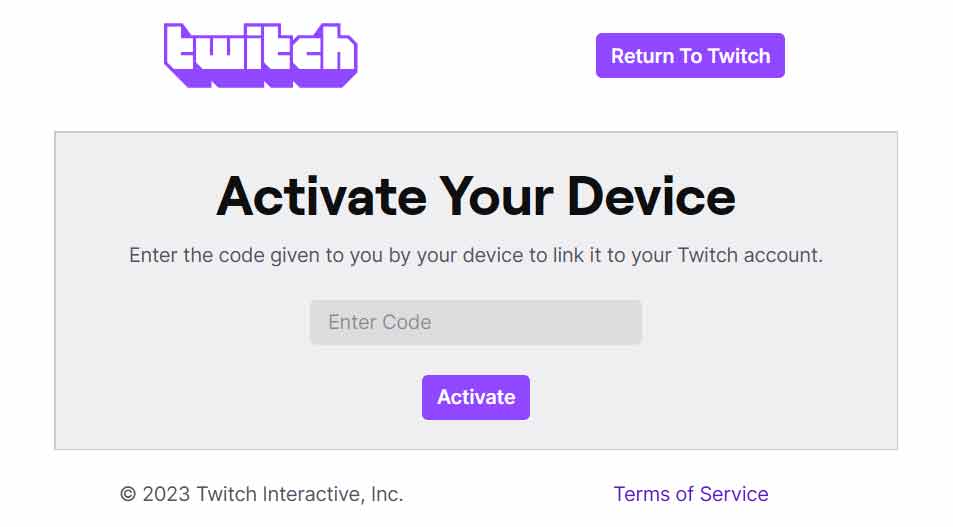
Whether you are using a smart TV, Amazon Fire Stick, Roku, Xbox, PlayStation, or another streaming device, activating your Twitch account takes just a couple of minutes. Once linked, you can watch live broadcasts, subscribe to your favorite streamers, and even chat in real time from the comfort of your couch. Here is your up to date step by step guide that actually works.
What Is Twitch TV Activation and Why Do You Need It?
Twitch TV Activate is the official process that securely connects your Twitch account to compatible devices. Instead of entering your full username and password directly on a TV or console, you get a simple six digit code displayed on the screen. You then enter that code on a trusted device like your phone or computer at the official Twitch activation page. It is fast, safe, and keeps your login details private.
This simple link lets you enjoy Twitch full library of live gaming, IRL streams, music, sports, and more without any hassle. The best part is the process has not changed much in years because it already works so well.
General Step By Step: How to Activate Twitch on Any Device
The core process is the same across almost every platform. Follow these steps and you will be streaming in no time:
- Open the Twitch app on your smart TV, streaming stick, or gaming console.
- Select Log In or Activate (sometimes labeled Sign In with Account).
- A six digit activation code will appear on your TV screen. Keep this screen visible. Codes expire after a few minutes.
- On your phone, tablet, or computer, open a web browser and go to https://www.twitch.tv/activate.
- Log in to your Twitch account if prompted.
- Type in the six digit code exactly as shown and click Activate.
- Confirm the connection, and your device will refresh. Your account is now linked!
That is it. You are ready to browse channels, follow streamers, and dive into the action.
Device Specific Instructions for the Most Popular Platforms
Amazon Fire TV Stick or Fire TV
Fire TV remains one of the easiest ways to watch Twitch. Download the official Twitch app from the Amazon Appstore, open it, and follow the general steps above. The code appears instantly, and activation usually takes under 30 seconds. Once linked, you can even use voice commands through Alexa for a truly hands free experience.
Roku Streaming Devices
Roku users have a couple of solid options. Search for Twitch in the Roku Channel Store and add the official or certified partner channel. Launch the app, choose to log in, and use the standard activation flow at twitch.tv/activate. Some users also opt for the popular third party Twoku channel for extra features. Either way, the six digit code method works flawlessly.
Xbox and PlayStation Consoles
Gaming consoles make Twitch activation feel natural. On Xbox, grab the Twitch app from the Microsoft Store. On PlayStation, find it in the PlayStation Store. Launch the app, select the login option, and enter the code at twitch.tv/activate. Once connected, you can even stream your own gameplay directly from the console to Twitch with a single tap.
Smart TVs (Samsung, LG, Android TV, and others)
Most modern smart TVs have the Twitch app built into their app stores. Download it, open the app, and follow the same code based activation. If your TV does not have a native app, you can always cast from your phone using the Twitch mobile app or use a streaming stick as a workaround.
Other Streaming Devices (Apple TV, NVIDIA Shield, and more)
Apple TV users can download Twitch from the App Store and activate using the same method. Android based devices like the NVIDIA Shield follow the identical flow. The beauty of this system is its consistency. No matter the hardware the activation page at twitch.tv/activate handles everything.
Troubleshooting Common Twitch Activation Problems
Most people sail through the process, but here are quick fixes for the occasional hiccup:
- Code not working or expired? Generate a fresh code on your TV and try again quickly.
- Invalid code message? Double check that you are using the official twitch.tv/activate page (never enter credentials on suspicious sites).
- App not loading? Make sure your device firmware and the Twitch app are fully updated. Restarting the device often solves glitches.
- Still stuck? Clear the Twitch app cache on Fire TV or Android devices or reinstall the app. Twitch support pages also have device specific help articles.
If nothing works, Twitch customer support team is responsive and can usually resolve account linking issues fast.
Pro Tips to Get the Most Out of Your Activated Twitch Setup
Once your account is linked, take full advantage:
- Enable notifications so you never miss your favorite streamers going live.
- Use the Following tab on the big screen to keep your personalized feed front and center.
- Subscribe or gift subs directly from the TV interface for that premium viewing experience.
- Pair a Bluetooth keyboard or use your phone as a remote for easier chatting during streams.
Activating your Twitch account on a TV or console is not just convenient. It completely transforms how you enjoy live content. Whether you are a casual viewer or a dedicated esports fan, this simple process opens up a whole new world of entertainment.
Ready to level up your streaming game? Grab your remote, open the Twitch app on your device of choice, and head over to twitch.tv/activate right now. Your next favorite stream is waiting on the big screen.
