Ready to Stream Like a Pro on Your iPad? Here's Exactly How to Get Twitch Installed
You're kicking back with your iPad, the big beautiful screen glowing as your favorite streamer drops an epic play in real time. Chat is flying, reactions are popping, and you're right there in the action. But wait, Twitch isn't sitting in your apps already? Don't worry, you're not alone. No iPad comes with the Twitch app pre-installed, and that's by design. Apple keeps things clean, so third-party apps like this one need a quick download from the App Store.
The good news? Getting Twitch onto your iPad takes less than two minutes, and once it's there, you'll unlock the full mobile experience: smooth streaming, interactive chat, following your must-watch channels, and even exclusive perks like subscriptions and emotes. Whether you're into gaming, IRL streams, music, or esports, the official Twitch app turns your iPad into a portable streaming powerhouse.
Here's the updated, foolproof guide to install it in 2026. The App Store has gotten a bit sleeker over the years, but the core process is still delightfully simple. I'll walk you through it step by step, with the visuals to match.
Step 1: Open the App Store
Grab your iPad and tap the familiar blue App Store icon on your home screen or in the App Library. It's the gateway to thousands of apps, including Twitch.

Step 2: Head to the Search Tab
Once inside the App Store, look for the Search icon at the bottom right of the screen. Tap it to open the search bar. This is where the magic starts.

Step 3: Search for Twitch
Type "Twitch" into the search bar at the top and tap the Search button on your keyboard. The official app should pop right up at the top of the results.

Step 4: Grab the Official Twitch App
Look for the app labeled "Twitch: Live Streaming" by Twitch Interactive, Inc. It's often marked as Editors’ Choice, which tells you it's a top-tier pick. Tap the "Get" button to start the download. Note that these screenshots show an earlier version of the App Store, but the app icon and details remain consistent.

Step 5: Install the App
You'll be prompted to confirm with Face ID, Touch ID, or your Apple ID password. Once approved, the button changes to "Install." Watch it download and install automatically. The app is around 387 MB, so make sure you have a decent Wi-Fi connection and enough storage space.
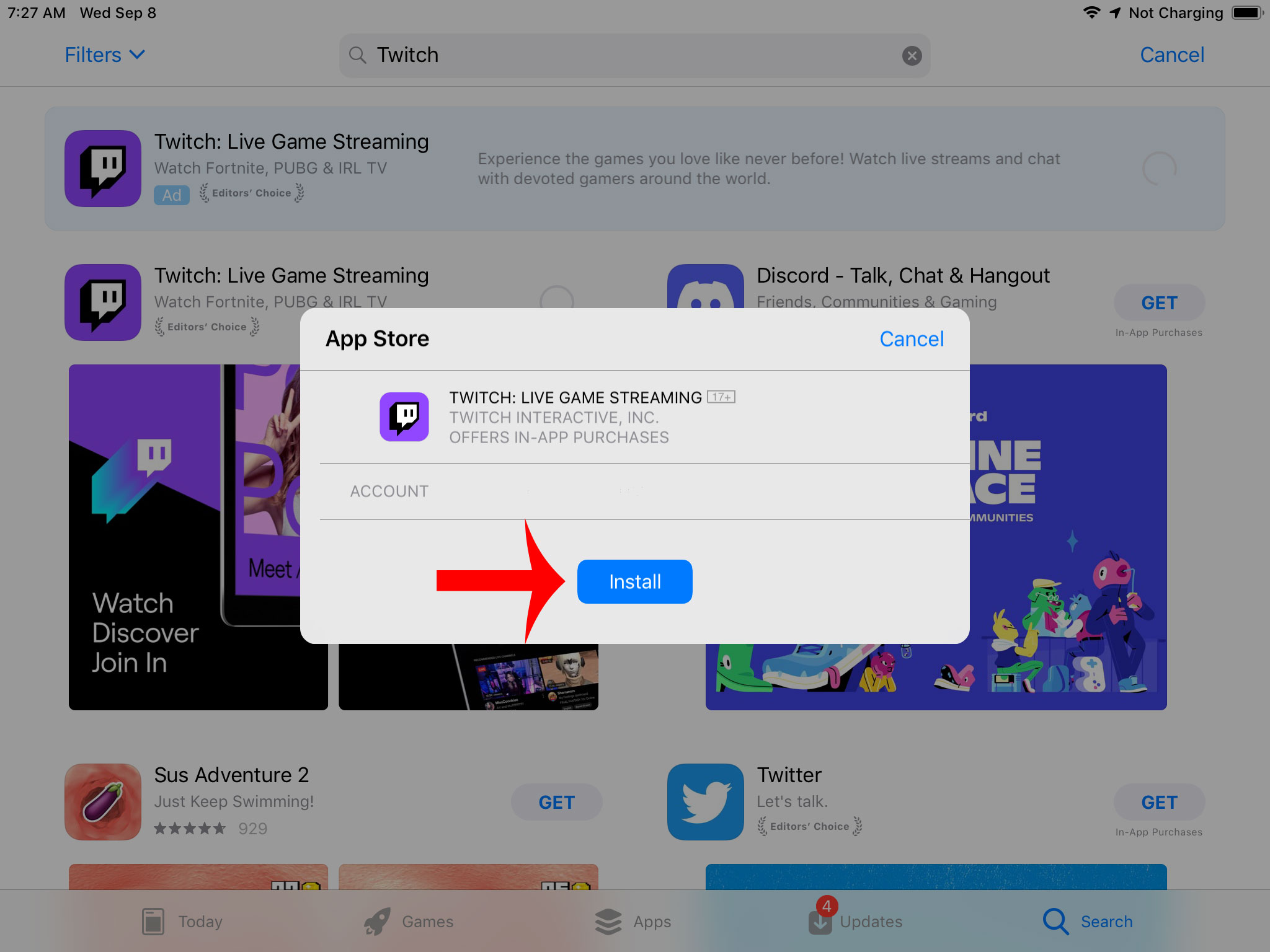
Step 6: Open and Start Streaming
When the installation finishes, the button turns to "Open." Tap it to launch Twitch right away. You'll land on the home feed full of live channels. Sign in with your Twitch account (or create one in seconds) to personalize your experience with follows, subscriptions, and chat.

Pro Tips to Get the Most Out of Twitch on Your iPad
Now that you're in, here's how to level up:
- Multitasking magic: Use Split View or Stage Manager to watch a stream while browsing the web or taking notes.
- Notifications on point: Turn on alerts for your favorite streamers so you never miss a live drop.
- Chat like a boss: The larger screen makes typing replies and using emotes way more fun.
- Stay updated: Twitch releases frequent updates with new features, so keep the app current in the App Store.
- Troubleshooting quick fixes: If the app doesn't appear in search, double-check your iPadOS version (needs 16.4 or later) or try switching regions in your Apple ID settings. Still stuck? Restart your iPad or search again after a quick App Store refresh.
That's it. You're now fully set up for endless hours of entertainment. Fire up a stream, drop a few bits, and enjoy the community that makes Twitch special. If you run into any hiccups along the way, the Twitch help center or App Store reviews are packed with real-user solutions. Happy streaming!
