Thursday, June 27, 2019

Subscriber Only Streams feature in beta

Twitch just launched a new feature for streamers that allows them to set their channel to subscriber only mode for viewing.

It is currently in a beta phase, open to partners and affiliates who are eligible. The requirements to have this feature enabled on your account are as follows:
    audience everyone
  • Must broadcasted at least 90 unique days as affiliate or partner.
  • No Twitch TOS, Community Guideline violations in the same 90 day unique time frame.
Once you have the new feature available, you will see a new option show up on your creator dashboard under 'Stream Information" called audience. This is where you will have the ability to enable subscriber only mode for viewing.

 You have to set this option before you start streaming, it will not allow for changing during a active session.

Following are my personal opinions:

PROs for using subscriber only feature
  • Additional Monetization
  • Gated content barrier, due note their is a 5 minute preview window
  • Perk / Loyalty building
CONs for using subscriber only feature
  • First time viewers maybe turned off by paywall
  • Embedded streams on external websites will show splash subscriber screen, no preview with out login
Additional:

Subscriber streams have a special tag assigned to them which allows you to see all active streams that are currently in this mode.

Visit the following URL to see this in action:
https://www.twitch.tv/directory/all/tags/c22bdbea-f4f9-40b4-9f01-bd6f702a37f8

Notice: Many gaming companies such as Blizzard, Riot, Valve, CCP / EVE Online, CD Projekt Red and more have specific terms against using their IP behind paywalls. Make sure to review all video policies and obtain correct licensing/permission before using content from others in sub only mode. 
Thursday, May 16, 2019

Remove Channels from recommendations guide

How to Remove or Hide Channels from Recommendations on Twitch (2026 Guide)

If you keep seeing recommended channels on the Twitch homepage that you are not interested in, you can easily hide them. Twitch lets you tell the algorithm “Not Interested” so those channels stop appearing in your recommendations.

In this fully updated 2026 guide, we show you the exact steps that still work today. The process is quick and works on both desktop and mobile.

Step 1: Go to the Twitch Homepage

Go to www.twitch.tv or click the Twitch logo in the top-left corner of any page.

Step 1 - Twitch Icon gets you to frontpage

On the homepage you will see sections like “Live channels we think you’ll like”, categories, and other personalized recommendations.

Step 2: Remove Unwanted Channels

Find the channel you do not want to see anymore. Click the three vertical dots (⋮) next to it.

Select “Not Interested” (or “I am not interested in this channel”).

Step 2 - Click vertical dots, then not interested

Repeat this for any other channels you want to hide. You can also expand any section by clicking “Show more” to see and hide even more recommendations.

Show more

How to Hide Recommended Games / Categories

The same method works for game recommendations that appear below the live channels.

Remove Games from recommendations

How to Undo a “Not Interested” Mistake

If you accidentally hide a channel you actually like:

  1. Click your profile picture (top right)
  2. Go to Settings
  3. Click the Recommendations tab
  4. You will see a list of hidden channels — click the X next to any you want to bring back

Pro Tips to Improve Your Recommendations in 2026

  • Follow the streamers and games you actually enjoy - Twitch uses this data to show you better suggestions
  • To follow a game: Use the search bar at the top, click the game box art, then click the big Follow button on the directory page
  • The more you follow and watch content you like, the fewer irrelevant recommendations you will see

Frequently Asked Questions

Does “Not Interested” remove the channel forever?

No. It just stops Twitch from recommending that specific channel to you. You can always undo it in Settings.

Does this work on mobile too?

Yes - tap the three dots on any recommended channel and choose “Not Interested”.

Will hiding channels affect my Following page?

No. Your Following page only shows channels you have followed. This only affects the homepage recommendations.

Final Thoughts

Cleaning up your Twitch recommendations takes just a few clicks but makes the homepage much more enjoyable. Use the “Not Interested” option freely and follow the games and streamers you love to train the algorithm.

Want even cleaner recommendations? Follow more of the content you enjoy and regularly use the three-dot menu on anything you do not like.

If you have any other Twitch homepage or recommendation questions, drop them in the comments and I will help you out. Happy streaming!

Thursday, March 21, 2019

Views from Outside Twitch update

Update to 'Views from Outside Twitch'

A undocumented change happened in the stats dashboard for Twitch streamers that you should know about! Views from Outside Twitch has a source called "Direct" and you are probably wondering what exactly gets put into the direct section?

Answer is any sub-domain urls that are embedding your stream all get put into direct -see update note. Note: It also include other things but to the best of my knowledge its mostly subdomains. If anyone knows what else is put into the direct bin, please let me know by commenting below!

In the past you would be able to see blogspot and gamepedia being listed in this stat section- see update note. Here is a example of that via the screenshot

views from outside twitch

Now its more limited, here is a recent screenshot from the "Views from Outside Twitch" section.

updated views from outside twitch
What is more helpful for streamers to know? A Bulk number of external views coming from who knows where or knowing each of the URLS of the top most external views. In my opinion its better to know the exact domains / subdomains and URLS of what is showcasing your stream. Right now if any gamepedia wiki features a streamer, they will not have any idea where that viewership traffic is coming from because it will not list gamepedia anymore in the views from outside twitch section.


Having a section called "Direct" just doesnt make sense either. When you are listing views from outside twitch and then put in something called direct, people will be confused. I hope they do some changes in the future to bring back the more detail reporting. The more information streamers know about how and where their streams are being consumed the better planning and decision making can occur.

Update - 6/6/2020 - "Twitch has made changes and now shows subdomain information in the views from outside twitch section. Not exactly sure when they implemented the update, but basically they took the suggestion from this post and fixed it to show subdomains and other helpful information."

Thursday, December 20, 2018

Atlas Launch delayed, but the hype meter was on overdrive

Atlas Launch has been delayed, viewers showed up in mass on Twitch.

During the failed launch of Atlas on Dec 19, we saw over 210,000 viewers on Twitch waiting to see what the game is all about. For a game with very limited information other then some screenshots and 2 trailers, I find the hype meter really high.

210,000 viewers
Some of the biggest streamers on Twitch all switched from their regular scheduled formats to showcase this new game. Here is a look at the game directory on Twitch with some thumbnails of majority of the streamers.

Dec 19 streamer directory twitch
Judging by the interest in viewers and of streamers, this game may do really well if the next launch window isn't delayed again. What makes this game different from other mmo's is how they are saying its going to be similar to EVE Online with having a majority of players on a single shard.  If they can pull that off, with ARK like mechanics and trading economies from EVE, this maybe one of the best games for streamers to get into for regular sessions.

Check out our new PlayAtlas wiki website being developed.

That being said, if it gets into EVE Online mechanics with full loot and ship loss it may turn off a lot of players. All of it depends on the time it takes to create ships and gear. If its very easy to create ships and gear then that also makes things alittle gimmicky. Since its on a single shard type of server setup, stream sniping is going to be a issue for streamers.

12/21/2018 - Latest Update from community manager states they will be allowing some streamers into the game before launch. Here is the discord screenshot of the full statement.

community manager
Overall this entire roll out has been poorly managed for the game in my opinion.  A lot of things should of been setup and handled better way before launch date(s).


Thursday, December 13, 2018

How to get free game keys sponsor for your twitch stream!

Unlock Free Game Keys and Sponsorships: The Ultimate 2026 Guide for Streamers and Content Creators

As a streamer or YouTube creator, scoring free game keys isn't just a nice perk - it's a powerful way to keep your content fresh, engage your audience, and open doors to bigger opportunities with game developers. In 2026, the competition is fiercer than ever, but the right platforms make it easier for legitimate creators to connect directly with publishers who are eager for authentic coverage.

These specialized services act as matchmakers. They verify your channels by linking your Twitch, YouTube, TikTok, and social accounts, pulling real data on your audience size, engagement, and content history. This screening process helps cut out fake accounts and ensures developers are sending keys to creators who will actually deliver value. The more you stream, post, and grow your following, the more opportunities come your way.

Here are the key platforms I rely on regularly to fuel my Twitch channel with new titles. I've updated this list with the latest info for 2026, including some important platform consolidations.

1. Keymailer.co

Keymailer remains one of the leading game key distribution platforms, connecting over 55,000 accredited gaming influencers with publishers and developers. It's perfect for discovering new releases, requesting keys, and even participating in creator programs. Publishers list their games, and creators like you can browse and apply based on your niche.

Keymailer frontpage

Pro tip: Get accredited to stand out - it signals to publishers that you're an active, genuine creator.

2. Noiz.gg

Noiz.gg offers key distribution along with fun monetization opportunities through quests and campaigns. It's a vibrant platform that helps creators earn while engaging their communities with brand partnerships in gaming and entertainment.

Noiz.gg

3. Terminals.io

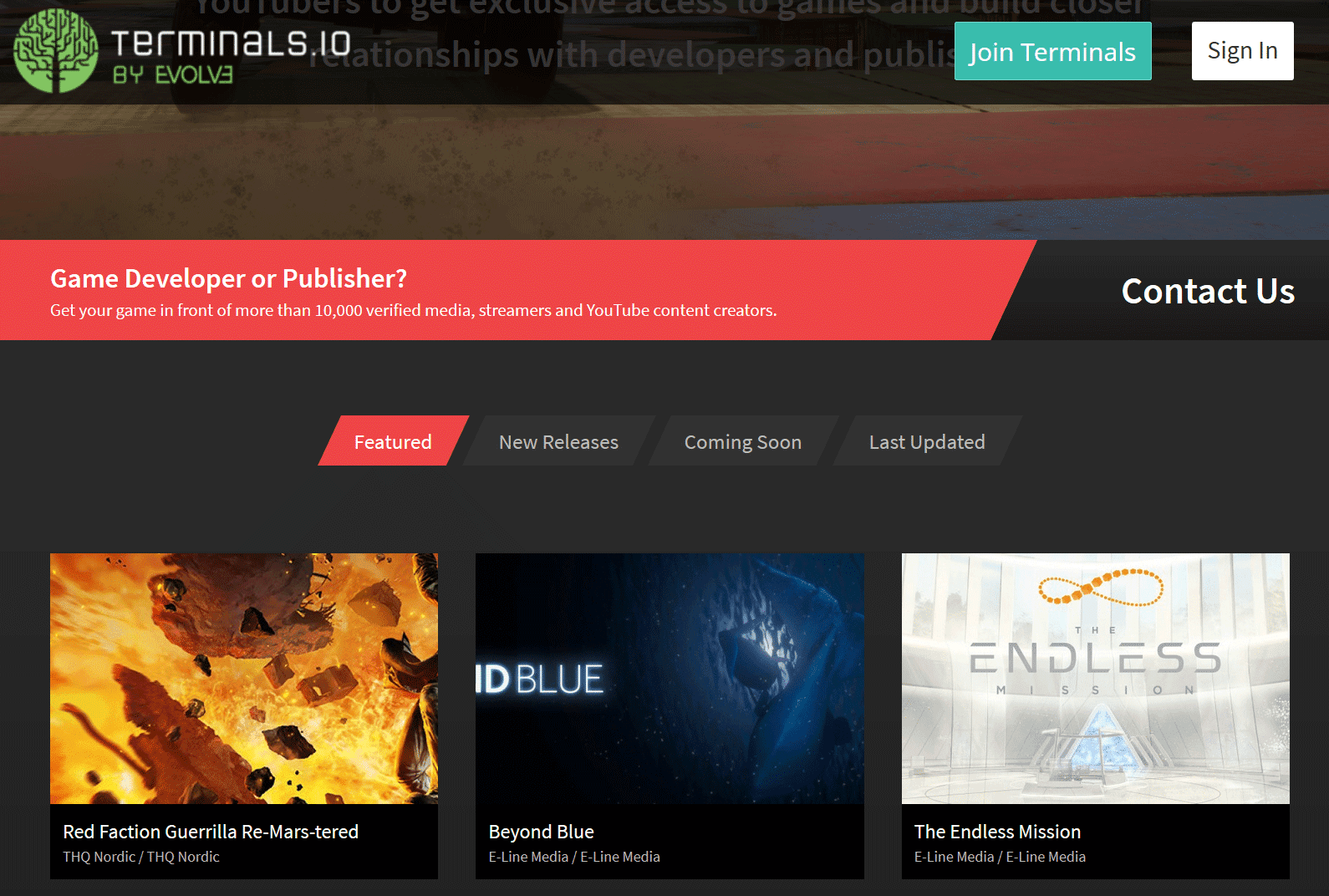
Terminals.io is a robust key distribution and PR platform with access to over 29,000 verified media, streamers, and YouTubers. Developers use it to get games in front of the right eyes efficiently, while creators can request keys and stay updated on upcoming releases.

Terminals.io frontpage

4. Gamesight.io

Gamesight.io excels in targeted key distribution and creator programs. They've paid out millions to creators and distributed hundreds of thousands of keys. It's ideal for building relationships with AAA and indie studios through structured campaigns.

Gamesight frontpage

5. Xsolla Partner Network

Xsolla's Partner Network is performance-driven, offering game keys, affiliate programs, and sponsorship opportunities. It's great for creators looking to monetize through promotions and earn while playing. The platform has grown even stronger through strategic integrations.

Xsolla Influencer platform

Note: Arsenal.gg and Rainmaker.gg Integration

Arsenal.gg evolved into Rainmaker.gg and has now been fully integrated into the Xsolla Partner Network. This consolidation brings together analytics, key distribution, and powerful creator tools under one unified platform. If you were using Arsenal or Rainmaker before, your accounts and opportunities are now managed seamlessly through Xsolla.

Arsenal.gg (now part of Xsolla)

Pro Tips to Maximize Your Success

  • Complete your profile thoroughly: Link all your channels and socials for accurate verification and better game matching.
  • Be selective and consistent: Request games that fit your audience and deliver high-quality streams or videos promptly.
  • Track your metrics: Many platforms provide analytics - use them to understand what works and grow your channel.
  • Build relationships: Positive interactions can lead to repeat opportunities and exclusive sponsorships.

These platforms have helped me tremendously in keeping my content pipeline full. If you're serious about growing as a content creator, sign up for a few and start exploring what's available today.

Know of any other great services not listed here? Drop a comment below or reach out - I'm always on the lookout for new ways to support the streaming community!

Thursday, October 11, 2018

Android App - Browse games by number of viewers

How to sort on the Twitch Android App by number of viewers!

So Twitch by default it seems has a preference setting that says the following; "Language Ranking" - Show me streams where a large portion of the viewers share my language first.


This setting makes games and streamers of your language have higher placement on the directory listing sections on the app.  If you want to have it so its all sorted by viewer numbers and no language, you will have to turn this setting off in the preferences.

Steps to get to Preferences, since it seems alittle cryptic to finding this settings option.

Login to the Twitch App

On the Top Right corner there is a Icon for your profile.


Click on that, then scroll up to see the Cogwheel.


Click on the cogwheel, select settings

Then click on Preferences and move the language ranking setting to the off position.

Thursday, September 27, 2018

Tags Guide

How to use the tags system on Twitch.tv!

The new tagging system is now live as of September 26, 2018 on Twitch.tv. Tags can be used to categorize channels with additional details. To add tags to your channel go to the dashboard and check in the "Stream Information" for the tags section.

Tags panel
Search for the tag that best fits your channel, you can have up to 5 different tags. Your language setting is also included in the tagging system. Once you have added in all the tags for your channel, press update information button.

All the various tags will be available as filter options in the directory pages. The tagging system will also be used in personalized recommendation section(s) to show more similar streams based on past history and tag listings. For instance, if you watch channels that are tagged as 'PvE', the recommendation sections will show more of those types of channels.

Notable Changes
 
The gaming directory now has unique tags dedicated to genres.

List of Game Directory Genres:
  • Action
  • Adventure
  • Adventure Game
  • Battle Royale
  • Card & Board Game
  • Compilation
  • Creative
  • Driving
  • Driving/Racing Game
  • Educational Game
  • Fighting
  • Flight Simulator
  • FPS
  • Gambling Game
  • Horror
  • IRL
  • MMORPG
  • MOBA
  • Non-gaming
  • Pinball
  • Platformer
  • Puzzle
  • Rhythm & Music Game
  • Roguelike
  • RPG
  • RTS
  • Shoot 'Em Up
  • Shooter
  • Simulation
  • Sports
  • Strategy
You can not set your tags to any of these genres, they are only listed for games and special categories.

The POPULAR listing is now called Live Channels, this still includes 'ReRun' streams.
live channels section

If you are looking to search for specific languages, you can either type it in the filter or switch the 'Showing' section to 'Live Channels' and find it in the drop down list.

 search by language

Creative Section changes
creative section on twitch
The creative section has changed, "Creative" is now a genre with tags that are searchable.
  • Music & Performing Arts
  • Art
  • Food & Drink
  • Makers & Crafting
  • Beauty & Body Art
IRL Section changes

irl section on twitch

The IRL section has changed, "IRL" is now a genre with tags that are searchable.
  • Just Chatting
  • Music & Performing Arts
  • Talk Shows & Podcasts
  • ASMR
  • Travel & Outdoors
  • Food & Drink
  • Makers & Crafting
  • Science & Technology
  • Beauty & Body Art
  • Special Events
  • Sports & Fitness


Update 4/18/2020

Make sure to use all 5 tag slots for your stream because Twitch is using certain tags for their sitemap indexing pages that search engines crawl and then index into their directories. This is sadly going to only benefit the top viewed vod and the most live concurrent channels but you maybe lucky with a smaller channel to still be index'ed in time to time because many top end streamers are to lazy to add in tags.

Here is a list of the current specific tags used in Twitch's sitemap index that you should be using.


Channels VODS
100 100
12 Hour Challenge
Achievement Hunting Achievement Hunting
AMA AMA
Analysis
Animals Animals
Animation
Anime Anime
Any Any
Arena
Auditory ASMR
Backseat Gaming Allowed Backseat Gaming Allowed
Basketball  Basketball
Beginner Players Beginner Players
Blind Playthrough Blind Playthrough
Cash Game
Casual Playthrough
Celeb Celeb
Challenge Run Challenge Run
Charity Charity
Closed Captions
Coaching Coaching
Competitive Competitive
Cooking Cooking
Cooperative Cooperative
Cosplay Cosplay
Digital Art
DJ DJ
Drawing Drawing
Duos Duos 
Early Access Play Early Access Play
Educational  Educational 
Electronic Music Electronic Music
End Game 
Epic Level Characters
Esports Esports
EU Server EU Server
Evil Characters Evil Characters
Exploration Exploration
Family Friendly Family Friendly
Farming Farming
Fashion
Finance
First Playthrough First Playthrough
Game Show Game Show
Gaming News Gaming News
Hard Mode Hard Mode
Hip Hop Music Hip Hop Music
Illustration
Improv
League League
Let's Play Let's Play
Leveling LGBTQIA
LGBTQIA
Live Vlogging Live Vlogging
Marathon Marathon
Match Commentary Match Commentary
Meme Runs Meme Runs
Mental Health Mental Health 
Mindfulness Mindfulness
Modded Modded 
Mode Battle Royale
Mode Survival Mode Survival
Multiplayer Multiplayer
Music Performance  Music Performance
Music Production Music Production
NA Server NA Server
News News
No Backseat Gaming No Backseat Gaming
No Spoilers  No Spoilers
Party Game Party Game
PB Attempts PB Attempts
Permadeath
Playing with Viewers Playing with Viewers
Pro Fortnite Pro Fortnite
Pro Hearthstone Pro Hearthstone
PvE PvE
PvP PvP
Racing Racing
Radio Radio
Ranked Ranked
Retro
Roleplay  Roleplay
Singing Singing
Singleplayer Singleplayer
Soccer Soccer 
Social Eating Social Eating
Solos Solos
Speedrun Speedrun
Squads Squads
Standup Comedy Standup Comedy
Strength Training Strength Training
Tournament Tournament
Tutorial
Twitch Stream Aid Twitch Stream Aid
Visual ASMR Visual ASMR
Voice Acting Voice Acting
VR VR
Warming Up Warming Up
WR Attempts


Twitch appears to have a special tag called "Celeb" which only a couple channels appear to be enabled for which include the following: xqcow, drdisrespect, nickmercs, timthetatman, lirik. Some other tags in the above list may also be not accessible, I do not have the time to check all of them.

Another issue to be noted on is that you can only set the tags before your stream or during your stream.  Currently you can not go into your VODS and switch tags. VODS take the tags that were made during the stream session. I hope they allow VOD tagging to be enabled in the future.