Sunday, June 10, 2018

Advice - Take half the time you spend on reddit

Building your own gaming blog content

Stop Doomscrolling Social Media - Build Your Own Gaming Blog and Watch Your Stream Grow

If you’re a game streamer who burns hours every single week scrolling Reddit threads, TikTok FYP, X timelines, Instagram Reels, YouTube Shorts, Discord servers, and every other feed chasing tips, drama, or that quick hit of validation, I’ve got a better trade for you. Take half that time and pour it into creating your own blog. Write about the exact games you’re playing on stream, share your real experiences, and build something that actually belongs to you instead of feeding someone else’s algorithm.

Social media is still where most streamers hang out. It’s addictive, it’s fast, and it feels like you’re staying connected. But endless consuming rarely builds anything lasting for your channel. A blog does. It gives you a permanent home base that ranks in Google, attracts players actively searching for help, and turns casual scrollers into loyal viewers who show up in your chat because they already trust your voice.

Why Owning a Blog Beats Pure Social Media Reliance in 2026

Live streaming shines for real-time energy and community, but it’s tough to own the long game when everything lives on rented land. Platforms change their algorithms overnight. Posts disappear from feeds in hours. Trends move on before you can blink. Meanwhile, people are still Googling “best beginner build for [game] 2026,” “how to fix this glitch,” or “is this meta still good?”

When your blog shows up in those searches, new players find you naturally. They read your guide, see your personality, and often click straight over to your live stream. It’s not about quitting social media completely. It’s about using it smarter while building an asset that works for you 24/7, even when you’re offline or between games.

Getting Started Is Still Free, Fast, and Stupidly Easy

Already have a Gmail account? Perfect. Blogger is still Google’s no-cost, beginner-friendly platform in 2026, and it remains one of the quickest ways for streamers to test the waters without spending a single dollar or learning complicated code.

  1. Use your existing Google account or create one in seconds.
  2. Head to blogger.com and sign in.
  3. Click “Create a New Blog.”
  4. Choose a clear title and a smart address - something like yourgamenameguides.blogspot.com that naturally includes the keywords players actually type into search.
  5. Pick a clean, mobile-friendly theme and hit publish. Done.

You can have a professional-looking site live in under ten minutes. No hosting bills, no plugins to update, no stress.

What to Write About (Content That Actually Attracts Real Viewers)

Keep every post tied directly to what you’re streaming right now. Your authentic playtime is your best material:

  • Beginner-friendly guides and quick-start tips for the games you main.
  • Deep-dive builds, strategies, and meta breakdowns you’ve tested live on stream.
  • Honest reactions to new patches, balance changes, or big updates.
  • Stream highlights with extra context - why that moment was clutch, funny, or a total disaster.
  • Screenshot galleries of rare loot, hidden secrets, epic fails, or beautiful moments.
  • Opinion pieces like “Why this underrated game deserves way more love” or “The biggest mistakes I see new players make every single stream.”

Write the way you talk to your regulars. Add plenty of screenshots, embed your best Twitch clips, and sprinkle in the exact phrases people search for. Over months you’ll build a growing library that keeps pulling in fresh eyes long after you hit publish.

Turn Your Blog Into a Live Stream Magnet

Here’s one of the smartest little moves you can make: embed your actual Twitch stream right in the sidebar. Someone lands on your latest guide, notices you’re live, and can jump straight into chat without losing momentum. It’s a seamless bridge that turns readers into active community members in seconds.

Twitch still makes the embed code dead simple. Grab the iframe from their developer tools, drop it into your blog layout, and you’re set. That tiny addition alone has helped countless streamers convert blog traffic into live viewers.

Get Your Blog Found by Search Engines (The Step Most People Skip)

Once your site is up, make sure the big search engines know you exist:

  • Google Search Console: Go to search.google.com/search-console, add your blog, verify it (Blogger usually makes this automatic), and submit your sitemap so Google starts crawling your posts right away.
  • Bing Webmaster Tools: Do the same quick process at bing.com/webmasters.

Request indexing whenever you publish something new. Consistent posting plus proper setup equals steady organic traffic that doesn’t depend on any social media algorithm.

Social Media Still Has a Place - But Your Blog Is the Foundation

Use Reddit, TikTok, X, Instagram, and the rest to share your newest blog posts, tease stream highlights, and stay in the conversation. Just don’t let them become the only place you create. Half your current scrolling time redirected to writing will give you something no platform can take away: real ownership and long-term growth.

Content Is Still King - Keep Shipping

You probably won’t see massive results overnight, but every single post adds another solid brick to your foundation. Stay consistent with the games you genuinely love, keep your voice real, and you’ll slowly turn random scrollers into people who show up to your streams week after week, raid you, and become part of your community.

The time you’re already spending on social media could be building something that grows with you for years. Why not start today? Your future self, your growing audience, and your stream numbers will thank you.

Monday, May 21, 2018

Top Game Influencer on Twitch, isn't a person its a website!

One of the top influencer's for games on Twitch isn't a streamer or a personality, its a external website.

Influencer marketing is generally getting the word out about a product or a service to a large group of consumers via "Influencers". On Twitch "Influencers" are generally streamers who are payed or sponsored in some fashion to play a video game or show case a product. Streamers who are not paid but are inspired to play games and/or use products they like on their channels are also "Influencers" in some capacity.

Top Games Twitch 2018 May
One major factor on overall influencing on Twitch for video games is the game directory. If a game is on the top slots of the overall directory, more viewership generally trends into those channels featuring said game.


In comes "Gamepedia", which is owned by Amazon, the parent company of Twitch Inc. Gamepedia is promoting Twitch streams across their vast network of crowd sourcing wiki's. Only the top Twitch streams that are of affiliate level or higher get promoted depending on the game. So lets say a Twitch affiliate streamer named "Justin" is playing and streaming Diablo. If no other Twitch affiliate or partners are streaming that game, Justin's channel will be promoted on gamepedia's diablo wiki on the bottom of the content pages.

As people search for Diablo related information on search engines, they will most likely see in the top search engine results, gamepedia related pages.  Once they visit a gamepedia content page, they will be counted as a view for the twitch channel being promoted at the bottom.

gamepedia embedding twitch streams
Here is a example of a Twitch stream being promoted on a gamepedia wiki page at the bottom.

If no one is streaming Diablo, then the current top streamer of twitch will be promoted in that spot.

All of these views from gamepedia add up and directly influence the overall placement of games on the directory.

And here is also another really interesting factor, that many don't really know about or consider. Any  streamer who gets promoted on gamepedia wiki's will be able to see the traffic coming in via the dashboard stats from external sites. If the traffic is pretty substantial why would they switch and play other games? Who is going to say no to thousands of free channel views and viewers automatically coming to your channel?

Update: 7/26/2019 --  Gamepedia has stopped promoting twitch streams as a autoplaying embed on their wiki platform.  Gamepedia is also not part of Twitch/Amazon anymore since the start of this year.

Here is the reason why from MisterWoodhouse from Gamepedia:


Fill free to ask questions or comment below!
Saturday, May 12, 2018

Free Channel Traffic / Free Views

Get free channel traffic to your Twitch stream by knowing about gamepedia's promotional content section!
free views for twitch streams
So your a small streamer on the Twitch platform? Want a way to get some possible free traffic going to your stream? Well here is one way to get some views going into your channel.

Gamepedia is now one of the biggest traffic generators for Twitch Streams

Please note: It's not going to work for all channels, you need at least 10-15 concurrent viewers + to be able to take advantage of it.

Steps
  1. Research Gamepedia and all the wiki's
  2. Figure out what wiki is popular and is promo'ing streams.
    • To know if gamepedia is promoting streams
      • Go to a game wiki
      • Then click on to a content page or a random page
      • Make sure you have adblock off, and then check the bottom for a 'Promotional Content' section, if you see that, a stream should be showing as a embed.
  3. Start playing/streaming that game and if your channel's in the top spot, Gamepedia will feature your stream on all its wiki content pages for that game.
    • During researching phase, check on Twitch to see if many people are streaming the game, less streamers the greater your chance at getting the top spot.
  4. When your done streaming, put the past achieve in rerun and let it run until the next time your broadcasting.
    Update 8/20/2018 Gamepedia now has created a rule out of no where saying any stream that is 24/7 / ReRuns which gets promoted at Gamepedia Wiki's will be banned.
Here is what traffic looks like using my channel's data during the streaming of battletech.


Even though my stream wasn't in the top spot for a majority of the time, it still managed to generate around 5,000 channel views. Every little bit of promotion, views and traffic going to your channel helps out.

If you have any comments or questions fill free to post them up in the comment section below!

**Update on this article**, Gamepedia as of around 7/22/2019 has stopped embedding Twitch Streams on their Wiki Network. They are also not part of Twitch anymore, they were sold off to Fandom / Wikia at the beginning of this year.
Tuesday, May 1, 2018

Gamepedia is now one of the biggest traffic generators for Twitch Streams

Gamepedia is embedding and promoting Twitch live streams on a majority of their wiki content pages.

Back in August of 2016, Amazon via Twitch Interactive acquired 'Curse, Inc' for a undisclosed amount. Gamepedia was part of Curse's network, a wiki hosting platform dedicated to games and supported by user generated content.

Twitch streams are now being promoted on the wiki network at gamepedia. Depending on the wiki, it will show a Twitch stream as promotional content at the bottom. Only the current top streamer for said game gets promoted in that section.

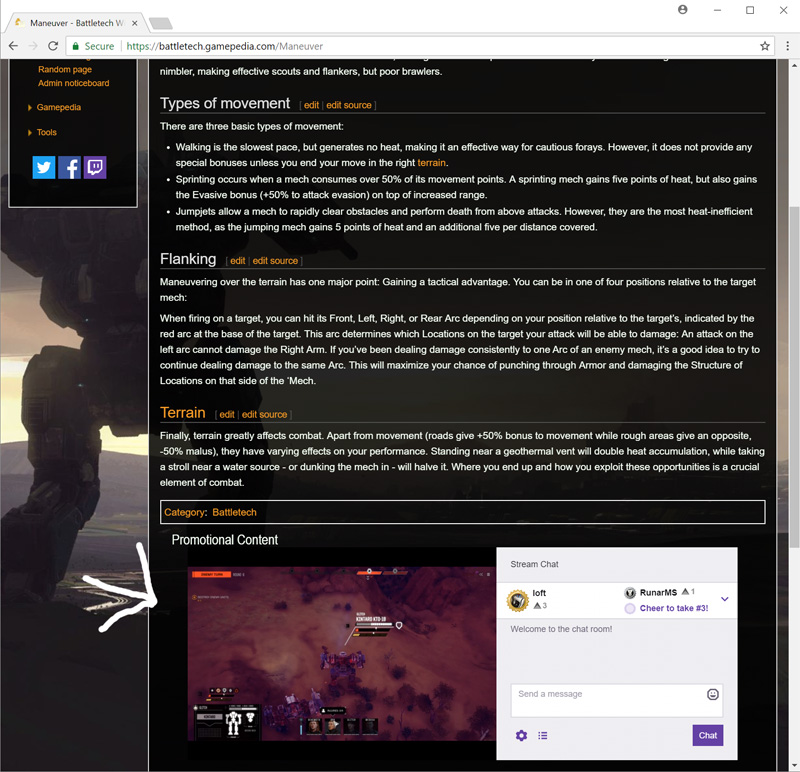
Here is a example from the battletech wiki on gamepedia that was featuring my stream. Goto the following URL: https://battletech.gamepedia.com/Maneuver

Make sure you have any ADBLOCK'er disabled and scroll to the bottom of the page.

Twitch Embedding - Gamepedia

Screenshot of promotional content section is available, click to enlarge.

If you are a Twitch streamer and want to know if you have received any traffic from gamepedia's embedding it should show up on the stream summery and stats section on the dashboard. Go to the "Where did my views come from?" section to see external views to your channel.


Now for the good and bad news (note this will be my opinion and perspective)

Good
  • Twitch is promoting streamers outside of the platform, 
  • Billions of additional channel views will be generated from this connection.
  • Games with very high traffic wiki's on gamepedia will be higher placed on the overall Twitch directory, leading to more floating users checking out those games. More people viewing, more perception of popularity / hype / bandwagon effects, which may lead to more game sales, increase userbase and community.
  • Ad Revenue will increase for Twitch in whole and for some partner streamers. (But may cannibalize other revenue streams from before?)

Bad
  • AdFill rates will crumble, to much inventory and not enough supply. (This can be turned around with a really super strong marketing team that entices advertisers) If a streamer is depended on advertising revenue, they are going to be taking a hit unless they situate themselves into a game that has high wiki traffic from gamepedia and can hold the top spot.
  • Viewbotting accusations will be on overdrive, which is going to lead to addition reporting posts that admins will be wasting time and energy on reviewing. This can also generate harassment to the streamer from others because they assume fraud is occurring with viewbots.
  • Check my previous post on Embedding, bottom section the downsides and links posted to reactions. I have been a very long time embedder focused channeled, its been a unique road and now others will sadly have to face some of the challenges I had to due to external promotion.
--------

What is your view on this matter? Please fill free to leave a comment below, good or bad - I would like to know! Thanks

**Update on this article**, Gamepedia as of around 7/22/2019 has stopped embedding Twitch Streams on their Wiki Network. They are also not part of Twitch anymore, they were sold off to Fandom / Wikia at the beginning of this year.
Sunday, March 18, 2018

Twitter rules changes and what streamers need to know

Twitter is updating their rule and policy document and here is what streamers should know.

The update focuses on cracking down on bot related activities but will also impact anyone using automation type of tweeting.

Here is what you need to know about the rules update:
  • Do not post duplicate content to multiple twitter accounts
  • Do not post the same content more than once to a single Twitter account
  • Do not use any form of automation to perform actions such as likes or retweets across many accounts that you have authorized.

Here is the official blog post on twitter about the update changes - https://blog.twitter.com/developer/en_us/topics/tips/2018/automation-and-the-use-of-multiple-accounts.html 

If you use any sort of automation to generate tweets when your stream goes live, make sure the URLs, the titles and description content is also unique.


Monday, February 19, 2018

How to delete clips made by viewers

Guide on How to Delete Clips Created by Viewers from Your Channel on Twitch.tv

Picture this: You're deep into an epic stream, chat is popping off, and suddenly a killer moment happens. Viewers jump in and clip it instantly. Most of the time, that's awesome for growth. But every once in a while, a clip pops up that's off-brand, low quality, or just not something you want representing your channel. That's where Twitch's built-in clip management tools come in handy.

Whether you're protecting your brand, cleaning up after a chaotic stream, or simply curating the best content, deleting viewer-created clips is quick and straightforward. Here's the most up-to-date way to handle it in 2026 using the Creator Dashboard.

Step 1: Access the Clips Manager in Your Creator Dashboard

Log in to your Twitch account on a desktop browser (the full management tools work best here). Click your profile picture in the top-right corner, then select Creator Dashboard from the dropdown.

In the left sidebar, click Content to expand the menu, then choose Clips. This opens your Clips Manager, where you'll see every clip made from your channel — both the ones you created and those made by viewers.

Pro tip: Twitch keeps everything organized with handy tabs at the top. Switch between "Clips of My Channel" (viewer clips plus yours) and "Clips I've Created" depending on what you're managing.

Step 2: Navigate to Clips of My Channel

Once inside the Clips section, click the Clips of My Channel tab. This is where all viewer-generated clips from your broadcasts live, along with any you've made yourself.

Here you'll see a clean grid or list view of thumbnails with titles, dates, and creators. Use the search and filter options at the top (like game category or date range) to quickly zero in on specific streams or moments.

Step 3: Select and Delete the Clip

Click on any clip thumbnail to open a detailed preview. A pop-up window appears with the video player and a set of action buttons on the right or top.

You'll see four main options:

  • Moderation — Quick tools to handle the clip creator if needed: Timeout User (24 hours), Ban User, or Delete All Clips from This Video. Perfect for removing an entire batch from one problematic stream.
  • Delete — The straightforward way to remove just this single clip permanently.
  • Share — Share the clip elsewhere if you love it.
  • Watch Clip on Page — Opens the full clip page for more context.

To delete, simply click the Delete button (or the trash can icon in newer views) and confirm. The clip is gone for good — no recovery option.

Bonus bulk option: For bigger cleanups, use the checkboxes next to multiple clips or the three-dot menu at the top to delete all clips from a specific stream or even everything you've created.

Quick Tip: Turning Clips into Monetization Gold

Twitch clips themselves still don't offer direct monetization like VODs or live streams. Many smart streamers turn this into an opportunity instead of a headache: they review viewer clips, delete the ones that don't fit, then compile the best ones into highlight reels or YouTube videos. It's a great way to repurpose content without duplicating raw clips on your channel.

If you're tired of managing random clips altogether, head to Creator Dashboard → Settings → Stream and toggle off "Enable Clips" to prevent new ones from being created in future broadcasts.

Bottom line: Your channel, your rules. Taking a few minutes to curate clips keeps your content looking professional and helps your best moments shine. Got a big stream coming up? Make this part of your post-stream checklist and you'll thank yourself later.

Tuesday, February 13, 2018

Capture Cards for live streaming on twitch.tv

Best Capture Cards for Live Streaming and Video Capture in 2026: Our Fully Updated Buyers Guide

If you are chasing crisp gameplay footage for your next big stream or need rock solid video capture for editing and sharing, the right capture card is still your secret weapon. In 2026, with next generation consoles pushing HDR, VRR, and higher frame rates, an outdated card can hold you back. We have revisited our original list, fact checked every spec, updated prices and capabilities with the latest data, and added fresh insights to help you choose smarter. Whether you are a beginner streamer or a pro content creator, this guide gives you everything you need to pick the perfect tool without the guesswork.

What to Look for in a Capture Card Today

Modern capture cards are not just about grabbing video anymore. Focus on these key factors to match your setup:

  • Resolution and Frame Rate: Aim for at least 1080p60 capture. True 4K60 or higher passthrough is now standard for PS5, Xbox Series X/S, and Switch 2 compatibility.
  • Interface Type: PCIe internal cards deliver the lowest latency for serious setups. USB external options are easier for laptops and portable streaming.
  • HDR and VRR Support: Essential in 2026 for lag free, vibrant gameplay passthrough without compromising your display settings.
  • Pass Through Quality: Zero lag HDMI output so you can game on your TV or monitor without delay.
  • Price versus Performance: Budget under 200 dollars for solid 1080p options. Premium internal cards can exceed 1000 dollars for broadcast level features.

We have updated every entry below with current 2026 pricing based on major retailers like Amazon, verified specs, and real world notes. Some classics remain strong performers, while others have evolved into newer versions worth considering.

Updated Capture Card Recommendations

Blackmagic Design DeckLink 4K Extreme 12G

Blackmagic Design DeckLink 4K Extreme 12G capture card

This pro grade PCIe card is still a powerhouse for serious creators who need broadcast quality capture and playback. It handles full 12G SDI for rock solid 4K workflows, perfect for studio setups or multi camera live streams.

  • Interface: PCIe 8 lane Gen 2 (compatible with 8/16 lane slots)
  • Inputs: 2x 12G SDI (SD/HD/2K/4K, single/dual link), HDMI 2.1, analog component/composite/S Video
  • Outputs: Matching SDI and HDMI with 2160p60 support
  • Key Features: 10 bit YUV or 12 bit RGB, 3D stereoscopic, up/down/cross conversion, genlock support
  • Current Price Range (2026): 1095 dollars to 1200 dollars

Best for: Professional video editors and multi format broadcasters. If you are running OBS or DaVinci Resolve, this card integrates seamlessly and future proofs your rig for years.

Check current pricing on Amazon. As an Amazon Associate I earn from qualifying purchases.

Elgato Game Capture 4K60 Pro (MK.2 Edition)

Elgato Game Capture 4K60 Pro capture card

The original 4K60 Pro has evolved, but the MK.2 version and the newer 4K Pro successor remains a favorite for console gamers. Expect ultra low latency and excellent software integration with Elgato ecosystem.

  • Interface: PCIe x4
  • Input: HDMI 2.1 (unencrypted)
  • Output: Lag free HDMI passthrough up to 8K60 on newer models
  • Max Capture: 4K60 with HDR10 and VRR support
  • Current Price Range (2026): 220 dollars to 280 dollars (MK.2 around 250 dollars)

Best for: PS5, Xbox Series X/S, and Switch 2 streamers who want 4K quality without breaking the bank. Pair it with OBS Studio for effortless high end streams.

Check current pricing on Amazon. As an Amazon Associate I earn from qualifying purchases.

Elgato Game Capture HD60 Pro

Elgato Game Capture HD60 Pro capture card

A reliable internal workhorse that is still widely available and perfect for 1080p streaming. It delivers hardware encoding so your CPU stays free for gaming.

  • Interface: PCIe x1
  • Input: HDMI from modern consoles (unencrypted)
  • Output: HDMI passthrough up to 1080p60
  • Max Capture: 1080p60 with H.264 hardware encoding
  • Current Price Range (2026): 170 dollars to 200 dollars

Best for: Budget conscious streamers who do not need 4K but want zero lag performance and easy setup. Great starter card that still holds up beautifully.

Check current pricing on Amazon. As an Amazon Associate I earn from qualifying purchases.

AVerMedia Live Gamer Portable 2 Plus (GC513)

AVerMedia Live Gamer Portable 2 Plus GC513

This compact USB powered portable remains a go to for on the go creators. It shines in standalone mode with no PC required for basic recording.

  • Interface: USB 2.0
  • Input: HDMI 2.0
  • Output: 4K60 passthrough
  • Max Capture: 1080p60 (with hardware encoding)
  • Current Price Range (2026): 130 dollars to 160 dollars

Best for: Mobile streamers, console only setups, or anyone who wants simple plug and play with party chat audio mixing. The PC free recording mode is a lifesaver for travel.

Check current pricing on Amazon. As an Amazon Associate I earn from qualifying purchases.

AVerMedia Live Gamer HD 2 (GC570)

Avermedia Live Gamer HD 2 GC570

An internal PCIe card that delivers uncompressed 1080p60 capture with minimal system load and ideal for clean, high quality streams.

  • Interface: PCIe x1 Gen 2
  • Input: HDMI plus 3.5mm audio
  • Output: HDMI passthrough
  • Max Capture: 1080p60 uncompressed
  • Current Price Range (2026): 150 dollars to 180 dollars

Best for: PC gamers and streamers working with multiple sources who prioritize quality over portability. Works flawlessly with OBS and RECentral software.

Check current pricing on Amazon. As an Amazon Associate I earn from qualifying purchases.

Razer Ripsaw HD

Razer Ripsaw capture card

Razer updated Ripsaw HD brings reliable performance in a sleek design. It is a solid external USB option for console streamers.

  • Interface: USB 3.0
  • Input: HDMI
  • Output: HDMI passthrough
  • Max Capture: 1080p60 uncompressed
  • Current Price Range (2026): 80 dollars to 140 dollars (often on sale)

Best for: Beginners and Razer ecosystem fans who want plug and play simplicity with Chroma lighting to match their setup.

Check current pricing on Amazon. As an Amazon Associate I earn from qualifying purchases.

Hauppauge HD PVR 60 (and Pro 60 successor)

HAUPPAUGE HD PVR 60 capture card

The HD PVR 60 series now with Pro 60 4K passthrough support remains a straightforward USB solution for console recording.

  • Interface: USB
  • Input: HDMI
  • Output: HDMI passthrough
  • Max Capture: 1080p60
  • Current Price Range (2026): 110 dollars to 170 dollars

Best for: Casual gamers who want simple recording without software complexity. The Pro 60 upgrade adds better 4K passthrough for modern consoles.

Check current pricing on Amazon. As an Amazon Associate I earn from qualifying purchases.

Legacy Options Still Worth Considering (Used Market)

Some older models from our original list are harder to find new but offer great value on eBay or refurbished:

  • DeckLink 4K Extreme (previous gen): Still excellent for 4K workflows and expect 600 dollars to 900 dollars used.
  • Elgato Game Capture HD60: Budget USB classic for 1080p60 and 60 dollars to 100 dollars used.
  • Blackmagic Design Intensity Pro 4K: Solid HDMI option around 180 dollars to 220 dollars new or used.

These are fantastic if you are on a tight budget, but newer cards add HDR and VRR support that is game changing for 2026 consoles.

Final Thoughts: Which Capture Card Should You Buy in 2026?

For most streamers, start with the Elgato HD60 X or AVerMedia Live Gamer Portable 2 Plus and they deliver the best balance of price, ease, and modern features. If you are going pro, the DeckLink 4K Extreme 12G or Elgato 4K Pro are unbeatable for quality and expandability. Always verify your console HDCP settings and test with your streaming software first. The right card turns good footage into great content, so choose based on your workflow and upgrade path. Happy streaming and your audience is waiting!